VMware Workstation

Install and Run VMs

Run several OSes such as Microsoft Windows, Linux, BSD, and others inside a virtual machine. This article shows how to download, install, and create VMs with VMware Workstation.

If you don't need to use VMware specifically, we recommend using an alternative virtualization solution such as VirtualBox. VMware is proprietary software, and Broadcom requires personally identifying information to download VMware Workstation. In contrast, VirtualBox is freely downloadable, open-source, and may be installed with a couple of clicks from the Curated Apps page.

Run virtual machines with VMware Workstation.

Run virtual machines with VMware Workstation.

Download, Install & Manage

Download

VMware Workstation may be downloaded and used free of charge. You must have a Broadcom account to access the downloads, and will be asked for personally identifying information, such as your full name and address, as part of the download process.

The download procedure could be changed by Broadcom at any time. The following steps are what worked in January 2026.

Install

Run the downloaded VMware-Workstation-Full*.bundle script to install VMware Workstation. This is most easily done from a Konsole window.

1. Open the Dolphin file manager.

2. Navigate to the directory that contains the script.

3. Right-click in any empty space in the folder.

4. Click Actions > Open Terminal Here.

5. Make the script executable.

chmod +x ./VMware-Workstation-Full*.bundle;

6. Run the script as root.

sudo ./VMware-Workstation-Full*.bundle;

7. Enter your password when prompted. Note that no characters or dots are presented as you type; this is normal. Then press [ENTER] to start the installation.

8. During installation, system notifications may show vmnet network connections activating and deactivating. The message "Installation was successful." will appear when complete.

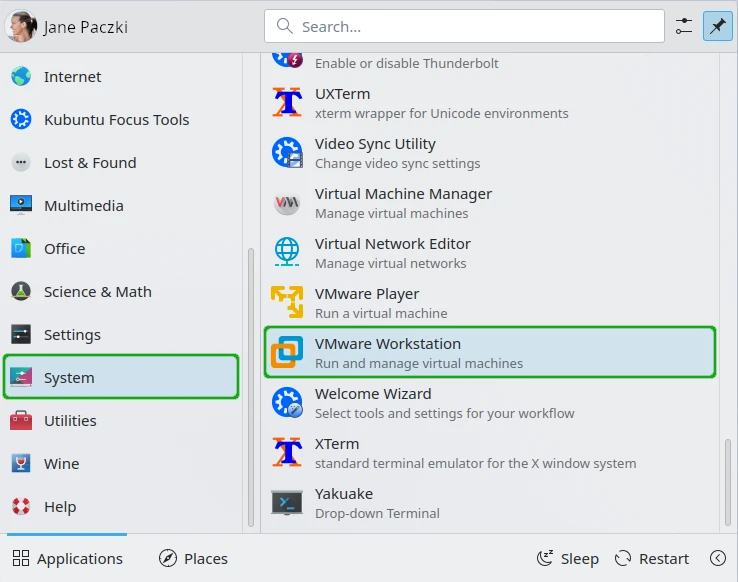
9. Click Start Menu > System > VMware Workstation to launch the application.

Launch VMware Workstation.

Launch VMware Workstation.

10. When the Broadcom foundation agreement appears, review the license. If it is acceptable, click "I accept the terms in the license agreement.", then click [ Next ].
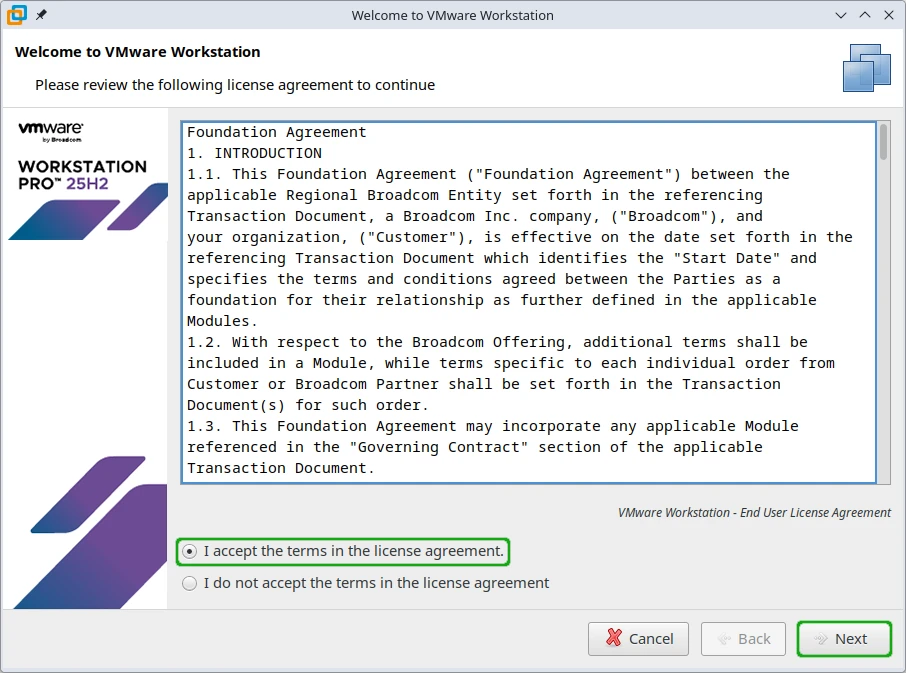
Accept the Broadcom foundation agreement.

Accept the Broadcom foundation agreement.

11. When the VMware end user license agreement appears, review the license. If it is acceptable, click "I accept the terms in the license agreement.", then click [ Next ].
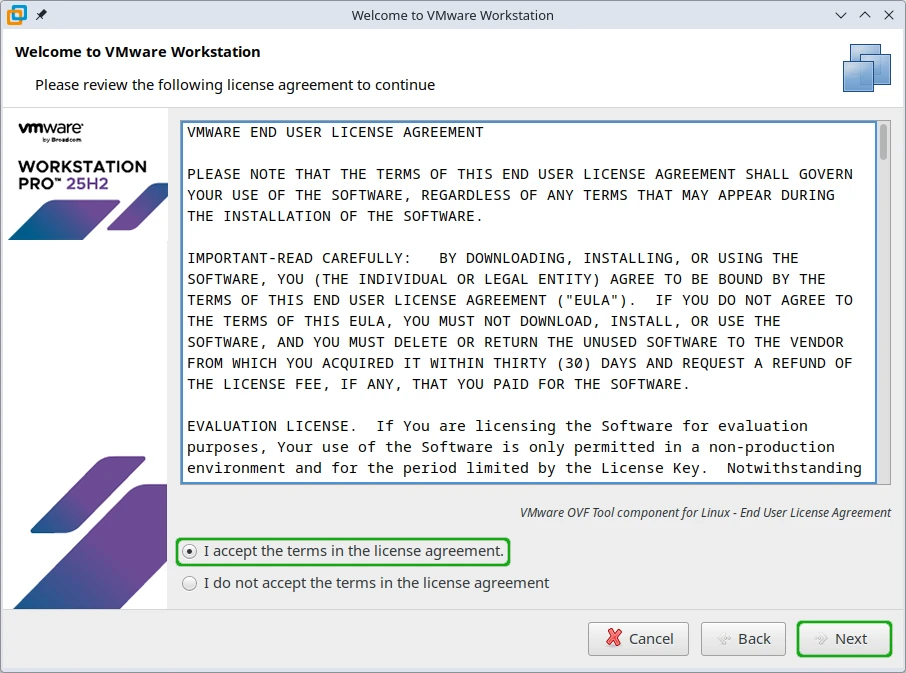
Accept the VMware end user license agreement.

Accept the VMware end user license agreement.

11. When offered to join the VMware Customer Experience Improvement Program, click your desired option, then click [ Finish ].
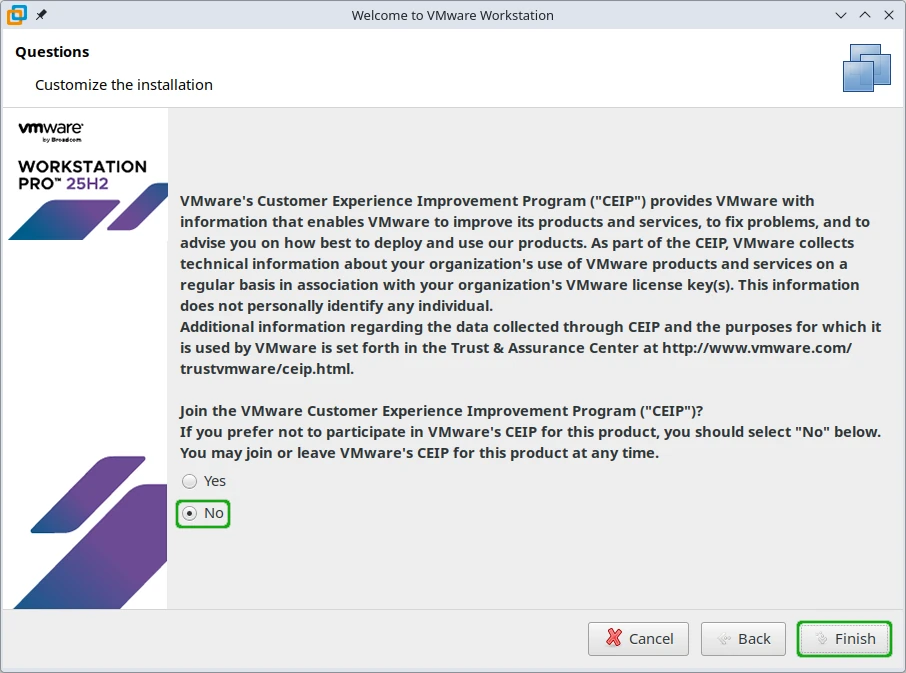
Choose whether to join the VMware CEIP.

Choose whether to join the VMware CEIP.

12. When prompted for your password, enter it and click [ OK ].
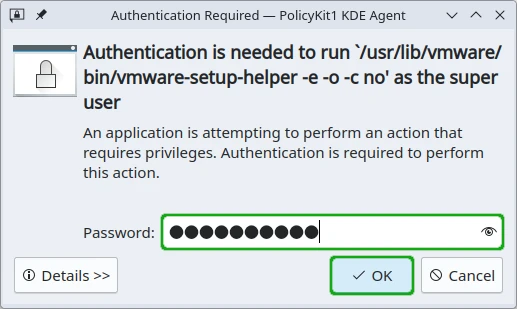
Enter your password to finish the VMware Workstation setup process.

Enter your password to finish the VMware Workstation setup process.

Uninstall

To uninstall VMware Workstation, open a terminal in the same folder as the VMware-Workstation-Full*.bundle script. Then enter the following:

sudo ./VMware-Workstation-Full*.bundle --uninstall-product=vmware-workstation;
Restart

VMware Workstation installs a background service that handles VM startup, management, and networking. Restarting this background service may fix issues with VMware and system networking in general. To do this, open a terminal and enter the following:

sudo systemctl restart vmware;
Enable & Disable

Disabling the VMware Workstation service prevents VMware from functioning, and prevents vmnet network connections from being activated. This can be undone by re-enabling the service later. To disable VMware, open a terminal and enter the following:

sudo systemctl disable vmware; sudo systemctl stop vmware;

To re-enable it:

sudo systemctl enable vmware; sudo systemctl start vmware;
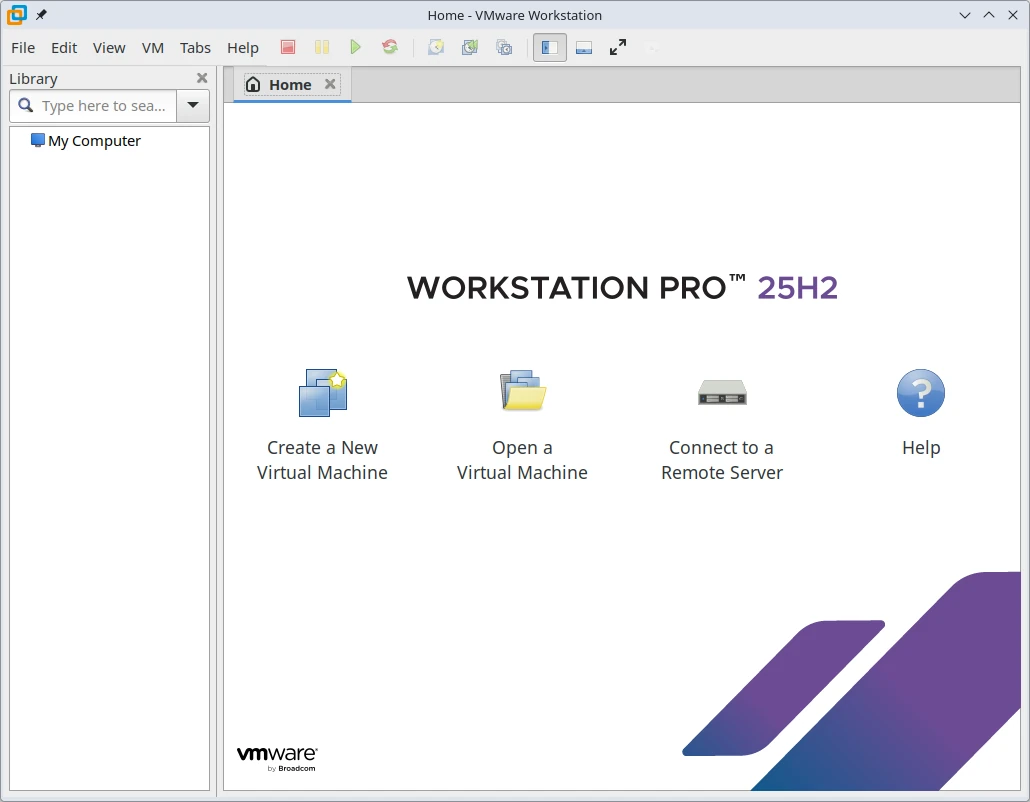
Create a Virtual Machine

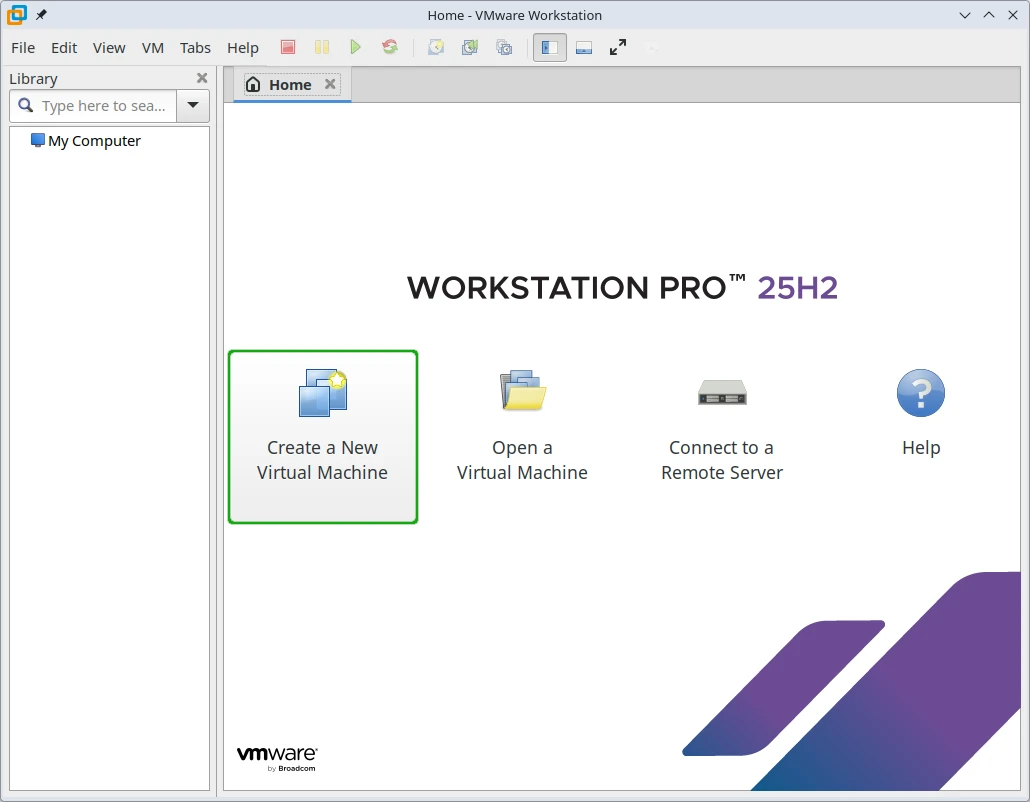
1. On the "Home" page, click [ Create a New Virtual Machine ].

Click "Create a New Virtual Machine".

Click "Create a New Virtual Machine".

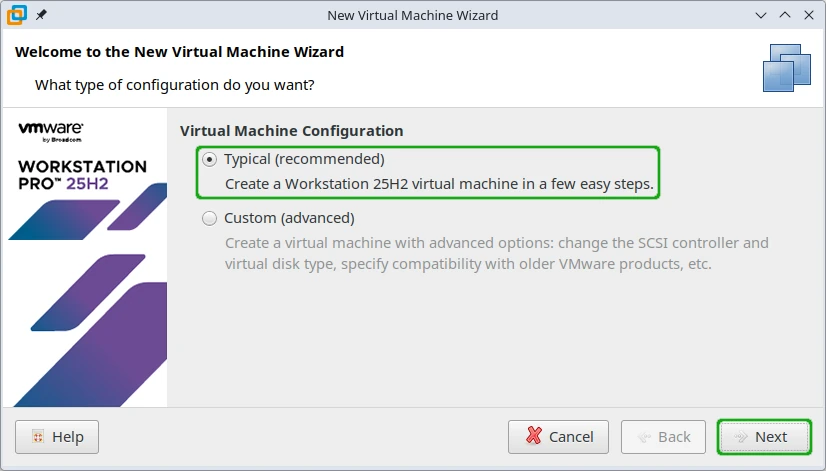
2. Select "Typical (recommended)", then click [ Next ].

Use "Typical" configuration.

Use "Typical" configuration.

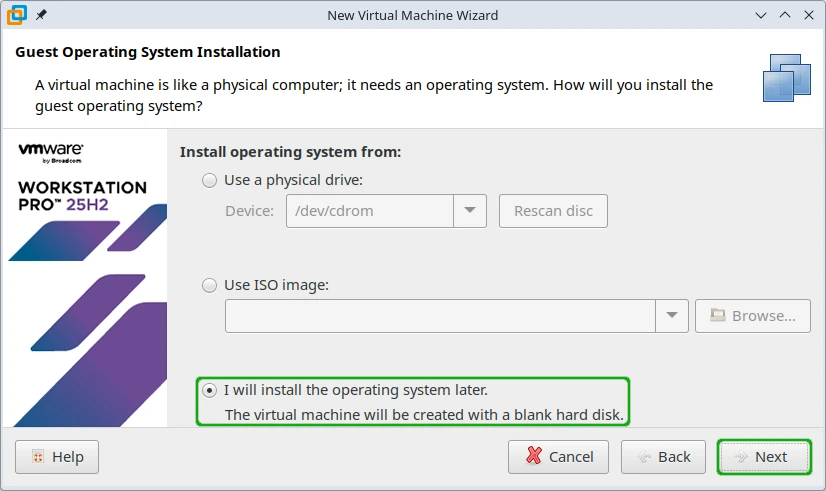
3. Select "I will install the operating system later", then click [ Next ].

Choose to install the OS later.

Choose to install the OS later.

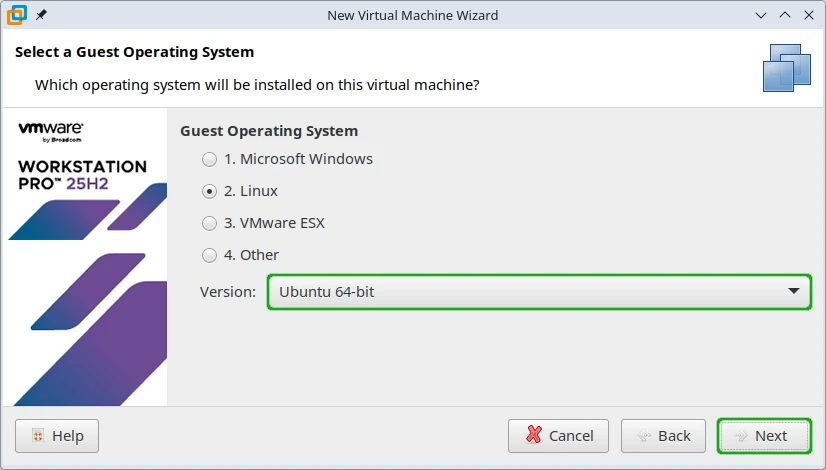
4. Select the OS version you intend on installing, then click [ Next ].

Select the OS version.

Select the OS version.

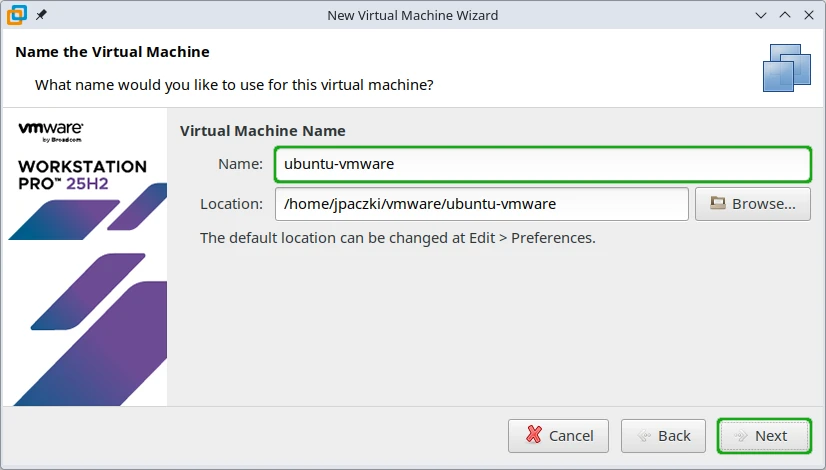
5. Set the VM's name, then click [ Next ].

Set the VM's name.

Set the VM's name.

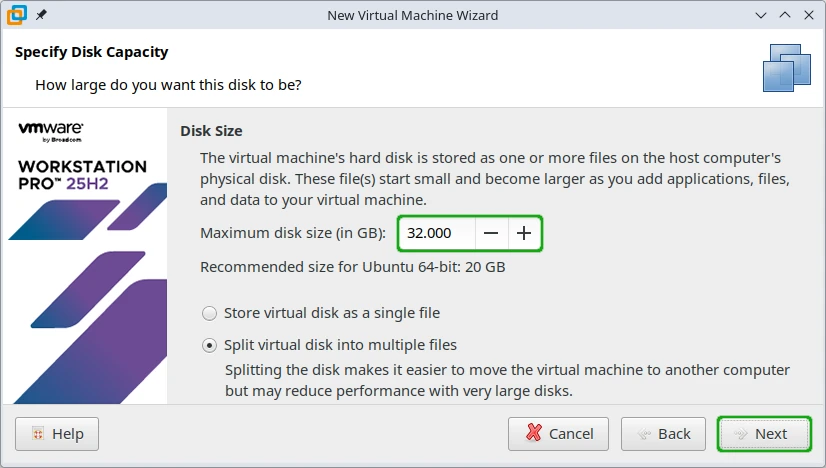
6. Set the VM's disk size, then click [ Next ]. Our research shows the default, "Split virtual disk into multiple files," is preferred because it reduces the disk space required to manage VM snapshots.

Set the VM's disk size.

Set the VM's disk size.

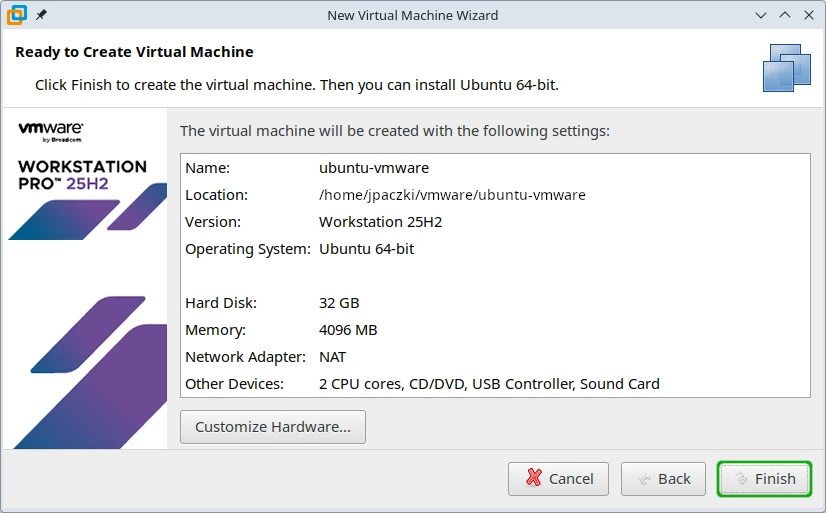
7. Confirm the selected VM settings, then click [ Finish ]. You may also click [ Customize Hardware... ] to adjust the VM's RAM and CPU cores.

Finish creating the VM.

Finish creating the VM.

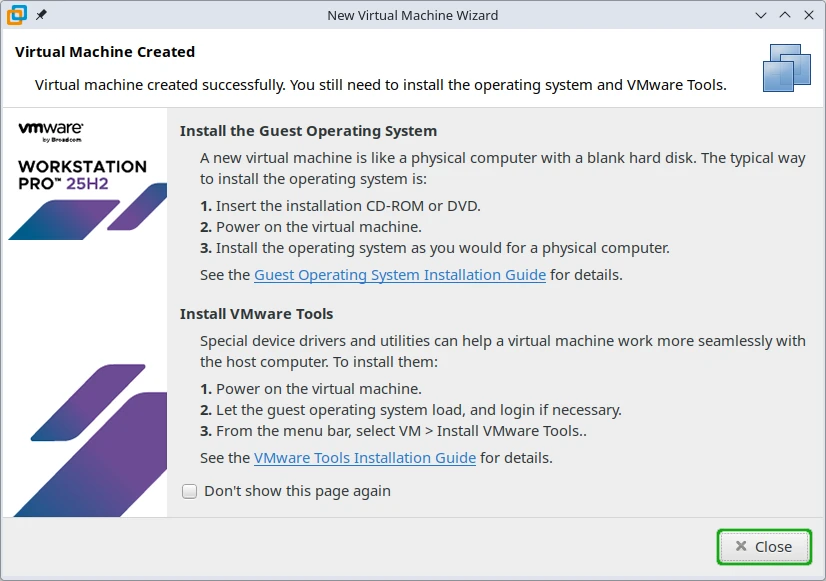
8. Click [ Close ] to exit the VM creation wizard.

Exit the VM creation wizard.

Exit the VM creation wizard.

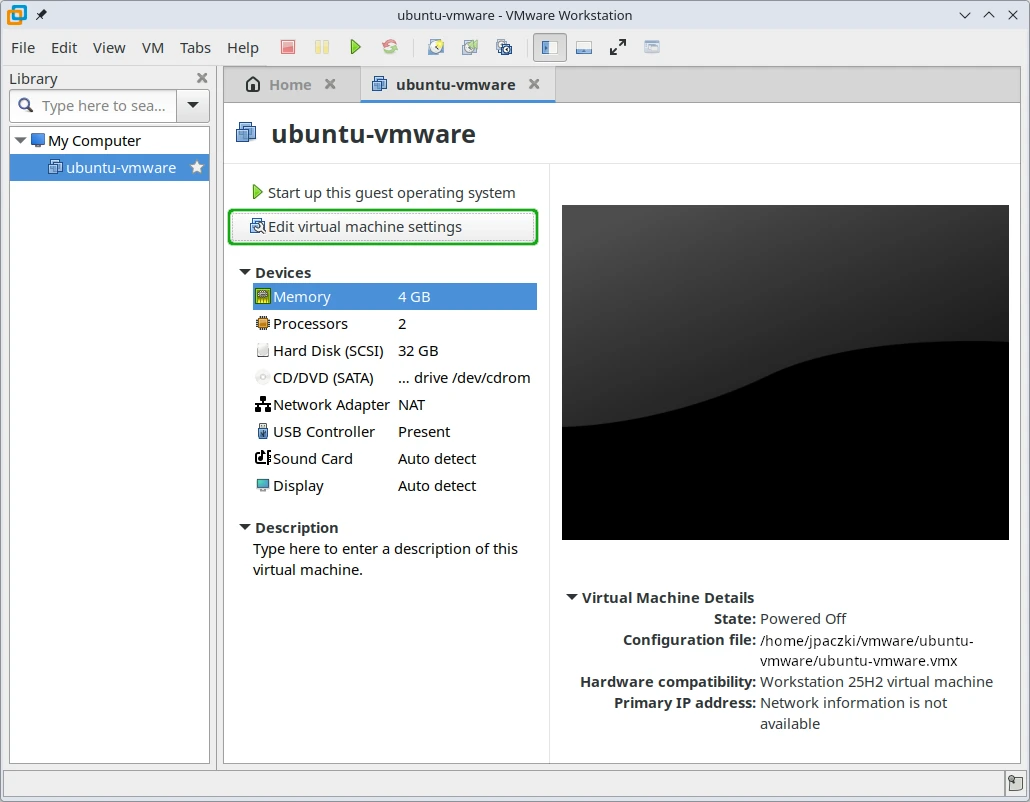
9. In the new virtual machine's tab, click [ Edit virtual machine settings ].

Edit the VM's settings.

Edit the VM's settings.

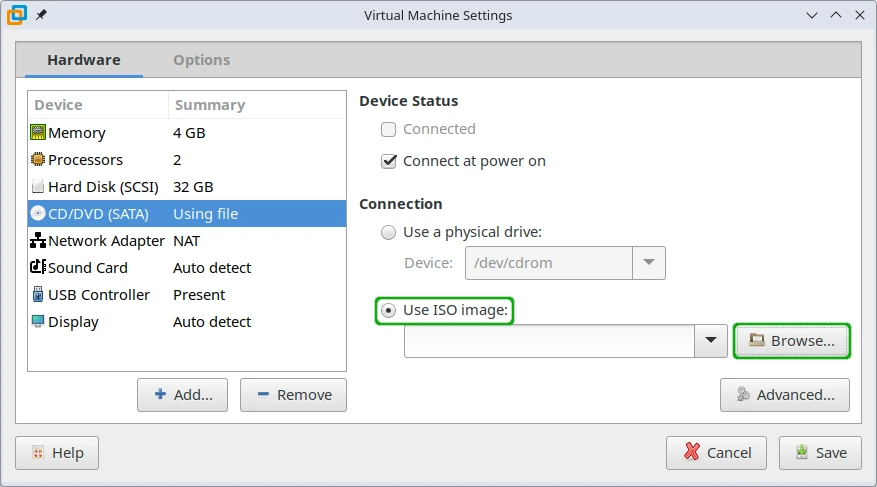
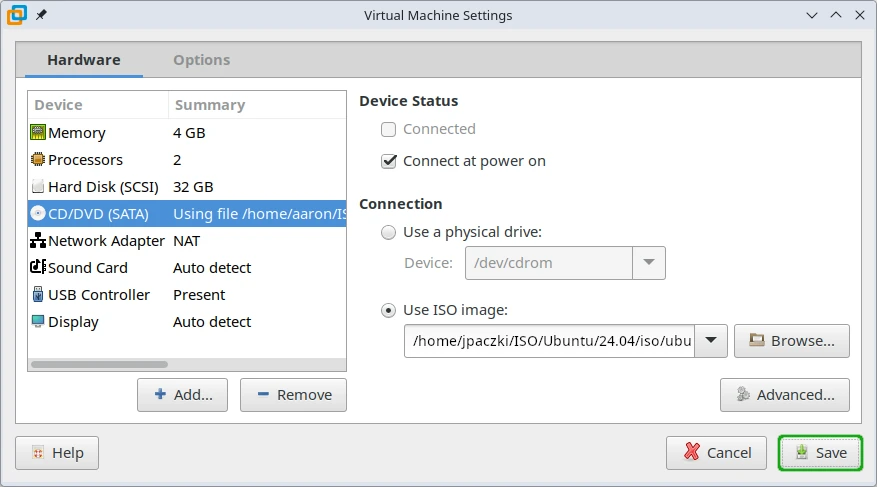
10. Click CD/DVD (SATA) > Use ISO image > [ Browse... ].

Browse for an ISO file.

Browse for an ISO file.

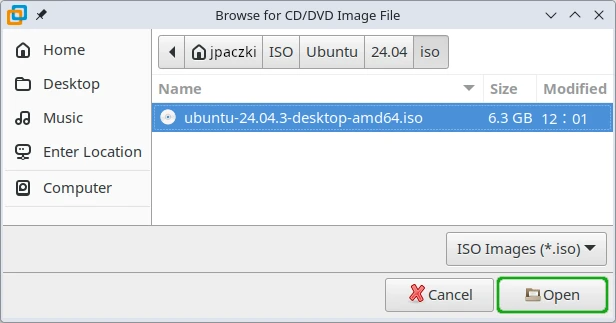
11. Select the ISO image containing the OS you wish to install, and click [ Open ].

Select the ISO file.

Select the ISO file.

12. Click [ Save ].

Save the VM's settings.

Save the VM's settings.

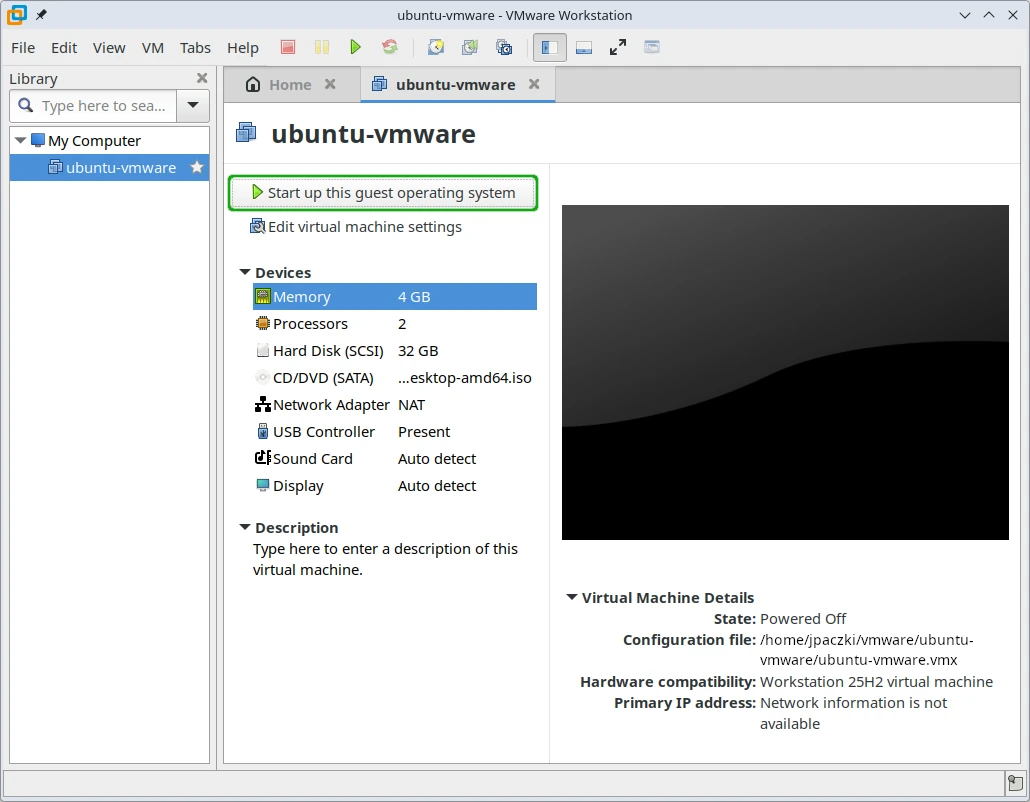
13. In the new virtual machine's tab, click [ Start up this guest operating system ].

Launch the VM.

Launch the VM.

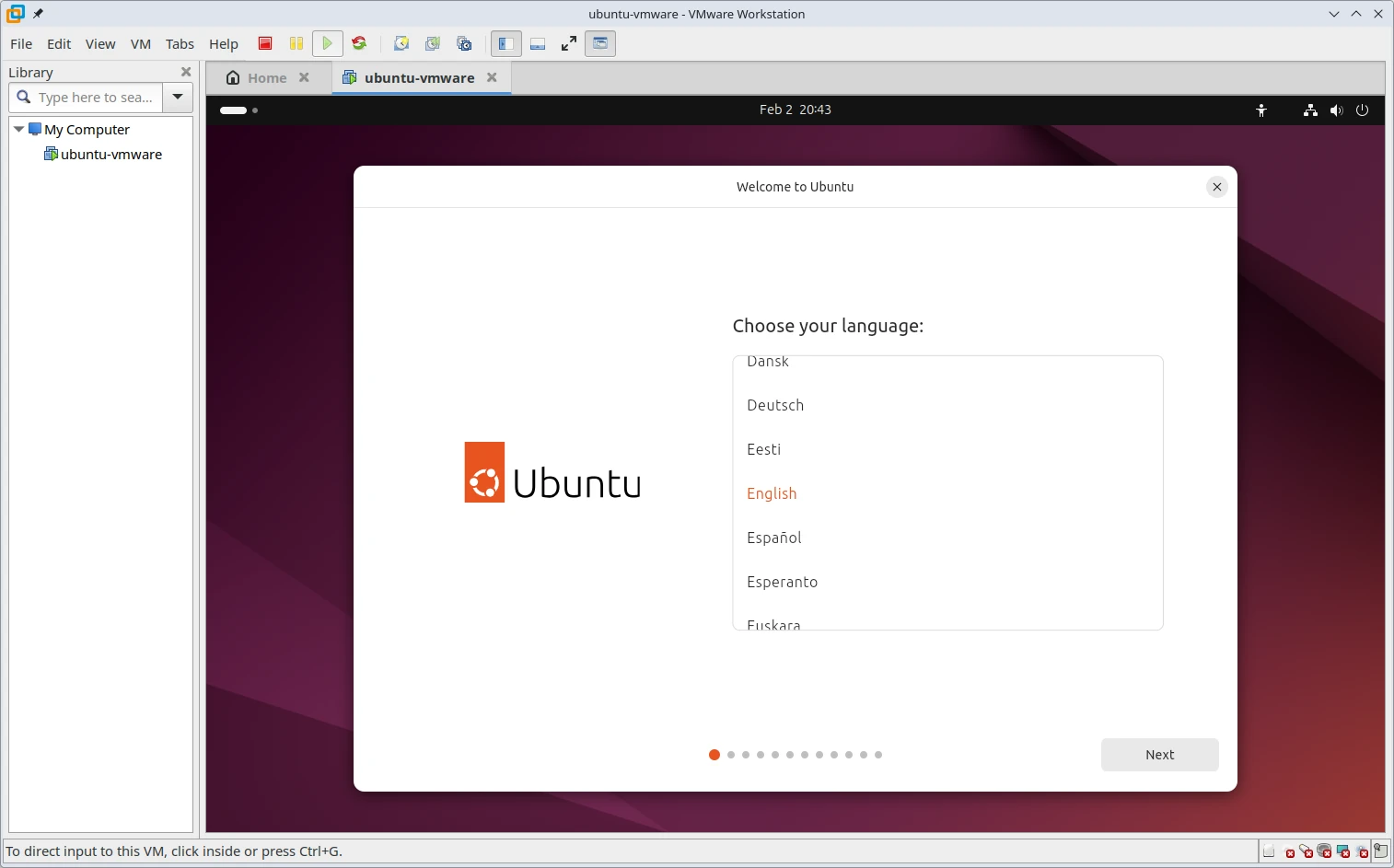
14. Install the OS within the VM.

Install the OS.

Install the OS.

See the official VMware Workstation Pro documentation on the Broadcom website.

Troubleshooting

Q: I can't download VMware Workstation. Are there good alternatives?

A: Yes. We recommend that most users use VirtualBox. You may install it from the Curated Apps page with just a couple of clicks. It provides most of VMware's features.

Q: Networking has completely broken after installing VMware Workstation. How do I fix this?

A: VMware Workstation creates virtual network connections to allow in-VM networking to function. This may cause the host's networking to break. Restarting VMware should fix the issue. One can also disable the VMware services. Both of these are described above.

Revisions

This is a partial revision history. See the git repository for all entries.

Disclaimer

We try hard to provide a useful solution validated by professionals. However, we cannot anticipate every situation, and therefore cannot guarantee this procedure will work for your needs. Always backup your data and test the solution to determine the correct procedure for you.

THIS SOLUTION IS PROVIDED BY THE COPYRIGHT HOLDERS AND CONTRIBUTORS “AS IS” AND ANY EXPRESS OR IMPLIED WARRANTIES, INCLUDING, BUT NOT LIMITED TO, THE IMPLIED WARRANTIES OF MERCHANTABILITY AND FITNESS FOR A PARTICULAR PURPOSE ARE DISCLAIMED. IN NO EVENT SHALL THE COPYRIGHT OWNER OR CONTRIBUTORS BE LIABLE FOR ANY DIRECT, INDIRECT, INCIDENTAL, SPECIAL EXEMPLARY, OR CONSEQUENTIAL DAMAGES (INCLUDING, BUT NOT LIMITED TO, PROCUREMENT OF SUBSTITUTE GOODS OR SERVICES; LOSS OF USE, DATA, OR PROFITS; OR BUSINESS INTERRUPTION) HOWEVER CAUSED AND ON ANY THEORY OF LIABILITY, WHETHER IN CONTRACT, STRICT LIABILITY, OR TORT (INCLUDING NEGLIGENCE OR OTHERWISE) ARISING IN ANY WAY OUT OF THE USE OF THIS SOLUTION, EVEN IF ADVISED OF THE POSSIBILITY OF SUCH DAMAGE.

HAVE QUESTIONS?Call 844-536-2871 or write
TellMeMore@kfocus.org   |  GET FOCUS MERCH