Manage software on your system and on your schedule using Synaptic, Discover, and terminal commands.
Please read the disclaimer before proceeding. We review and update guided solutions regularly. If you have suggestions or requests, please write support@kfocus.org.
Official Ubuntu flavors like Kubuntu support at least three package types: Debian, Snap, and Flatpak. When all other factors are equal, we recommend using official Ubuntu Debian packages over Snaps, and Snaps over Flatpaks.
In theory, the container technology used by Snaps and Flatpaks can make them more reliable and secure. In practice, however, this isn’t always the case. Also, when compared to Debian packages, both Snaps and Flatpaks can be slower to start, consume more RAM and disk space, and may not integrate cleanly with the desktop GUI.
For these reasons, we generally prefer using official Ubuntu Debian packages whenever possible. However, under certain circumstances, Snaps and Flatpaks are a preferred choice. This is discussed further in the Install Packages section below.
We recommend updating software packages daily. This keeps your system current with the latest security and feature enhancements. Updates on Focus systems rarely cause issues because kernels, GPU drivers, and desktop updates are validated and curated. In addition, Focus systems only use Kubuntu Long-Term Support (LTS) releases, which are almost always more reliable.
Even with all these safeguards, however, we recommend updating at the end of the day, not right before you need to get something done. Although glitches are rare, it is best to deal with them on your own terms. To be extra cautious, you can use System Rollback to take a snapshot before updating, or turn on automatic snapshots. You can also use apt-rollback to revert recent package changes, but please read the docs and use caution.
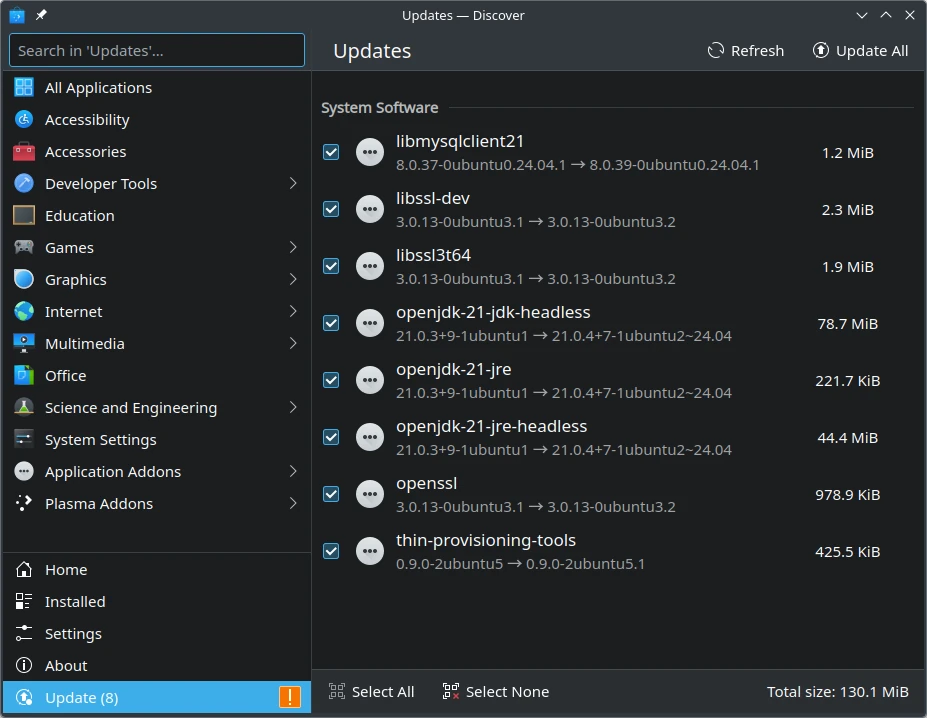
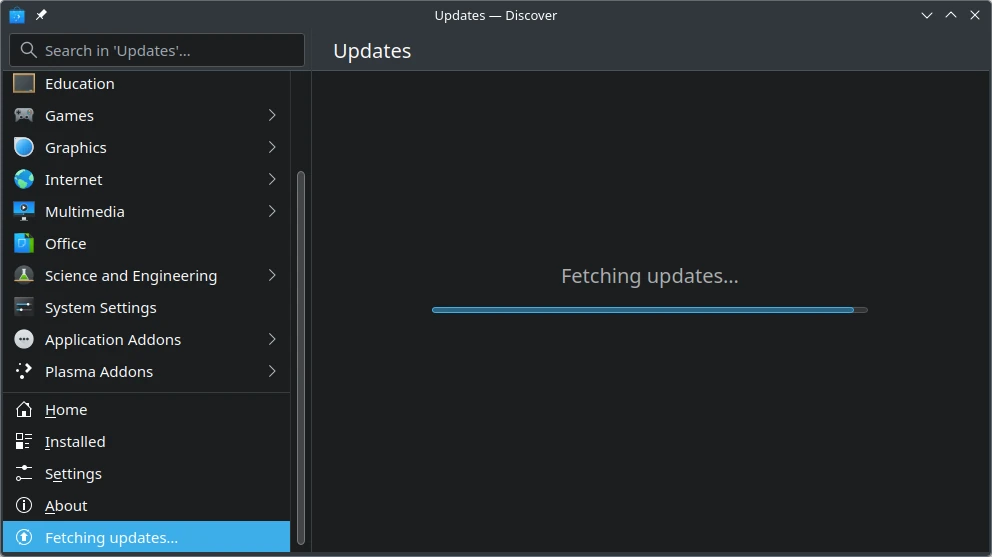
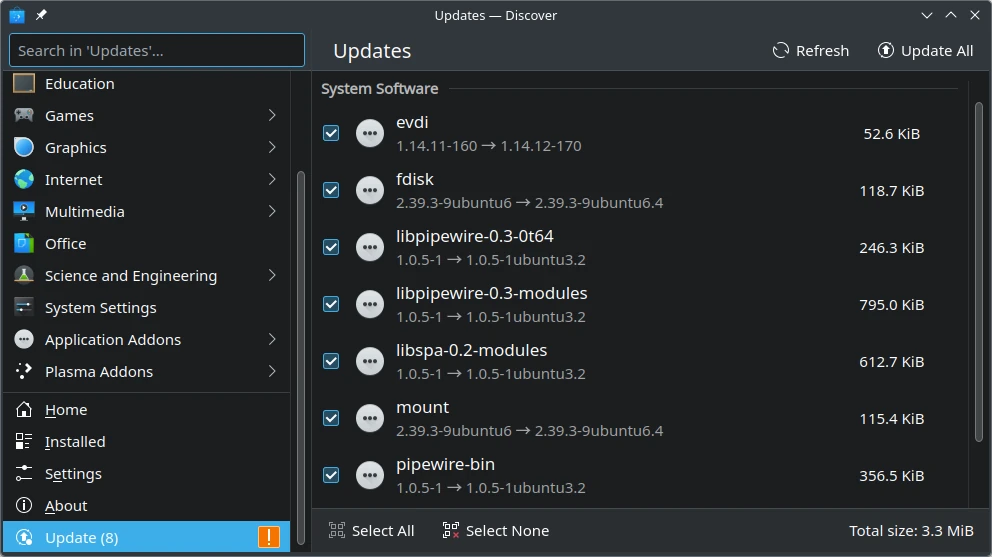
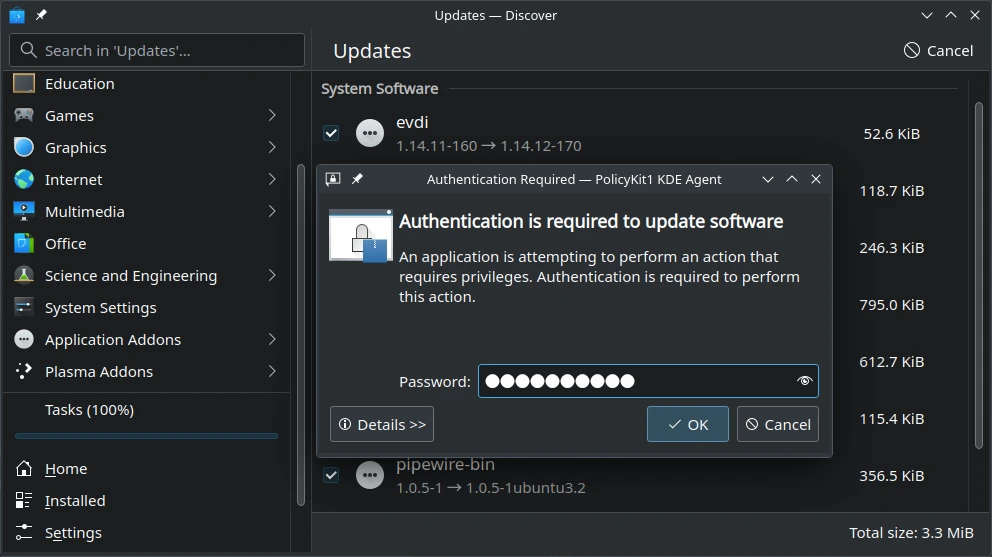
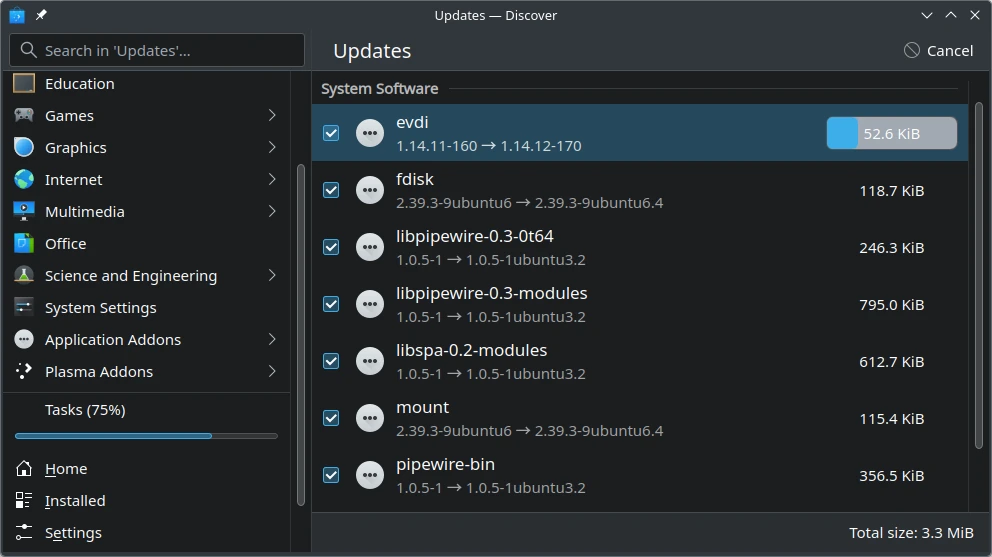
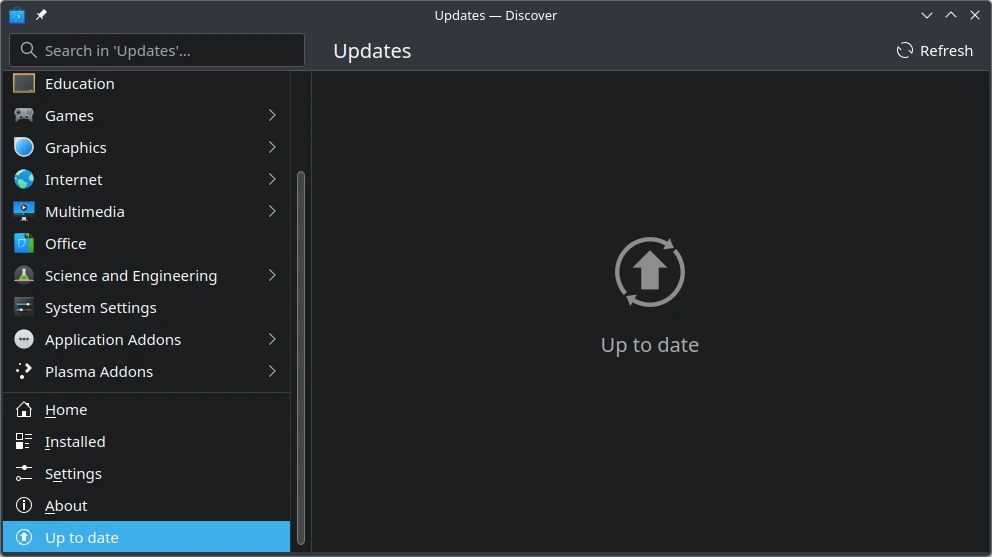
While it is possible to use other graphical tools to update packages, we recommend using the default Discover Updater because it notifies users of updates and handles the process correctly and easily for both Debian and Flatpak packages.

5. Wait for the packages to download and update. If there are many packages, this can take several minutes.
Another way to update packages is to open Discover and then select "Updates" in the bottom-left corner of the app. Then return to the second step above.
If you have installed the Flatpak Discover integration, Flatpaks are updated along with Debian packages. Snap packages are auto-updated four times per day by the snapd service, so manual updates are rarely required. One can, however, force a Snap update as shown in the codeblock below.
You may use terminal commands to upgrade all packages as shown below. Notice that a full-upgrade is required to update the Debian packages in the same fashion as Discover:
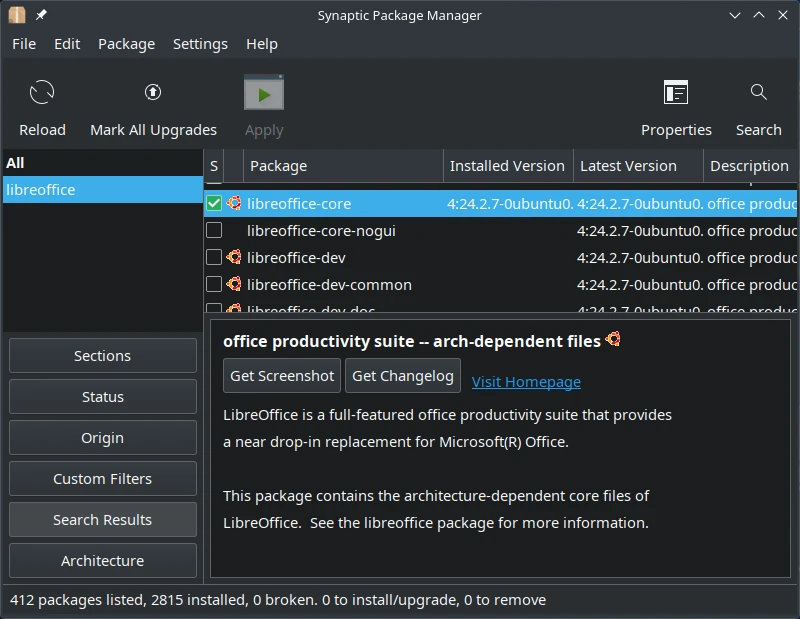
Synaptic shows all available and installed Debian packages. Because most installed apps are Debian packages, we suggest you start with this tool. Enter sudo -E synaptic into a terminal to run it with the same theme as your desktop. It should be installed by default, but if need to reinstall it for any reason, enter sudo apt install synaptic into a terminal.
To browse packages with Synaptic, click [ Search ] at the top-right and you can search for a string in the name, description, or other field of the package metadata. Once you have found a package, you may inspect it as shown below:
Synaptic has extensive built-in help documentation which we encourage you to use. The project page is here .
The Discover app does a great job of browsing Snap and Flatpak packages, but it often does not see many important Debian packages. That's because these packages do not include the AppStream metadata that Discover requires to display them. For this reason, we suggest you start with Synaptic, Aptitude, or apt as described above first.
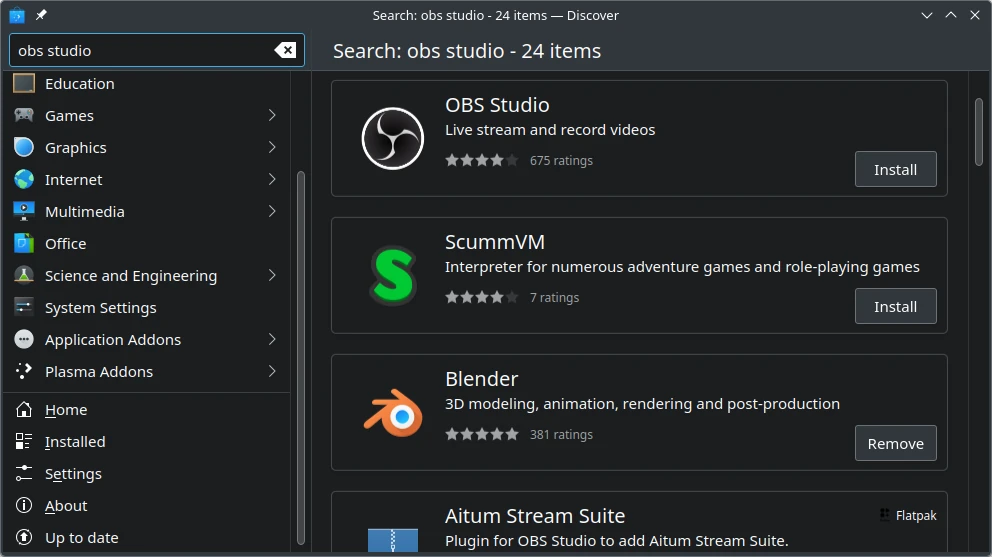
As with Synaptic, you can browse packages by searching through categories on the left-hand side of Discover, or you may enter a search string into the top-left field and press [Enter]. When browsing, the pane shows a "Package Listing" that matches the category or query. Typically, it is filled with short-and-wide rectangles that contain "Package Summaries", as shown below:
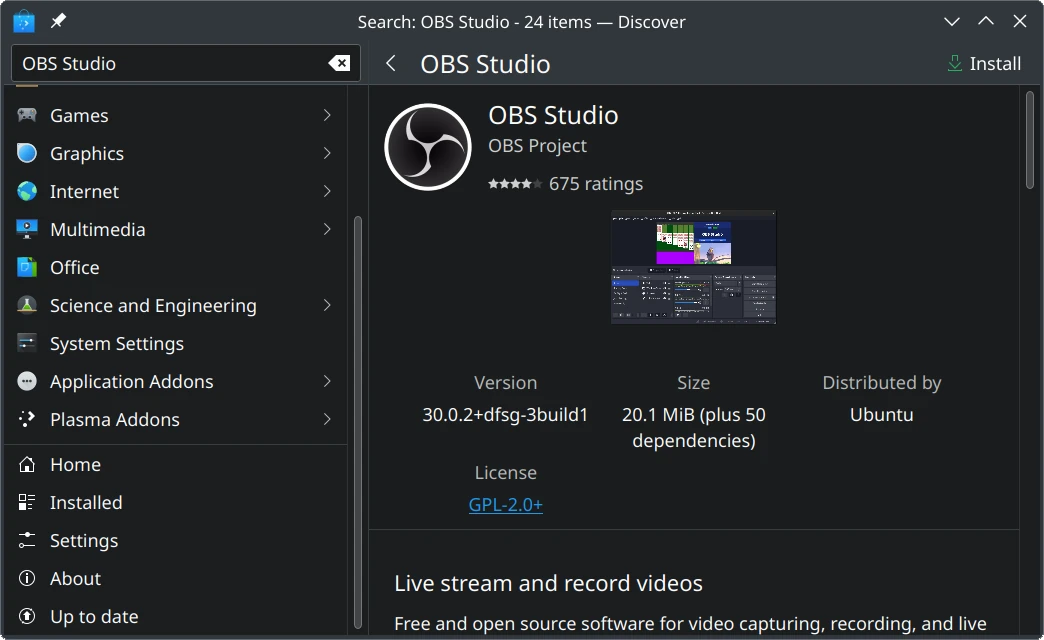
Once you find the "Package Summary" you are looking for in the "Package Listing", click on it to show the "Package Details" view. This covers the entire right-hand panel and provides additional insights into the capabilities and limitations of the package, as shown below:
Use Apt Tools like apt, apt-get, apt-cache, and aptitude to browse Debian packages:
Use snap and flatpak to browse Snap and Flatpak packages:
We recommend you install only one type of package per app. For example, while Gimp is available in all package types, you should probably just stick with the Debian package for the least trouble, even if it is a bit older. This avoids version conflicts and data corruption that can occur if you switch between Debian, Snap, or Flatpak installations of the app. As described in the Package Types section above, we recommend you consider a Debian package before a Snap or Flatpak.
If you feel the package install might break things, you can use System Rollback to take a snapshot before installation. You may alternatively use apt-rollback, but please read the docs and use caution. Generally, Snap and Flatpak images are safer to install and remove because they are sandboxed.
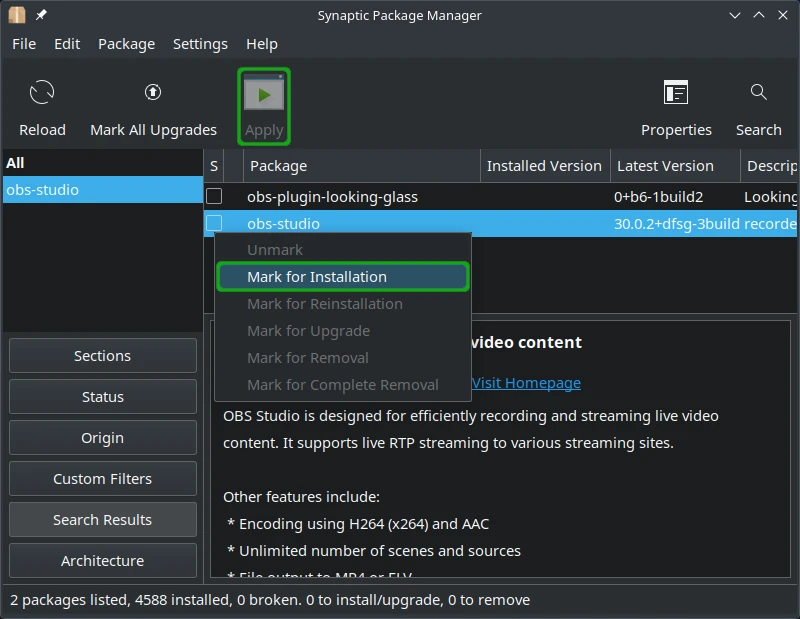
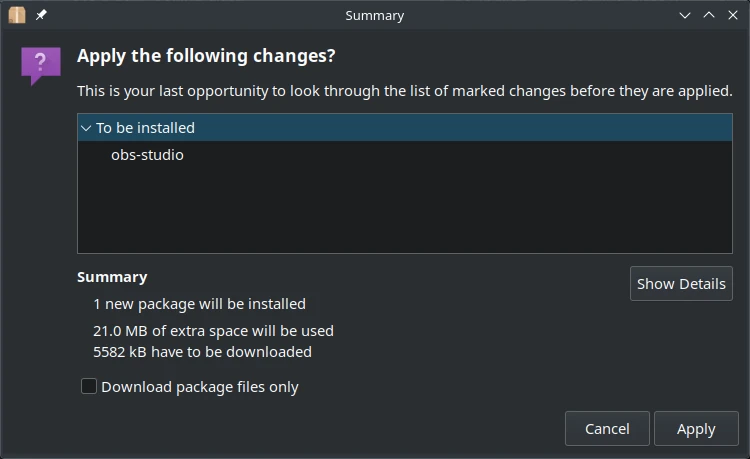
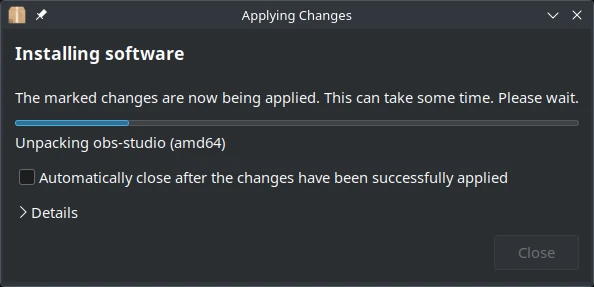
Synaptic shows all available and installed Debian packages. Because most installed apps are Debian packages, we suggest you start with this tool. Enter sudo -E synaptic into a terminal to run it with the same theme as your desktop. It should be installed by default, but if need to reinstall it for any reason, enter sudo apt install synaptic into a terminal.
1. Find the package you wish to install. See the Browse Packages section if needed.
We recommend using Discover if you want to install a Snap or Flatpak. Discover will also show many Debian packages that have AppStream metadata. But, as discussed earlier, it will NOT show many other Debian packages that are missing this metadata, typically libraries and 3rd-party apps.
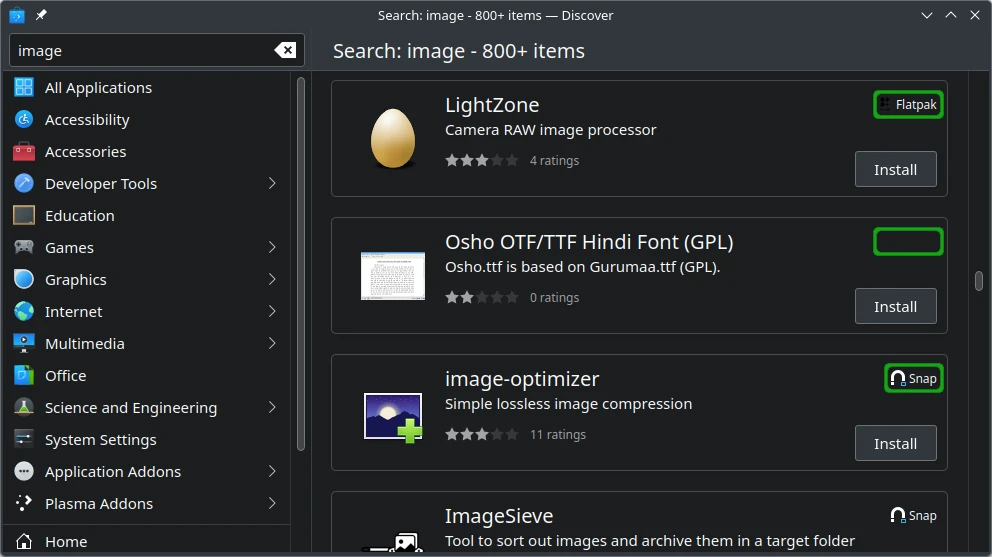
Using the Discover app, browse to the package you wish to install. Along the way, you should see a "Package Listing" like the one shown below:
The short-and-wide rectangles contain "Package Summaries." These show the package-type icons in the top-right corner. The Snap and Flatpak icons are obvious, while Debian packages have no icon at all. To install the package, click [ Install ] in the bottom-right corner of a "Package Summary." If the app is showing a "Package Details" view, you can click a similar install button in the top-right corner.
Use Apt Tools like apt, apt-get, apt-cache, and aptitude to install Debian packages. Use snap and flatpak to install Snaps and Flatpaks:
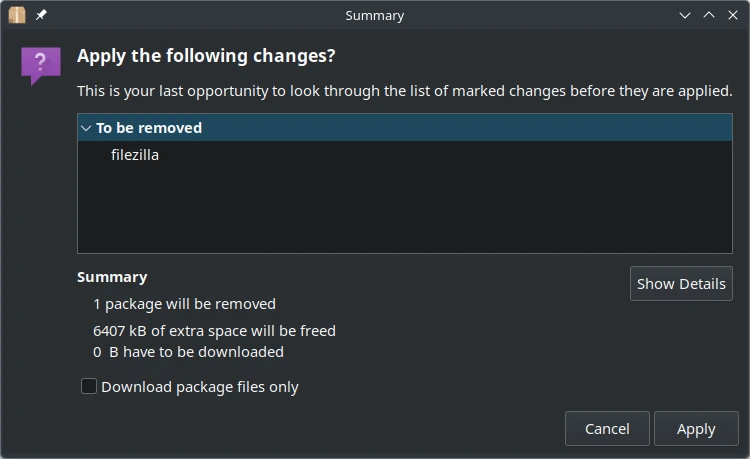
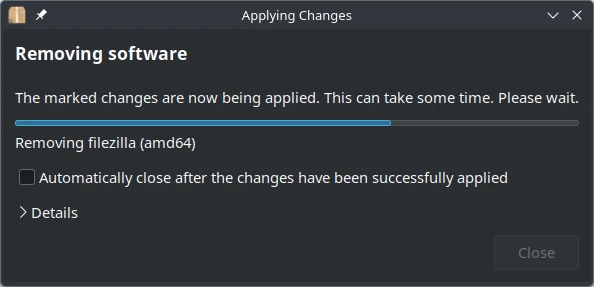
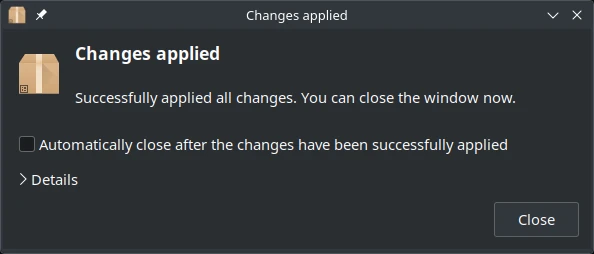
Removing packages is very similar to installing them: you browse to find the package, select it, and then click a button to remove it.
You should be extra careful when deleting packages. Make sure you know what you are removing and do your research to ensure it's safe. If, for example, you just installed OBS Studio, and you are now going to remove it, you can be quite certain there should be no issues. If, on the other hand, you see a package like libxnvctrl0 and you didn't install it, don't remove it - you will likely break your system.
If you feel the package removal might break things, you can use System Rollback to take a snapshot before removal. You may alternatively use apt-rollback, but please read the docs and use caution. Generally, Snap and Flatpak images are safer to install and remove because they are sandboxed.
Synaptic shows all available and installed Debian packages. Because most installed apps are Debian packages, we suggest you start with this tool. Enter sudo -E synaptic into a terminal to run it with the same theme as your desktop. It should be installed by default, but if need to reinstall it for any reason, enter sudo apt install synaptic into a terminal.
1. Find the package you wish to remove. See the Browse Packages section if needed.
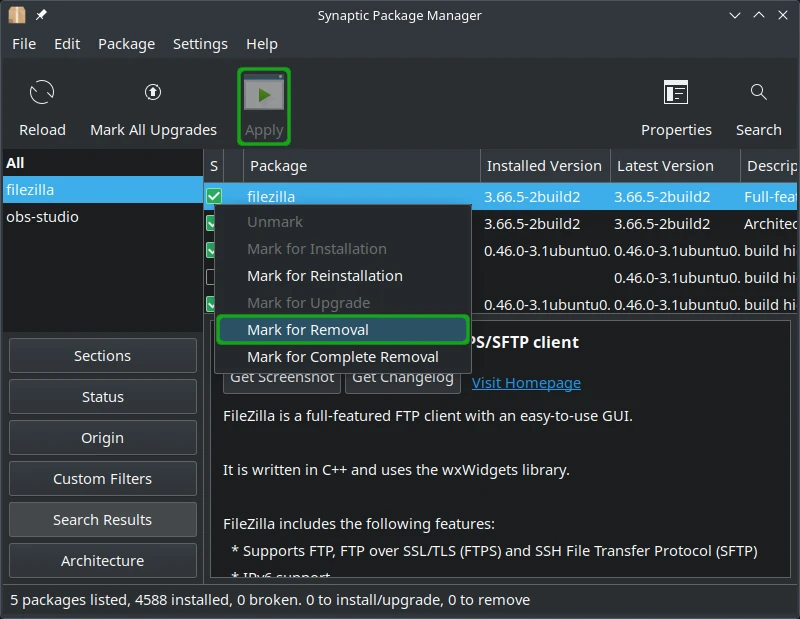
We recommend using Discover if you want to remove a Snap or Flatpak. Discover will also show many Debian packages that have AppStream metadata. But, as discussed earlier, it will NOT show many other Debian packages that are missing this metadata, typically libraries and 3rd-party apps.
Using the Discover app, browse to the package you wish to remove. Once you find the package to remove, click on the "Package Summary" to get the "Package Details" view as shown below:
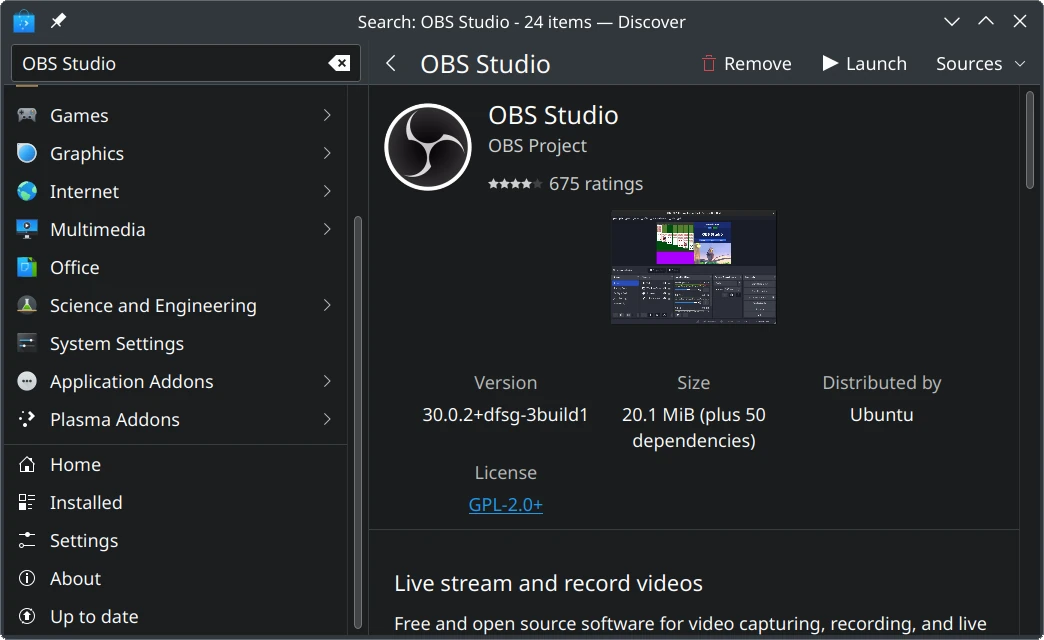
Click [ Remove ] at the top-right corner of this "Package Details" view to remove the package. Alternatively, you can click [ Remove ] in a "Package Summary" with the same result.
Use Apt Tools like apt, apt-get, or aptitude to purge Debian packages. Use snap and flatpak to remove Snaps and Flatpaks:
Q: I see a package called UEFI dbx when updating packages in Discover. Yet when I click [ Update All ], it does not complete. What do I need to do?
A: This is a firmware update that usually will fix itself within a few days. If it does not, you can enter into a terminal sudo fwupdmgr update. This Ask Ubuntu answer gives a more detailed discussion.
Q: I appear to have several unused packages. How can I remove them?
A: Enter the following into a terminal: sudo apt autoremove
Q: You also used to show Muon as an option. What happened?
A: As of Fall 2020, Muon does not appear actively developed. In addition, Discover has gotten significantly faster and more powerful. As a result, we dropped Muon from this guide on 2020-09-28.
Q: Discover proxy settings gets stuck. How can I resolve this?
A: Enter the following commands and follow the prompts.
Q: I see the following error message when fetching software updates. This happens when using Discover or the command-line. How can I fix this?
A: This is due to an expired key . This can be fixed as shown below:
The keyserver URL may alternately be hkp://keyserver.ubuntu.com:80. This can be useful when working through firewalls. Updating the key should eliminate the error.
Q: I am seeing similar key issues with the QGIS repositories. Can I fix this too?
A: Yes. Try sudo apt-key adv --keyserver keyserver.ubuntu.com --recv-keys F7E06F06199EF2F2 (thanks Justin!).
This is a partial revision history. See the git repository for all entries.
2025-12-30 98b73d7a Add all new images and links2025-12-29 b27bd46e Reorganize, expand, and update2025-04-19 274c0ff1 Update grammar and content per audit2024-08-01 45251c42 Add lightbox views, refresh content2024-07-26 7814a97d Sync primary images between guided solutions slideshow and articles2024-07-02 c83184e4 Switch to kfocus-mime schema2024-03-19 627b3225 Add syntax highlighting for codeblocks2023-11-18 e770b1c6 Add search and help bar2023-03-30 f05e61b0 Add hint about UEFI dbx update2022-07-19 3b5c2287 Update for 22.042021-10-10 5728326e Reformat to 2-column2021-09-22 dc862884 Update link and headline colors2021-08-23 681261b4 Review and update codeblocks2021-03-21 2a8443b2 Clarify language2020-09-28 fb8295ec Deprecate and remove Muon2020-09-10 5f5c2fe5 Added expired key actions in troubleshooting2020-06-10 669bd005 First publicationWe try hard to provide a useful solution validated by professionals. However, we cannot anticipate every situation, and therefore cannot guarantee this procedure will work for your needs. Always backup your data and test the solution to determine the correct procedure for you.
THIS SOLUTION IS PROVIDED BY THE COPYRIGHT HOLDERS AND CONTRIBUTORS “AS IS” AND ANY EXPRESS OR IMPLIED WARRANTIES, INCLUDING, BUT NOT LIMITED TO, THE IMPLIED WARRANTIES OF MERCHANTABILITY AND FITNESS FOR A PARTICULAR PURPOSE ARE DISCLAIMED. IN NO EVENT SHALL THE COPYRIGHT OWNER OR CONTRIBUTORS BE LIABLE FOR ANY DIRECT, INDIRECT, INCIDENTAL, SPECIAL EXEMPLARY, OR CONSEQUENTIAL DAMAGES (INCLUDING, BUT NOT LIMITED TO, PROCUREMENT OF SUBSTITUTE GOODS OR SERVICES; LOSS OF USE, DATA, OR PROFITS; OR BUSINESS INTERRUPTION) HOWEVER CAUSED AND ON ANY THEORY OF LIABILITY, WHETHER IN CONTRACT, STRICT LIABILITY, OR TORT (INCLUDING NEGLIGENCE OR OTHERWISE) ARISING IN ANY WAY OUT OF THE USE OF THIS SOLUTION, EVEN IF ADVISED OF THE POSSIBILITY OF SUCH DAMAGE.
HAVE QUESTIONS?Call 844-536-2871 or write
TellMeMore@kfocus.org | GET FOCUS MERCH