Kubuntu systems can use Flatpaks. This document describes how to enable, run, and manage them.
Please read the disclaimer before proceeding. We review and update guided solutions regularly. If you have suggestions or requests, please write support@kfocus.org.
Flatpaks , like Snaps, are software packages that use containers to sandbox applications and data. This sandbox technique allows an app to contain most or all of its dependencies. In theory, this can make them more reliable and more secure, although it isn't always the case in practice.
On the other hand, compared to native Debian packages, Flatpaks can be slower to start, consume more RAM and disk space, and may not integrate as cleanly with the desktop GUI. These limitations are also found with Snaps.
Many apps are available as Flatpaks, and many projects use them as their preferred method of app distribution. Some apps may only be available as a Flatpak.
Flatpaks are packaged by either app developers or community contributors. Although Ubuntu supports the Flatpak package manager, Canonical and the Ubuntu community do not support individual Flatpaks. Instead, they are supported by the individual packagers. If a Flatpak is official, the app developer usually provides support for it directly.
All things being equal, we recommend Debian packages over Snaps, and Snaps over Flatpaks. See Software Management: Package Types for more detail.
The Flatpak package manager is available as a Debian package. To install it, run:
This allows installing Flatpaks via the command line. To install and update Flatpaks using Discover, install the Discover Flatpak backend:
To find and install apps, a Flatpak repository needs to be added to the system. The most popular repo is Flathub. Add the Flatpak repository to your system by running:
After installing Flatpak, log out and log back in. Newly installed apps do not show in the Start Menu until this is done.
Browse available apps through the Flathub website . Click on the [ Install ] button to download a Flatpak ref file, and install the app using Discover or the command line. If the app developers officially support installing their app via Flatpak, they usually provide a link to their project's page on the Flathub website.
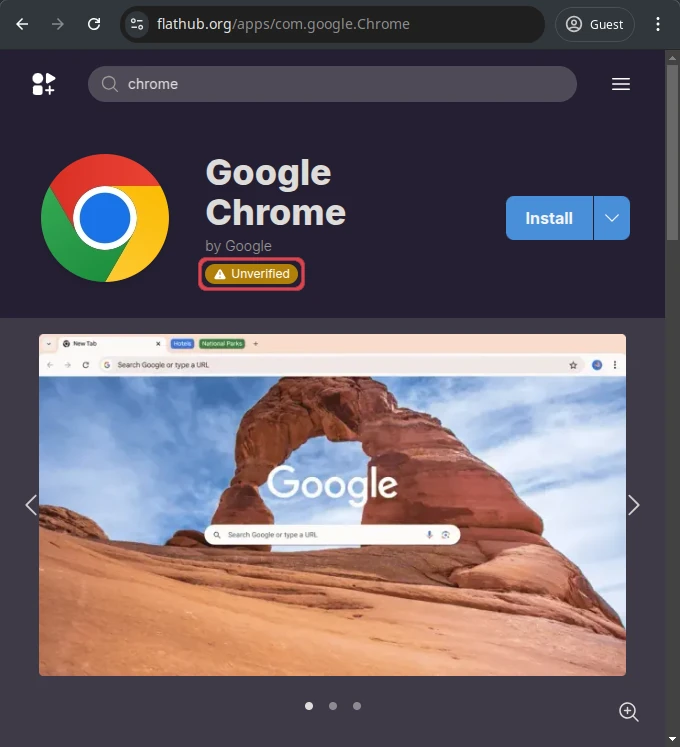
Before installing an app, make sure the packager is trustworthy. If the app is verified, a blue checkmark appears under the title, and the developer's identity appears beside it. This means that the developer is the owner of the Flatpak. If the app developer is trustworthy, the Flatpak should also be trustworthy.
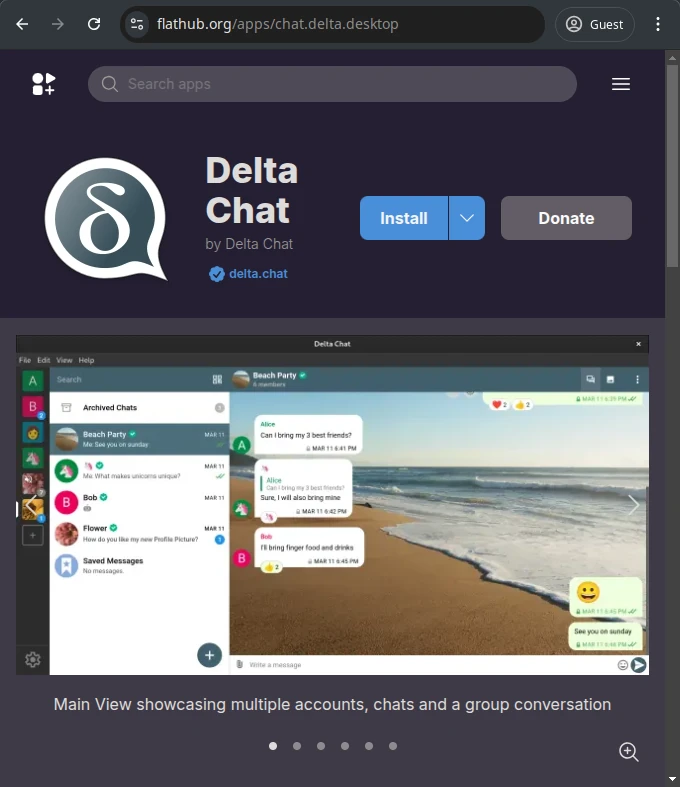
If there is a yellow "Unverified" badge underneath the app title instead of a blue checkmark, its developer did not package the app, and the package is therefore unofficial and potentially dangerous. Treat such apps with caution. It's almost always a good idea to use an installation method supported by the app developer instead.
To install the chosen app:
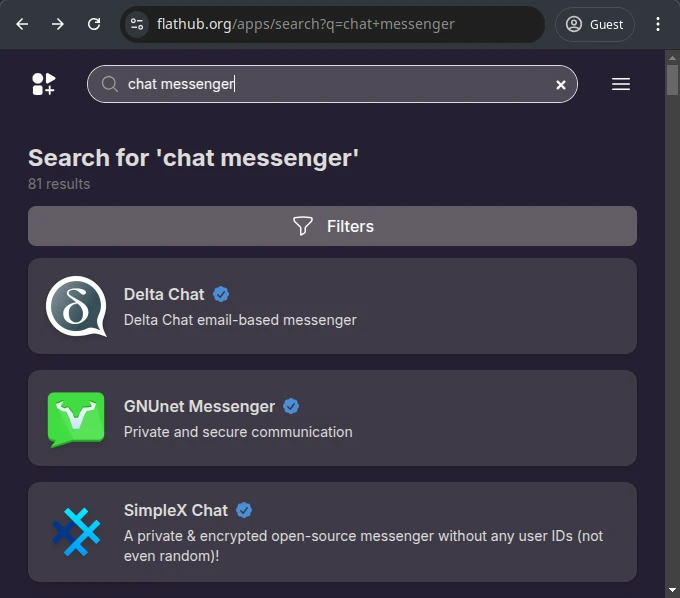
.flatpakref file is downloaded. Click on the downloaded file in Google Chrome to launch Discover.flatpak install command from the manual installation instructions that appear.[CTRL][SHIFT][V].sudo to run the flatpak install command! Flatpaks do not need root access to be installed.Besides making it easy to install specific apps, the Flathub website also doubles as an app store. You can search for specific apps, explore app categories, and find popular apps for various purposes. Verified apps are marked with a blue checkmark, while unverified apps have no checkmark.
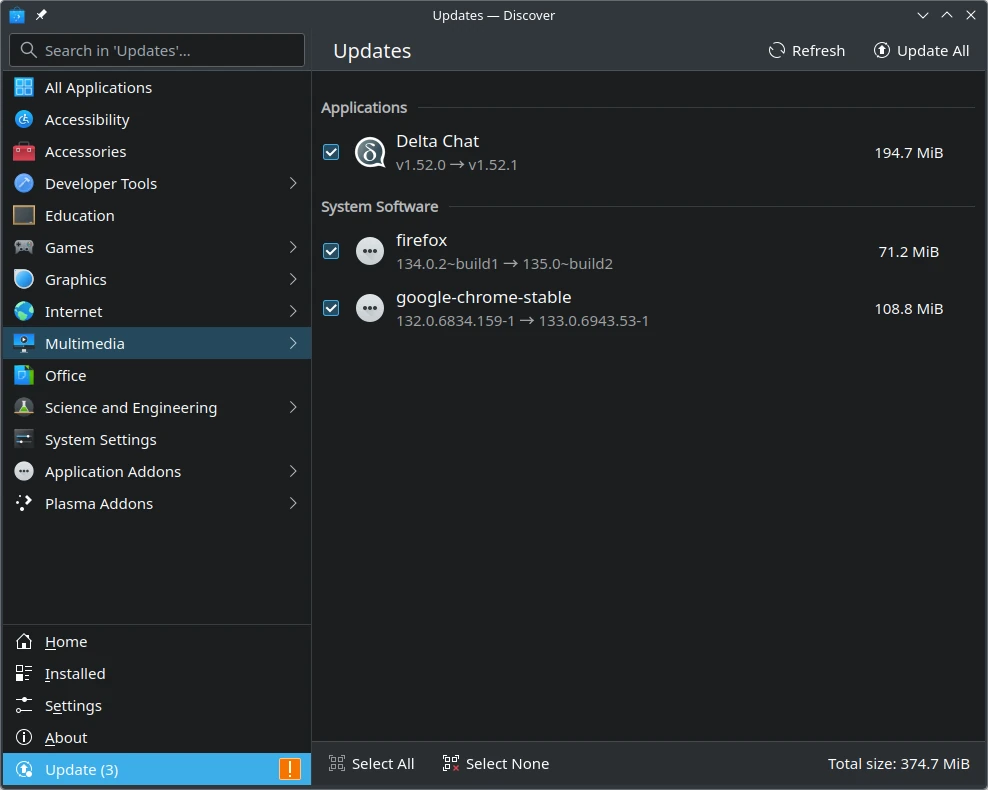
After you the Discover Flatpak backend as described earlier (sudo apt install plasma-discover-backend-flatpak), Flatpaks are updated by Discover along with other packages. This process is described in Software Management.
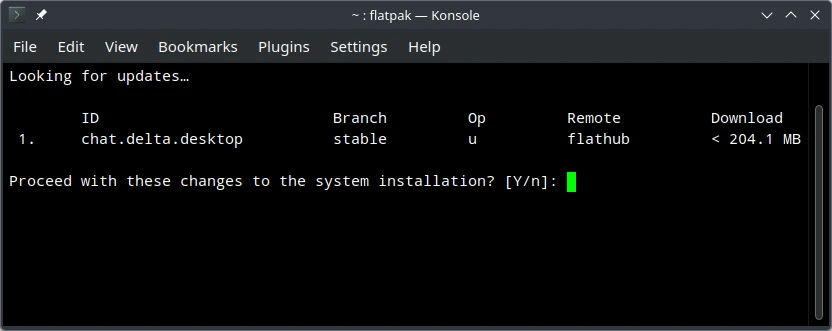
If you do not install the Discover Flatpak backend, Flatpaks will not be updated with other packages. Instead you can open a Konsole terminal and enter the following:
Flatpak prompts for confirmation before installing updates. Note that updating in this way only updates Flatpaks. Software provided through Debian or Snap packages will need to be updated separately, as described in Software Management.
Flatpaks, like Snaps, are sandboxed. This can prevent a packaged app from accessing resources. This improves security, but sometimes a Flatpak's configuration prevents it from accessing resources it needs to function properly.
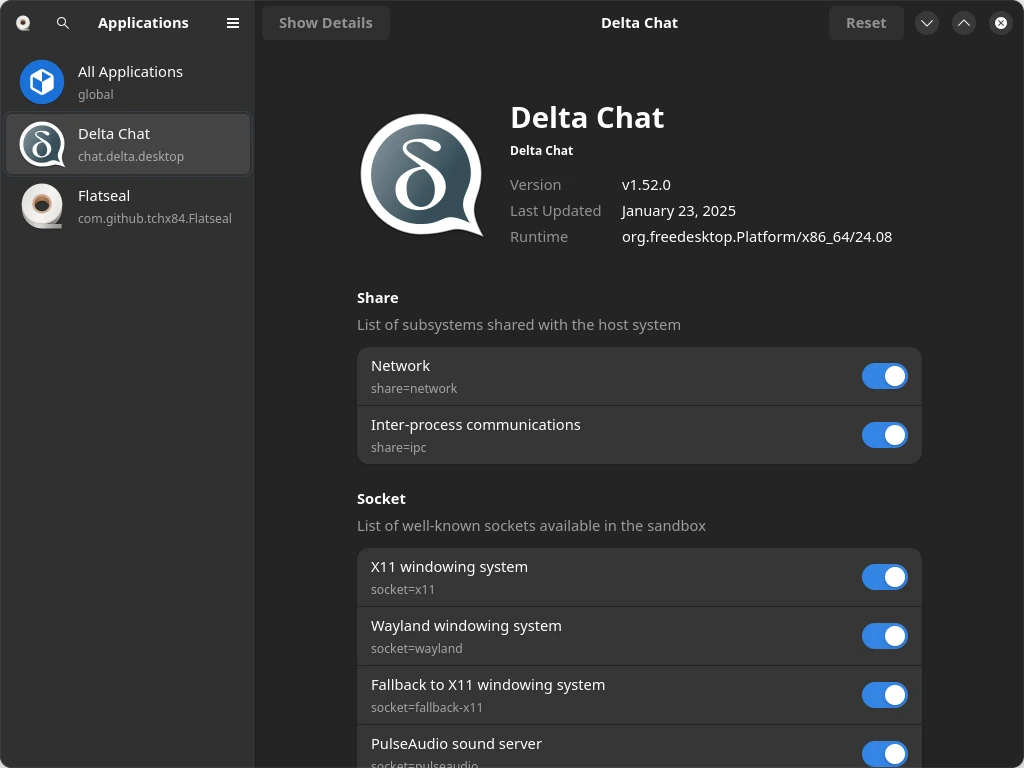
Fortunately, Flatpak permissions can be customized using the Flatseal app. Flathub distributes Flatseal as an installable Flatpak, as described above. Once Flatseal is installed, it can be launched from Start Menu > Utilities > Flatseal.
The Flatseal UI provides access to a list of different permissions. Most of them can be toggled on and off, while some of them (such as the "Other Files" permission) can have items added or removed. This can fix a broken app by granting a permission it needs. If you are worried about the security impact of an app, you can also disable permissions on an app, restricting its capabilities accordingly.
For more information on using Flatseal, see the official Flatseal documentation .
In this example, we install the MakeMKV app using Flatpak. MakeMKV is popular for creating backups of BlueRays and DVDs. Because the Flatpak for the app was created by a community member and not Flatpak, it is considered 'unverified', and one should be cautious about providing it system access. Thankfully, Flatpak uses a sandbox per app, and one can audit app permissions with Flatseal, as discussed above.
When you run the Flatseal app, you can inspect MakeMKV permissions. Some users have reported that allowing “D-Bus Session Bus” is required for success. We otherwise recommend keeping restrictive permissions to help protect your system and your data.
This installation is presented for illustrative purposes only. We do not endorse or audit MakeMKV, and have no affiliation with the authors. You can see more information on MakeMKV at their site and in this article .
Q: I installed a Flatpak, but I don't see an entry for the app in the launch menu. How do I fix this?
A: If you installed Flatpak, and then immediately installed an app using Flatpak without logging out and back in first, the app does not appear in the Start Menu. To fix this, log out and log back in. After this, any Start Menu entries for installed Flatpaks should appear, and newly installed Flatpaks will show immediately.
This is a partial revision history. See the git repository for all entries.
2025-12-30 b27bd46e Reorder and substantially update content2025-04-19 274c0ff1 Update grammar and content per audit2025-02-26 1f2ddf9b Update Flatpak section2025-02-04 0b0a70c8 Update per PWA2025-02-04 843b7db6 First publicationWe try hard to provide a useful solution validated by professionals. However, we cannot anticipate every situation, and therefore cannot guarantee this procedure will work for your needs. Always backup your data and test the solution to determine the correct procedure for you.
THIS SOLUTION IS PROVIDED BY THE COPYRIGHT HOLDERS AND CONTRIBUTORS “AS IS” AND ANY EXPRESS OR IMPLIED WARRANTIES, INCLUDING, BUT NOT LIMITED TO, THE IMPLIED WARRANTIES OF MERCHANTABILITY AND FITNESS FOR A PARTICULAR PURPOSE ARE DISCLAIMED. IN NO EVENT SHALL THE COPYRIGHT OWNER OR CONTRIBUTORS BE LIABLE FOR ANY DIRECT, INDIRECT, INCIDENTAL, SPECIAL EXEMPLARY, OR CONSEQUENTIAL DAMAGES (INCLUDING, BUT NOT LIMITED TO, PROCUREMENT OF SUBSTITUTE GOODS OR SERVICES; LOSS OF USE, DATA, OR PROFITS; OR BUSINESS INTERRUPTION) HOWEVER CAUSED AND ON ANY THEORY OF LIABILITY, WHETHER IN CONTRACT, STRICT LIABILITY, OR TORT (INCLUDING NEGLIGENCE OR OTHERWISE) ARISING IN ANY WAY OUT OF THE USE OF THIS SOLUTION, EVEN IF ADVISED OF THE POSSIBILITY OF SUCH DAMAGE.
HAVE QUESTIONS?Call 844-536-2871 or write
TellMeMore@kfocus.org | GET FOCUS MERCH