Add an Interactive Tool to Your Desktop

Weather Widget

SystemsApplies to all Kubuntu
Verified on26.04, 24.04
Focus ModelsAll
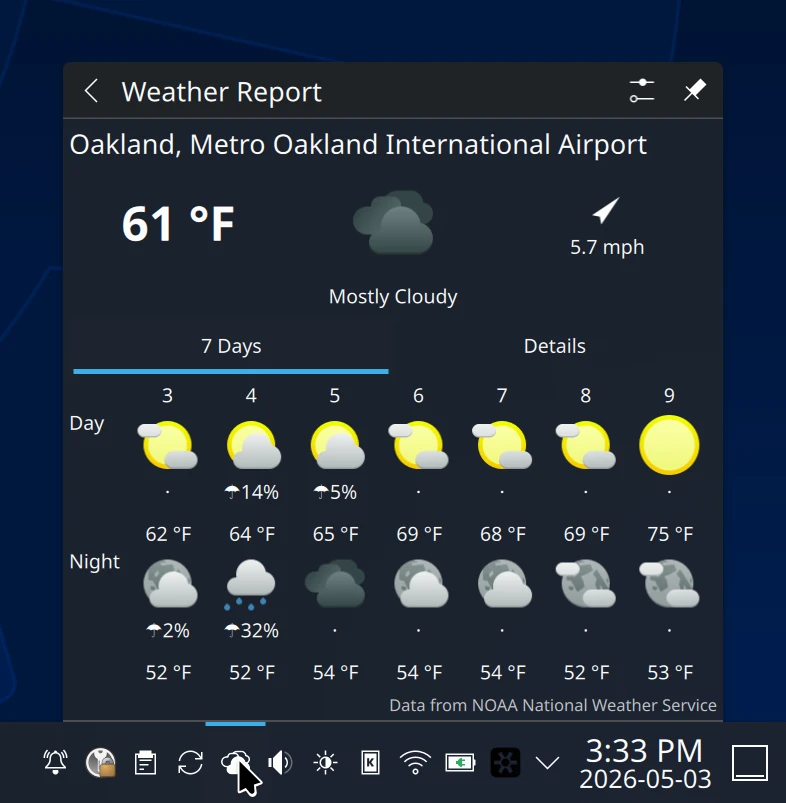
View weather information with the Weather Widget.

View weather information with the Weather Widget.

Many people find it convenient to have the weather forecast or current weather at their fingertips. This guide will help you do just that!

Please read the disclaimer before proceeding. We review and update guided solutions regularly. If you have suggestions or requests, please write support@kfocus.org.
Background

Widgets and applets are one thing that make Plasma unique to most other desktops. The Weather Widget we consider here is built-in. In other words, it is distributed with KDE Plasma. We strongly recommend to only use use built-in widgets to ensure maximum stability, compatibility, and security.

Some people like to download and install third-party extensions from KDE Store. But be careful to avoid anything that requires root installation. Even user-only installation scripts can accidentally (or maliciously) delete data, so always review any extenson from a store like this for stability, compatibility, and security before installation. Maybe run it in a VM first.

You can add a Weather Widget to the desktop as described by the official KDE Plasma Documentation. However, you can also add a widget to the system tray, which we show below.

Add Weather Widget 26.04 LTS

Applies to all Kubuntu26.04

These are instructions for 26.04 LTS, the most recent Kubuntu release. Kubuntu Focus systems are not yet upgraded to this version; see the 24.04 LTS directions for that purpose.

Follow the steps below to add and to activate the weather widget in your system tray.

Once set up, this will become an easy way to see your current weather. You can click on it in the system tray for more detailed information, such as your current forecast.

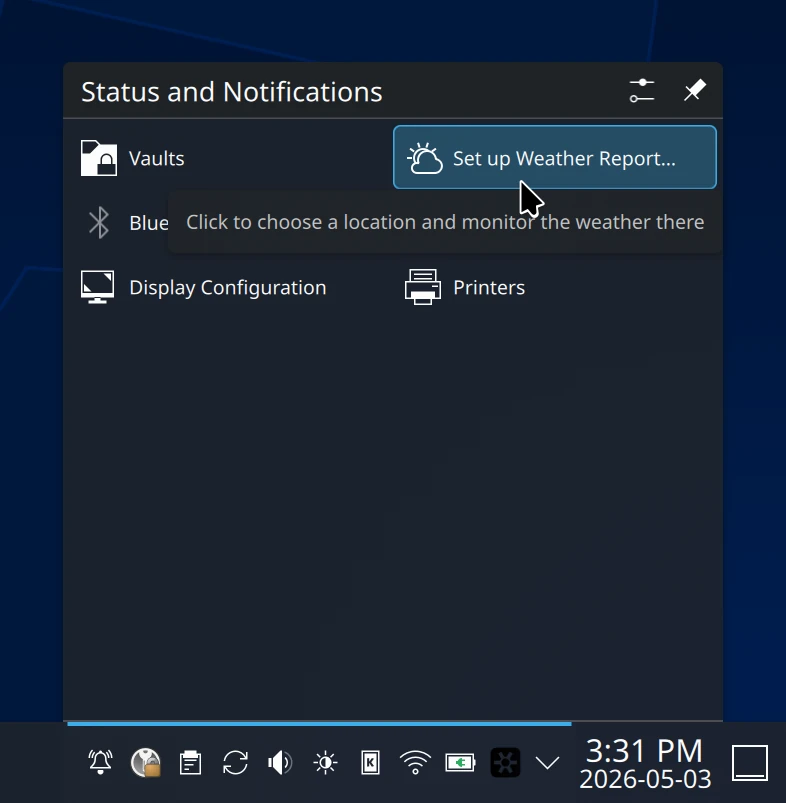
Click the chevron in the system tray, and click 'Set Up Weather Report...'.

Click the chevron ([ ⌃ ] or [ > ]) in the system tray, and click 'Set Up Weather Report...'.

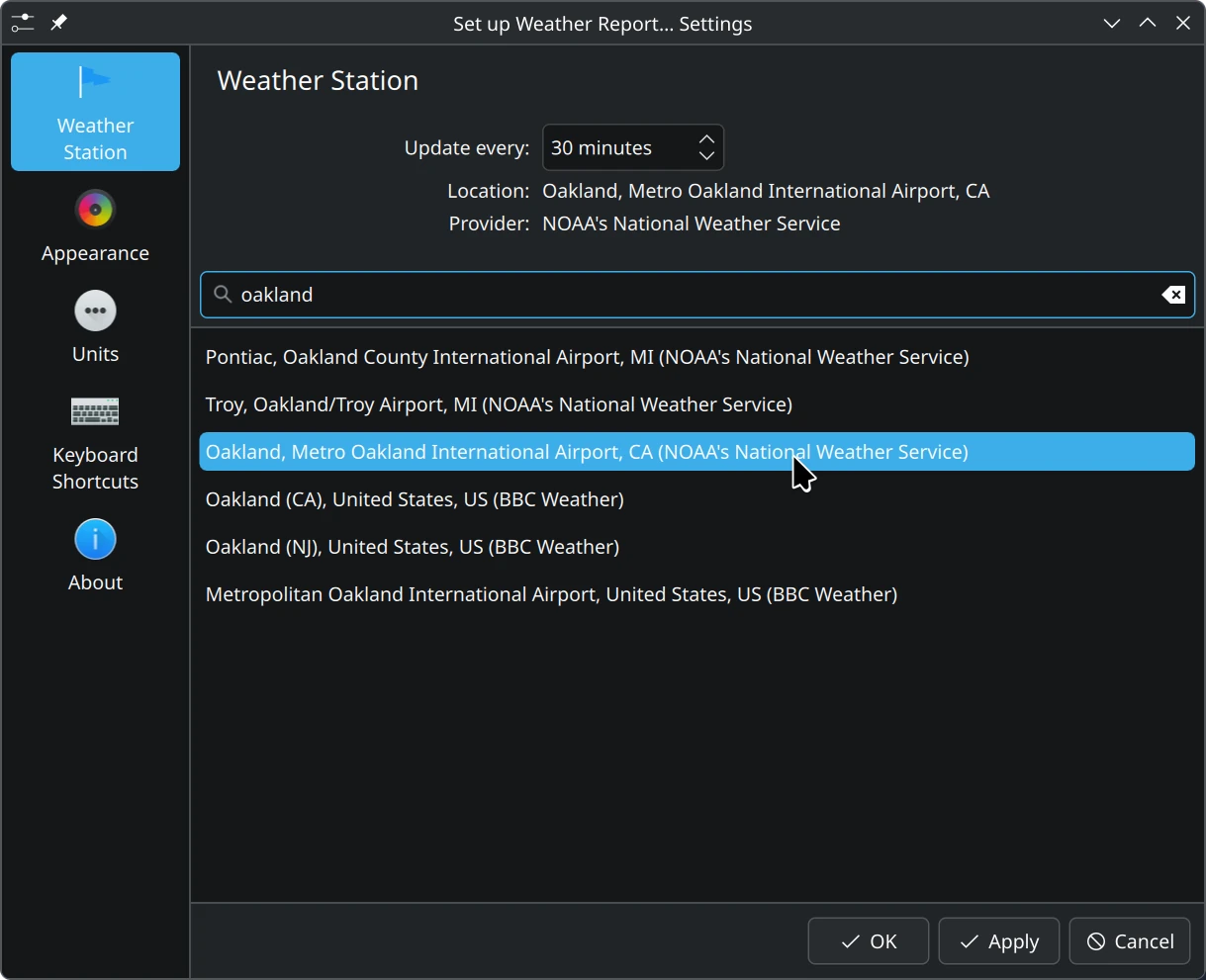
Find and select your desired weather location.

Find and select your desired weather location.

To reset the weather widget, you can change the global theme by clicking [ System Settings ] > [ Global Theme ]. Click one of the themes, preferably a Kubuntu Focus theme since these provide all the feature of your system. When asked, apply the [x] Desktop and window layout. WARNING: This will remove all other customizations to panels, docks, and widgets.

Add Weather Widget to the System Tray

Applies to all Kubuntu24.04

These are instructions for 24.04 LTS, the most recent Kubuntu release supported by Kubuntu Focus systems.

Follow the steps below to add and to activate the weather widget in your system tray.

Once set up, this will become an easy way to see your current weather. You can click on it in the system tray for more detailed information, such as your current forecast.

Right-click the chevron in the system tray, and click 'Configure System Tray...'.

Right-click the chevron ([ ⌃ ] or [ > ]) in the system tray, and click 'Configure System Tray...'.

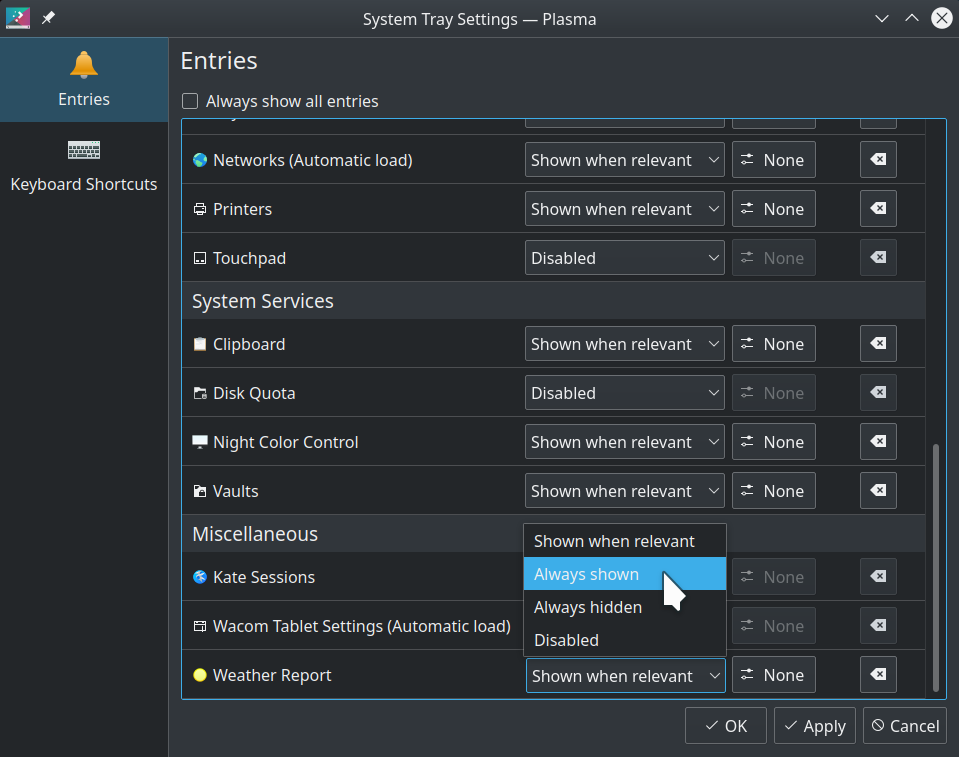
Find 'Weather Report', and set it to be 'Always shown'.

Find 'Weather Report', and set it to be 'Always shown'.

To disable the weather widget, you can change the global theme by clicking [ System Settings ] > [ Global Theme ]. Click one of the themes, preferably a Kubuntu Focus theme since these provide all the feature of your system. When asked, apply the [x] Desktop and window layout. WARNING: This will remove all other customizations to panels, docks, and widgets.

Troubleshooting

Content will be added as needed.

Revisions

This is a partial revision history. See the git repository for all entries.

Disclaimer

We try hard to provide a useful solution validated by professionals. However, we cannot anticipate every situation, and therefore cannot guarantee this procedure will work for your needs. Always backup your data and test the solution to determine the correct procedure for you.

THIS SOLUTION IS PROVIDED BY THE COPYRIGHT HOLDERS AND CONTRIBUTORS “AS IS” AND ANY EXPRESS OR IMPLIED WARRANTIES, INCLUDING, BUT NOT LIMITED TO, THE IMPLIED WARRANTIES OF MERCHANTABILITY AND FITNESS FOR A PARTICULAR PURPOSE ARE DISCLAIMED. IN NO EVENT SHALL THE COPYRIGHT OWNER OR CONTRIBUTORS BE LIABLE FOR ANY DIRECT, INDIRECT, INCIDENTAL, SPECIAL EXEMPLARY, OR CONSEQUENTIAL DAMAGES (INCLUDING, BUT NOT LIMITED TO, PROCUREMENT OF SUBSTITUTE GOODS OR SERVICES; LOSS OF USE, DATA, OR PROFITS; OR BUSINESS INTERRUPTION) HOWEVER CAUSED AND ON ANY THEORY OF LIABILITY, WHETHER IN CONTRACT, STRICT LIABILITY, OR TORT (INCLUDING NEGLIGENCE OR OTHERWISE) ARISING IN ANY WAY OUT OF THE USE OF THIS SOLUTION, EVEN IF ADVISED OF THE POSSIBILITY OF SUCH DAMAGE.

HAVE QUESTIONS?Call 844-536-2871 or write
TellMeMore@kfocus.org   |  GET FOCUS MERCH