Run Windows 11 alongside Kubuntu using VirtualBox.
Run several OSes such as Microsoft Windows, Linux, BSD, and others inside a virtual machine (VM). This article shows how to prepare, install, and set up Windows 11 in a VirtualBox VM. If you instead want to dual-boot Windows from a separate drive, please contact customer support to receive a driver kit.
Please read the disclaimer before proceeding. We review and update guided solutions regularly. If you have suggestions or requests, please write support@kfocus.org.
Click on the icon to the left to install and set up VirtualBox if you are on a Kubuntu Focus system. VirtualBox can also be installed on any Kubuntu or Ubuntu system through either the Discover app or manually, as shown to the right.
# Manually install virualbox
sudo apt install virtualbox-guest-additions-iso \
virtualbox virtualbox-ext-pack
# Add user to group
sudo usermod -aG 'vboxusers'"$USER";
# Now log out and back in
Start VirtualBox and configure as illustrated below.
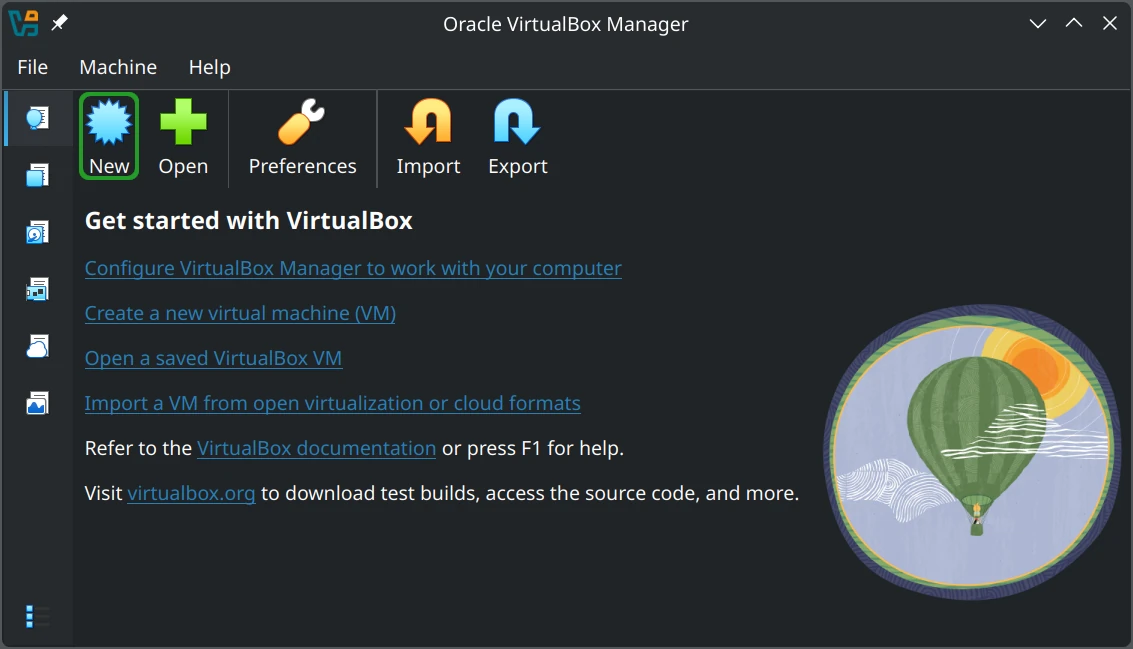
Step 1: Click 'New' to create a new virtual machine.
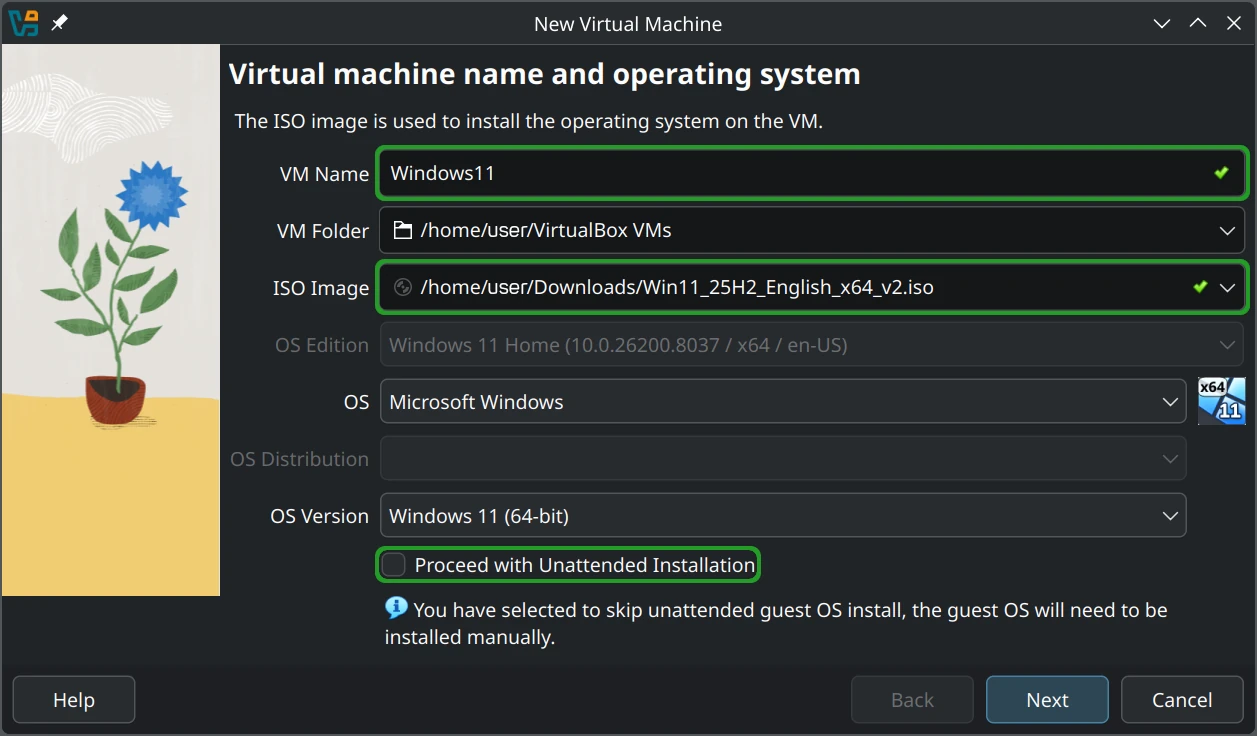
Step 2: Set VM name, select the Windows 11 ISO, and turn unattended installation OFF.
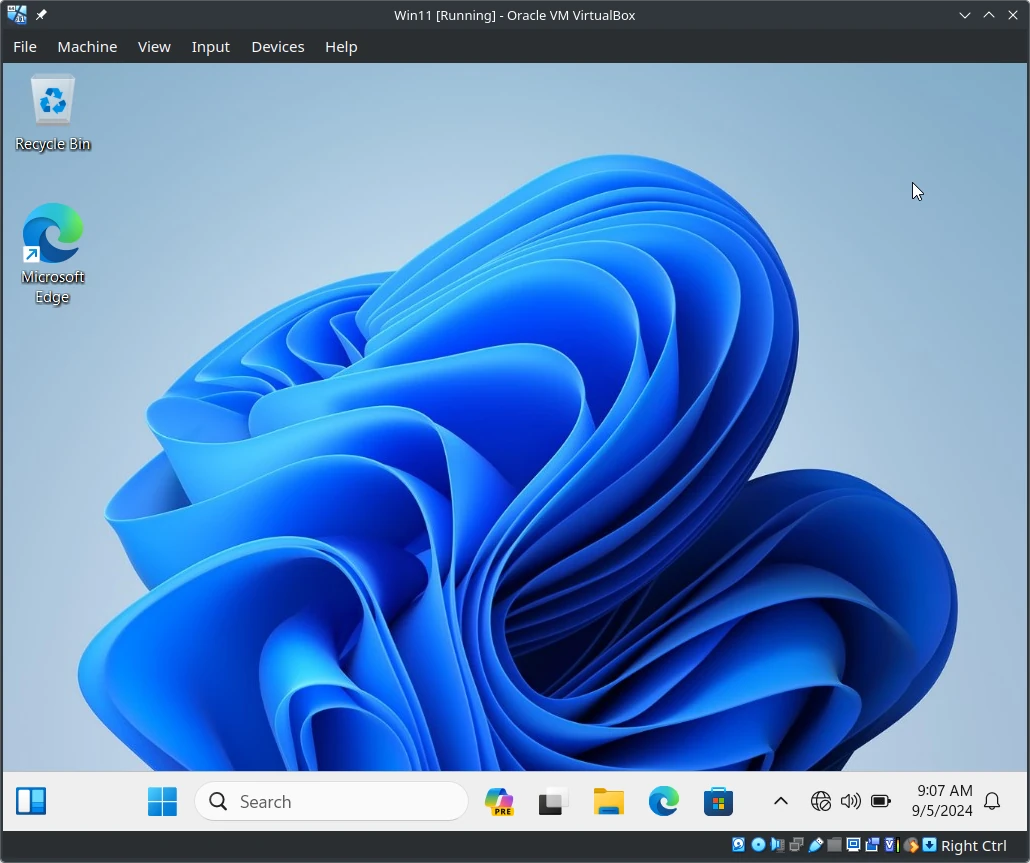
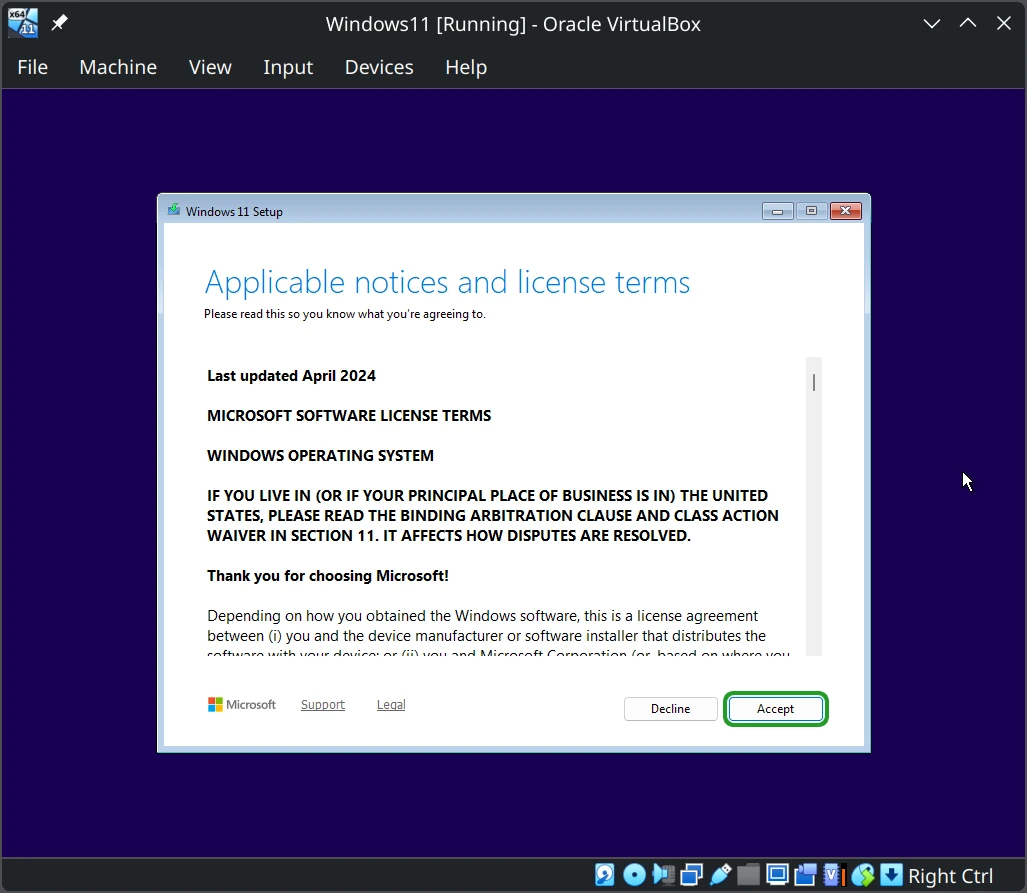
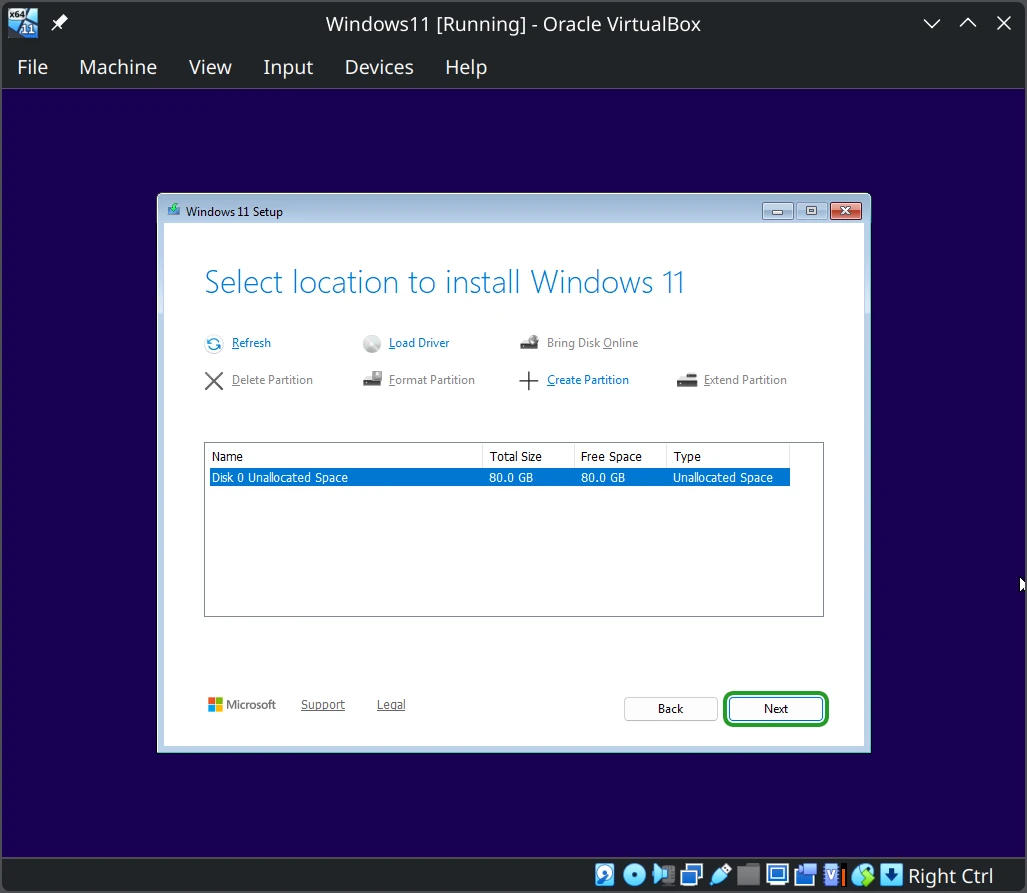
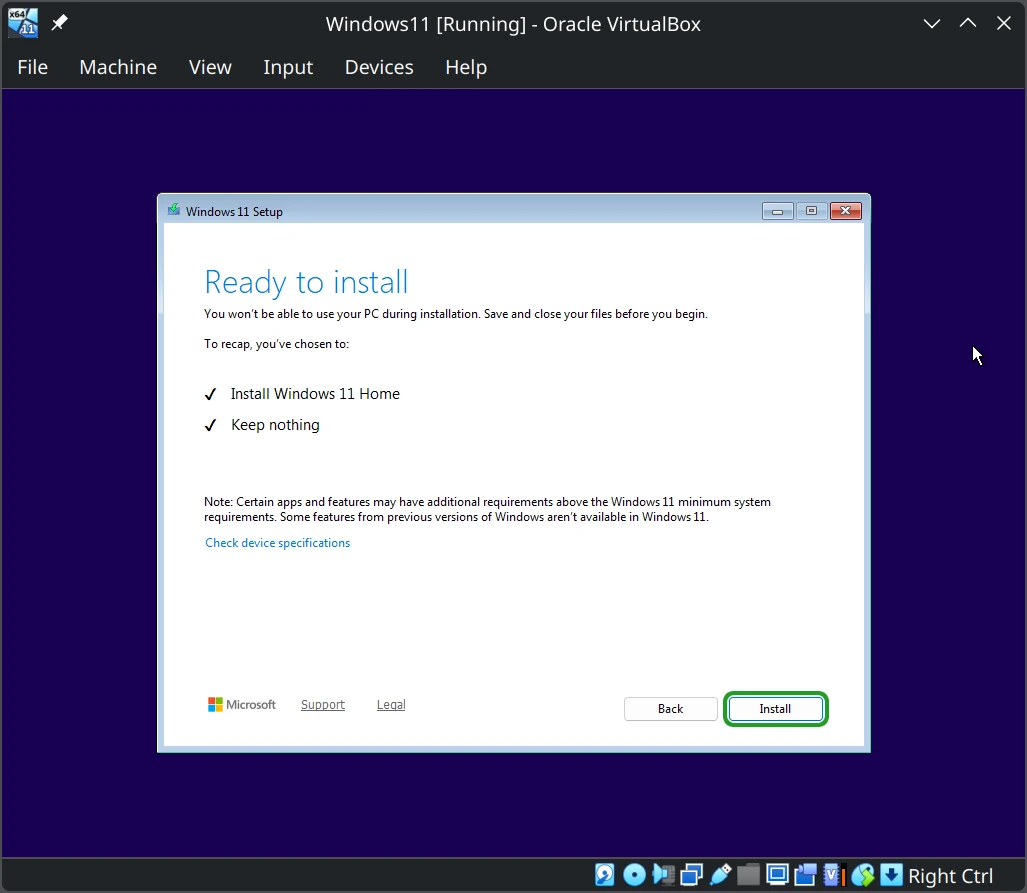
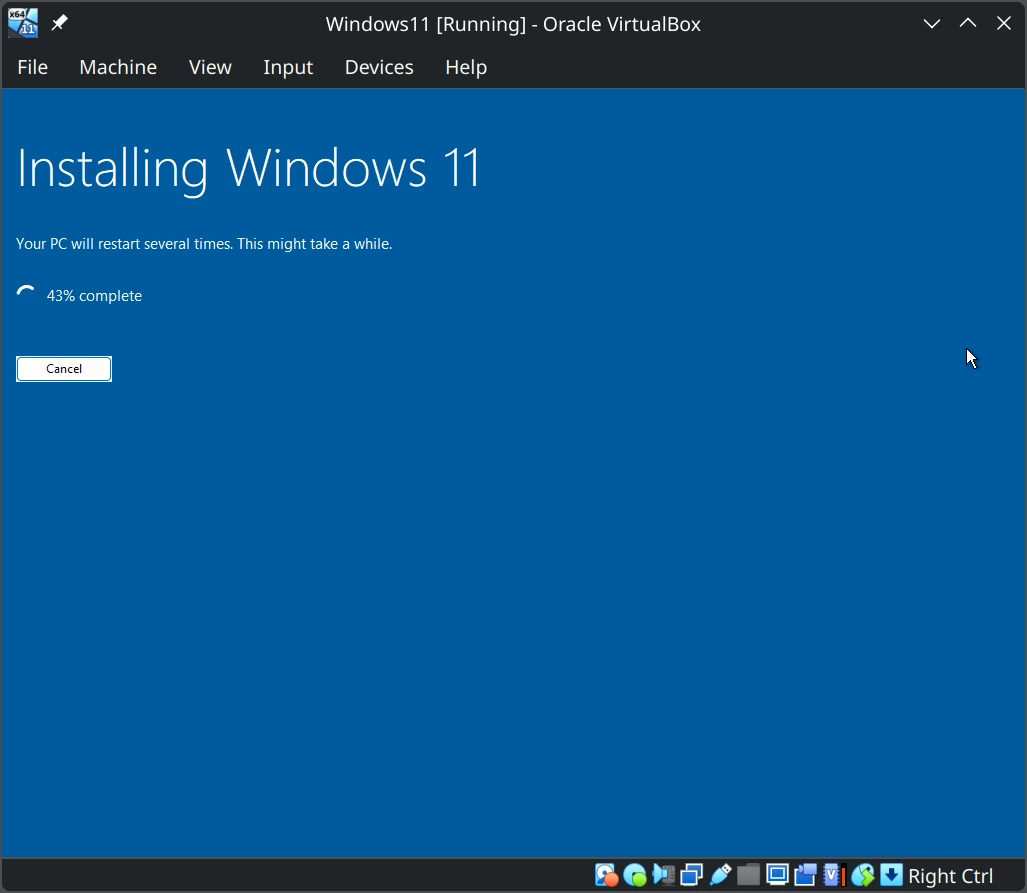
The unattended installation is checked ON by default and the procedure has been verified on Kubuntu 26.04. If checked, VirtualBox will prompt you for your VM's name and for username and password. In the unattended installation, it will go through all three steps of installation in about 15 minutes until it ends up at the Windows 11 home screen as shown in Step 14116714107868.
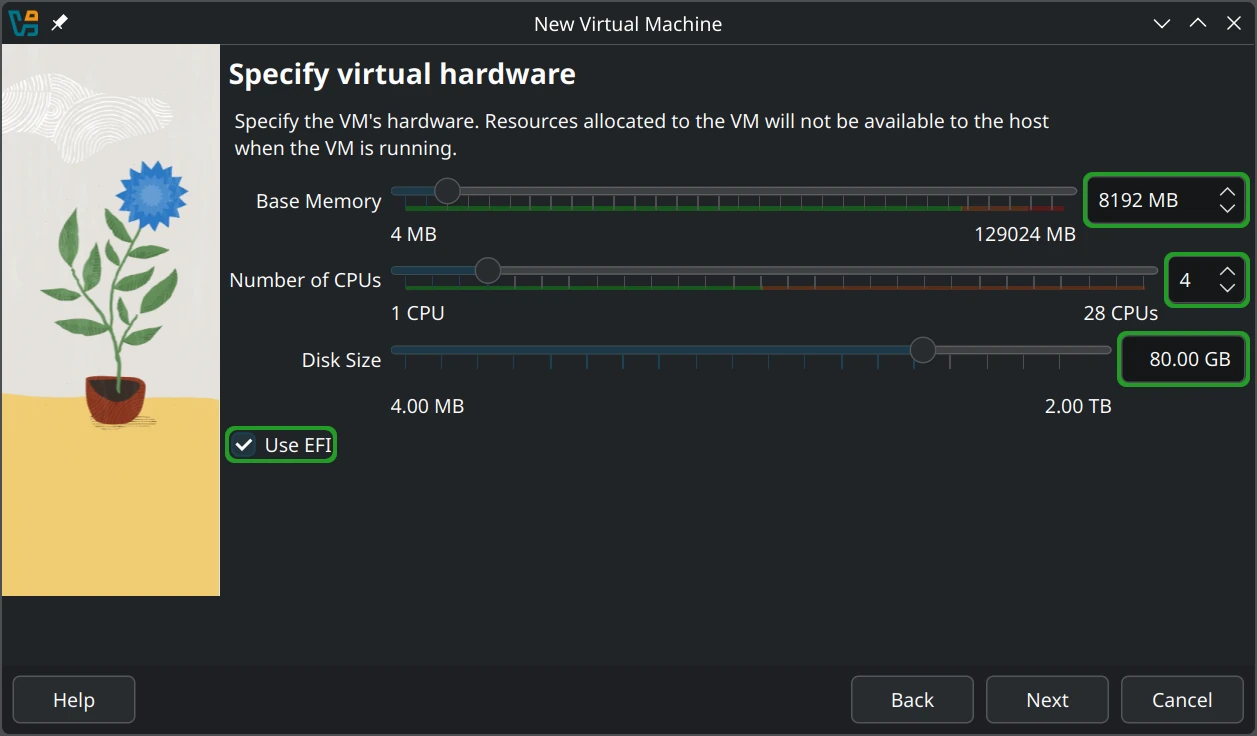
Step 3: Set 'Base Memory' to at least 8192 MB, set 'Processors' to at least 4, set `Disk Size` to 80GB or more, and check 'Use EFI
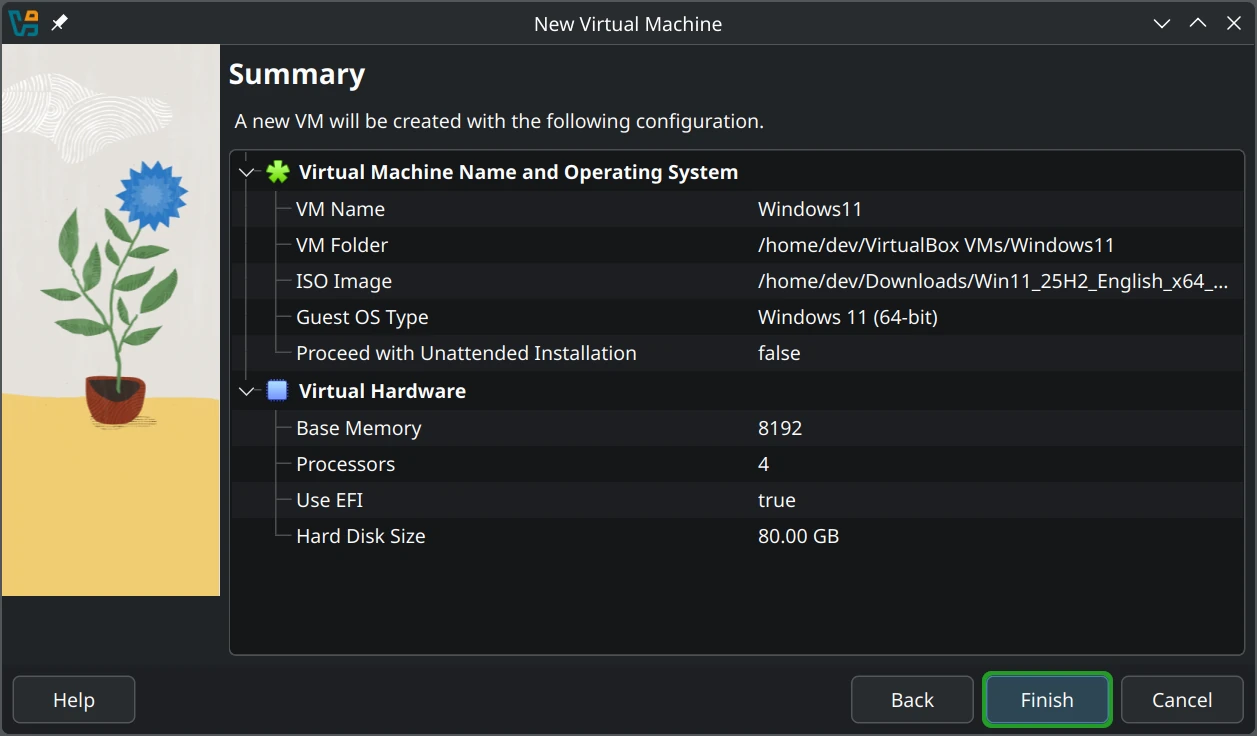
Step 4: Review settings and click 'Finish' to create the VM.
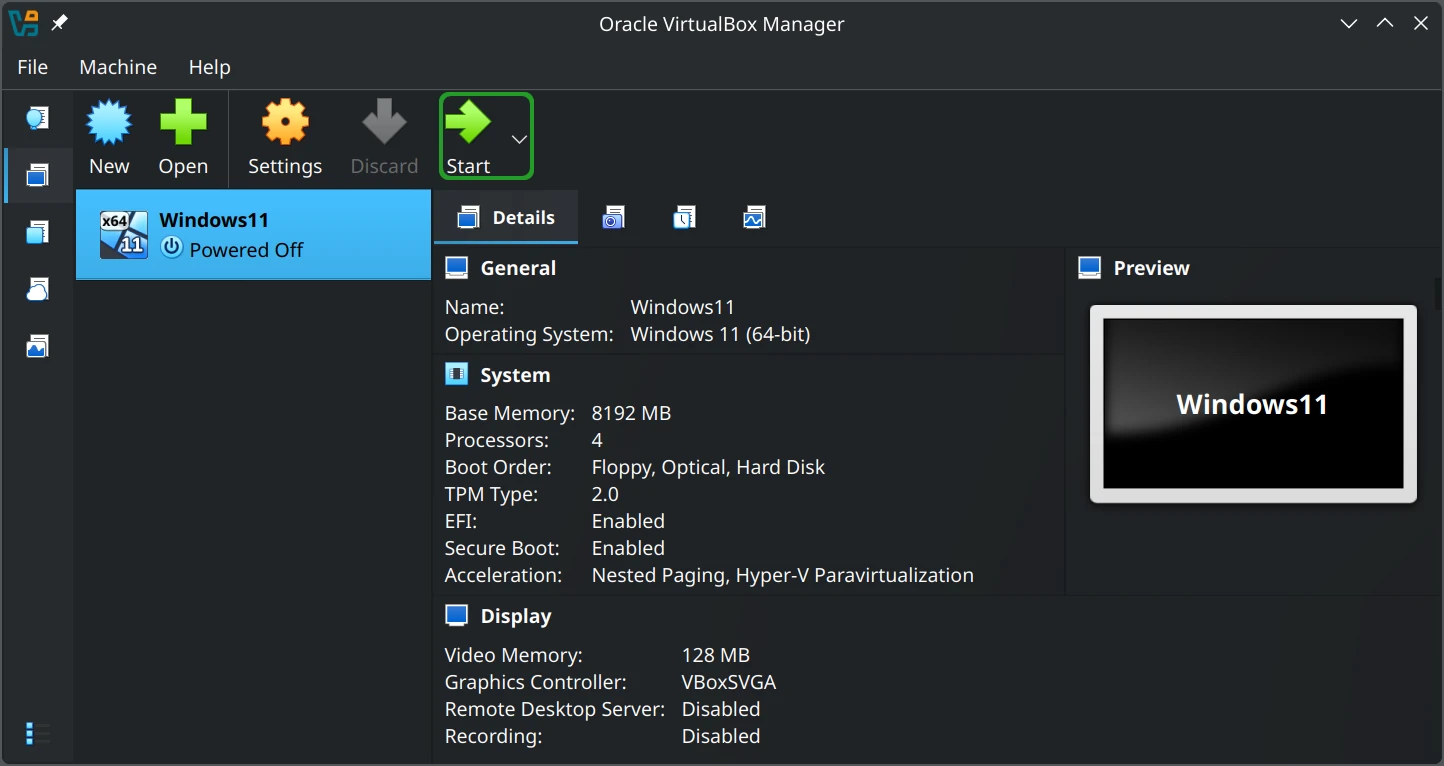
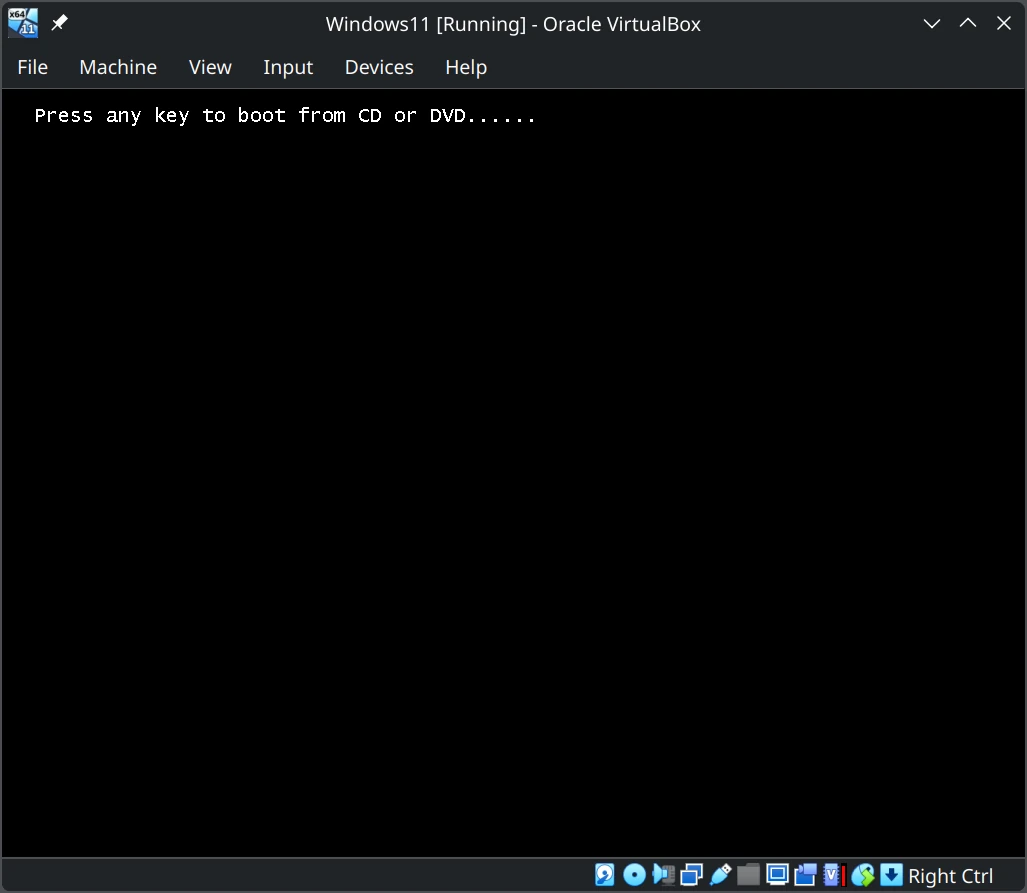
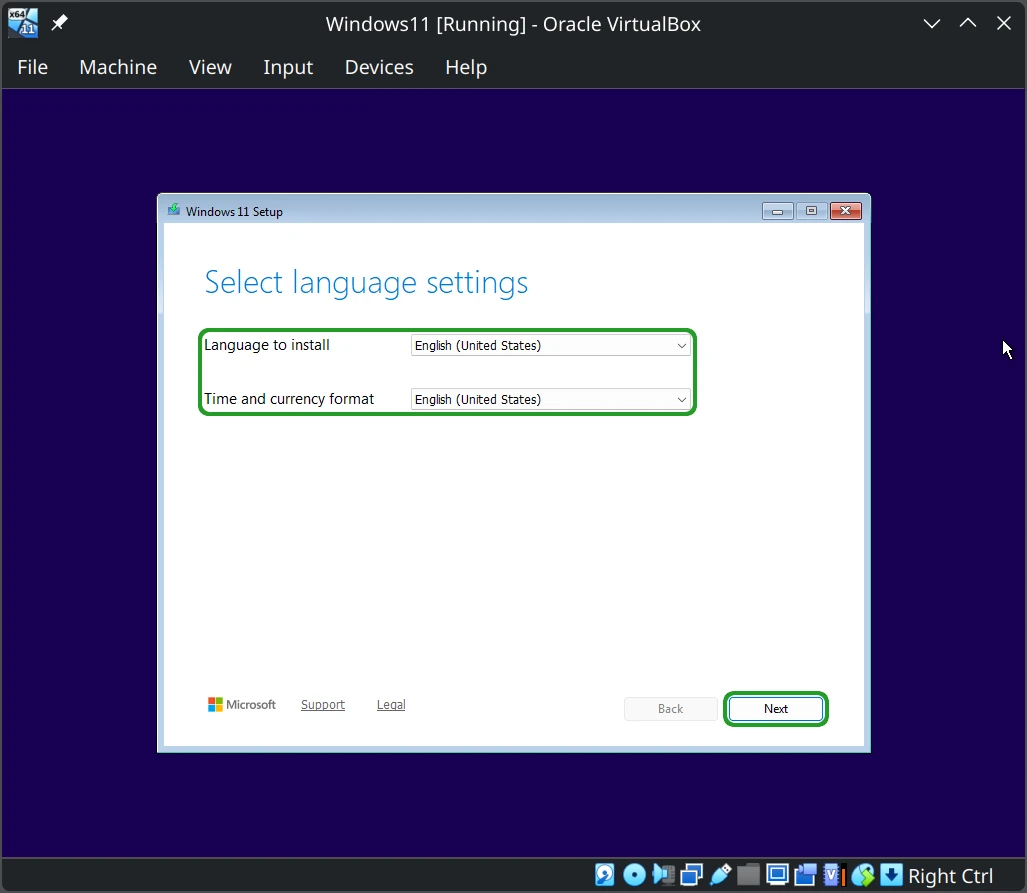
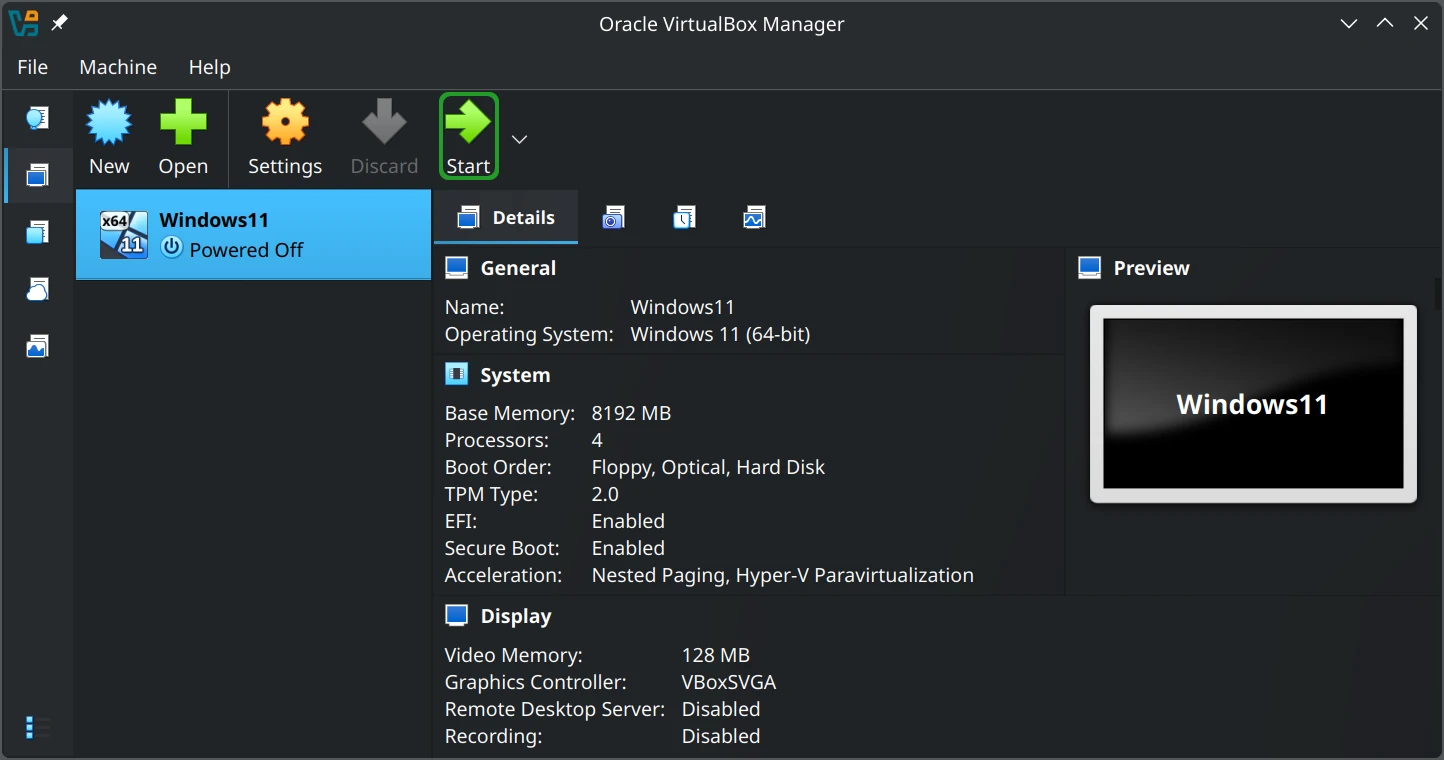
Step 5: Click 'Start' to boot the VM and begin installation.
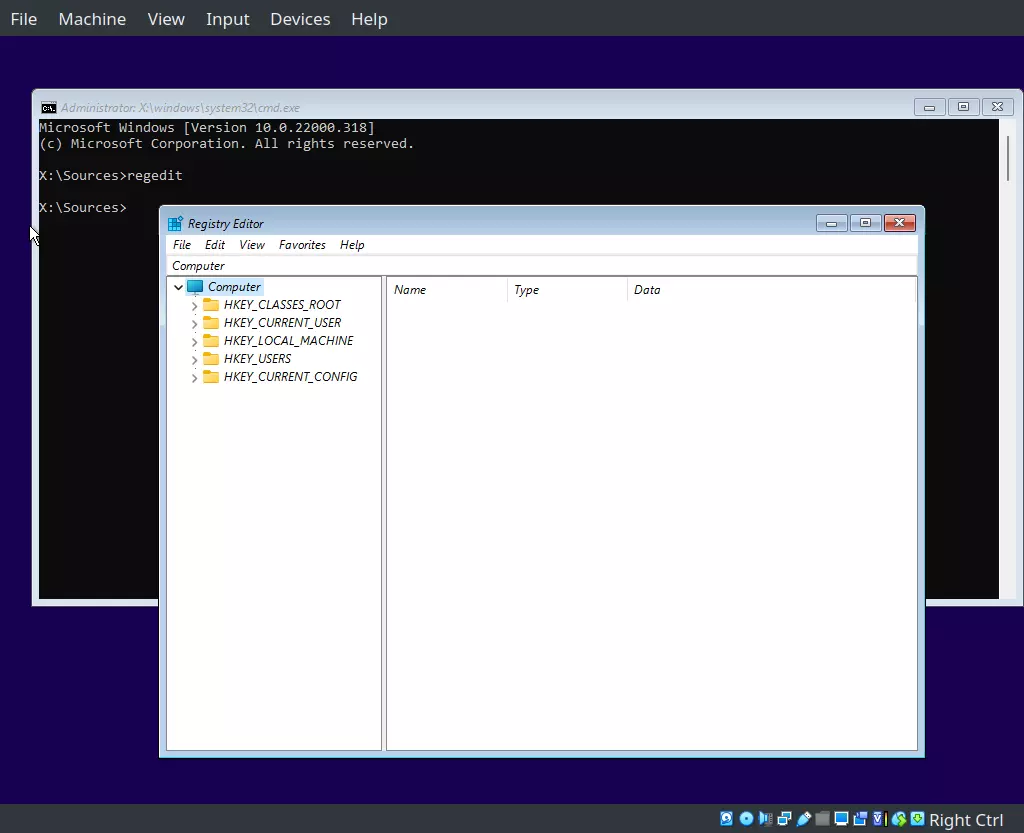
If you are using Kubuntu 22.04, Windows 11 may complain that the VM's hardware does not meet its requirements during the installation process. If this happens, you can bypass the hardware requirements to continue with the installation. Note that this procedure is unnecessary when using Kubuntu 24.04, which uses a newer version of VirtualBox.
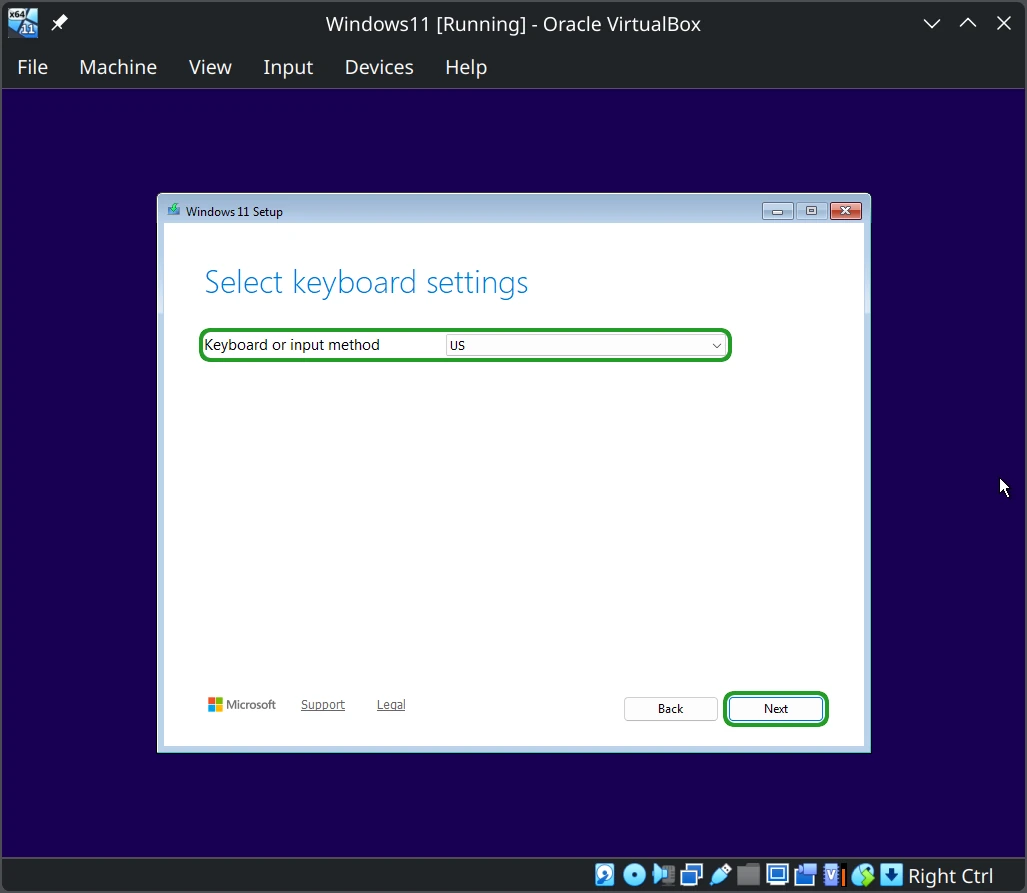
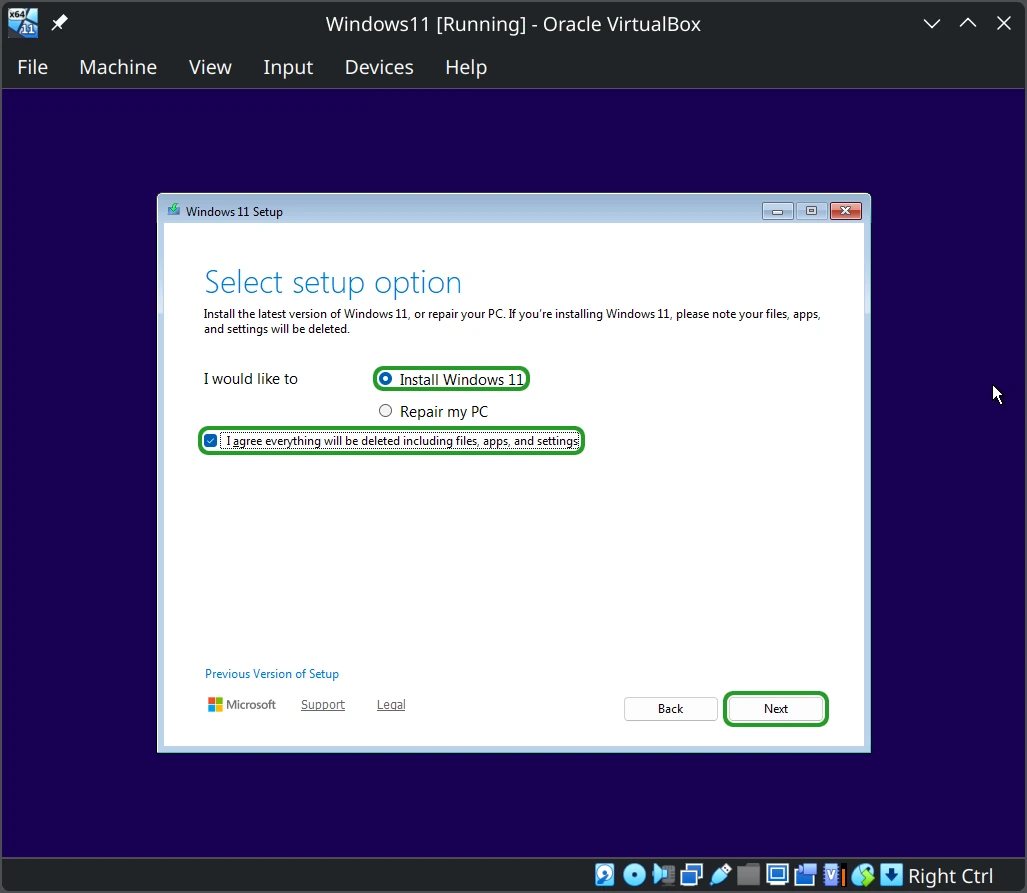
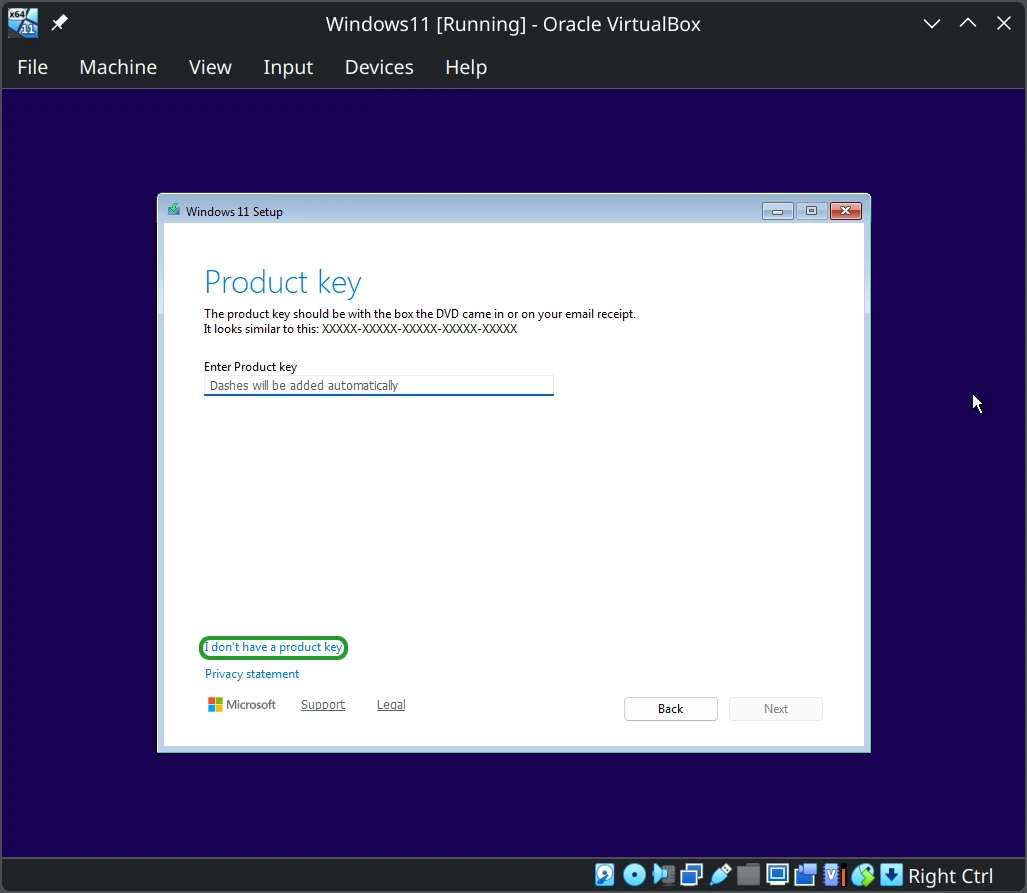
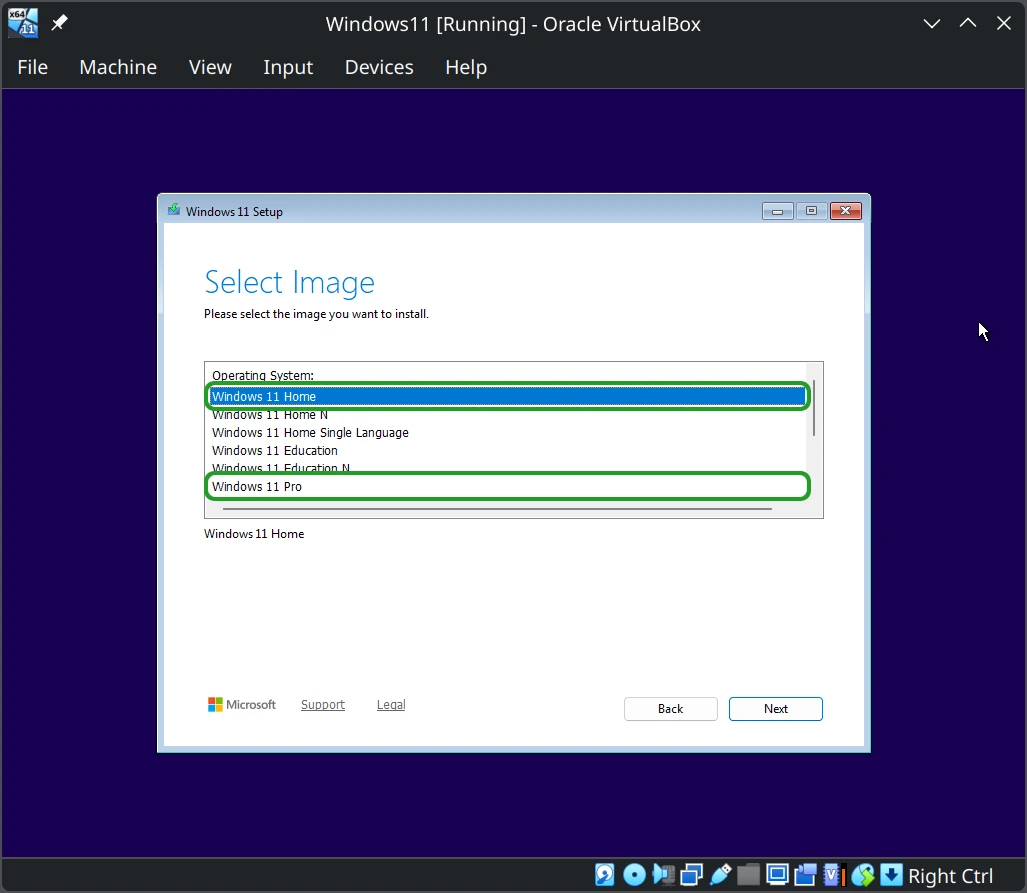
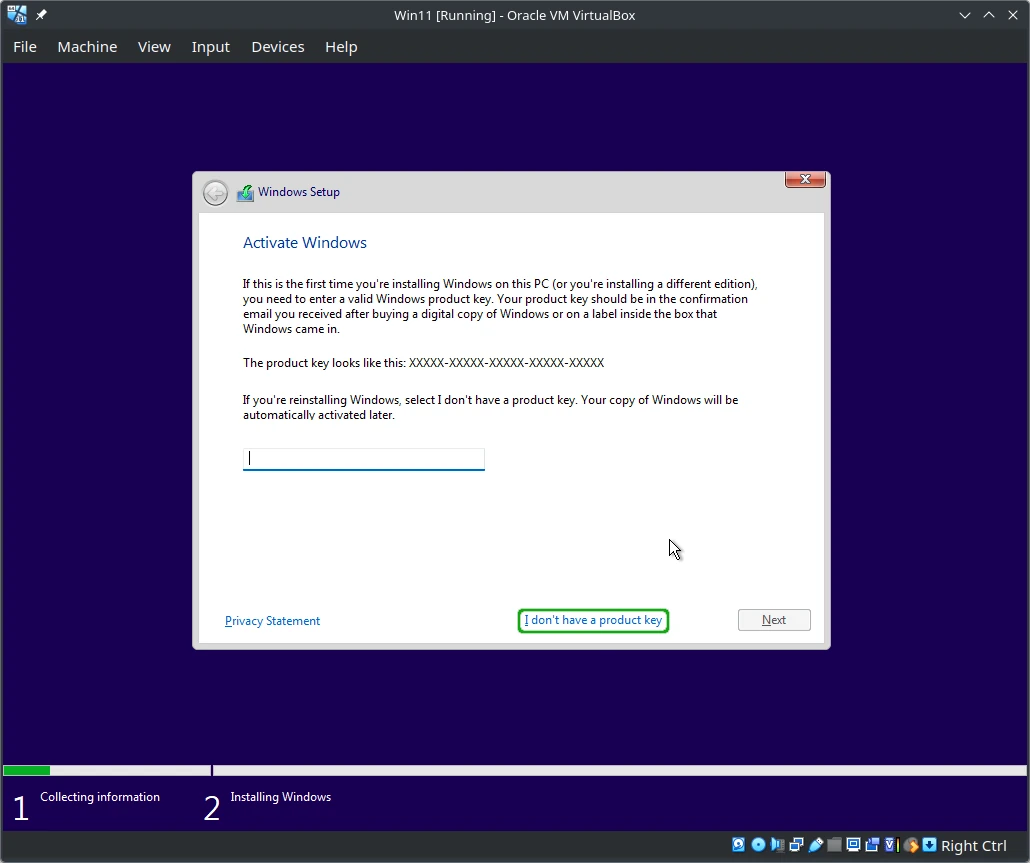
Step 1: Upon reaching the 'Activate Windows' screen (step 4 of Install W11), press SHIFTF10 to open a terminal window, then run 'regedit'. You may need to press the 'Back' button to get here if you've already hit the hardware requirements error.
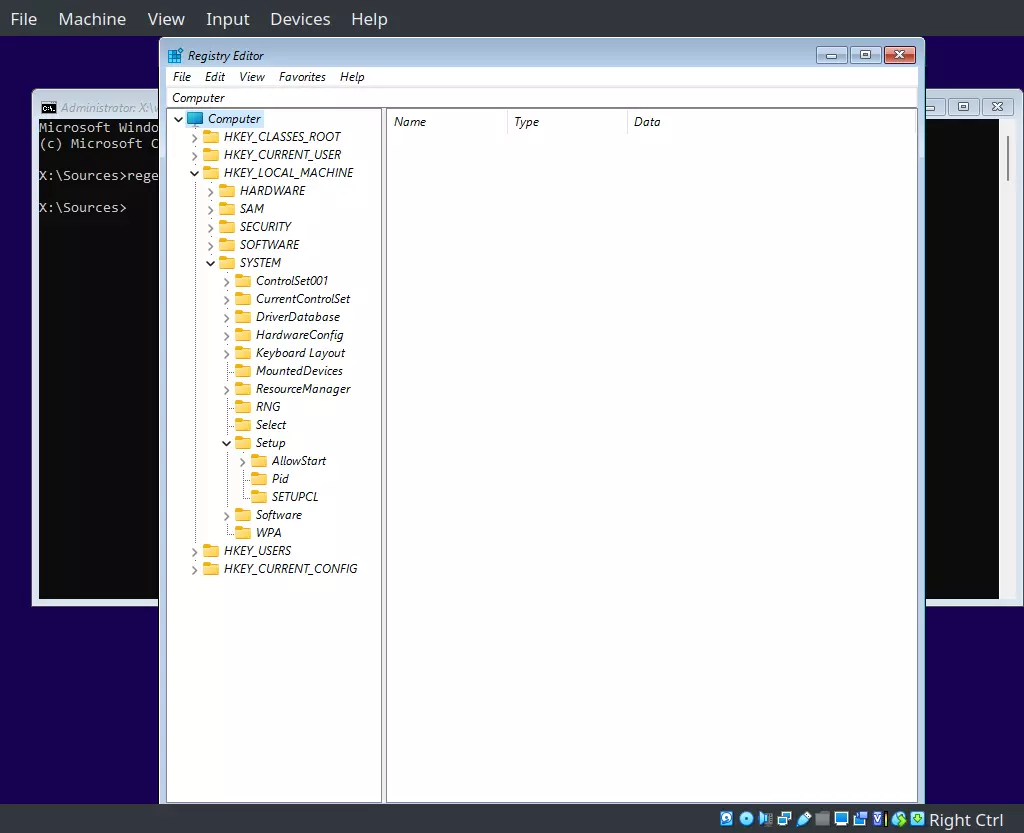
Step 2: Navigate to the HKEY_LOCAL_MACHINE\SYSTEM\Setup key.
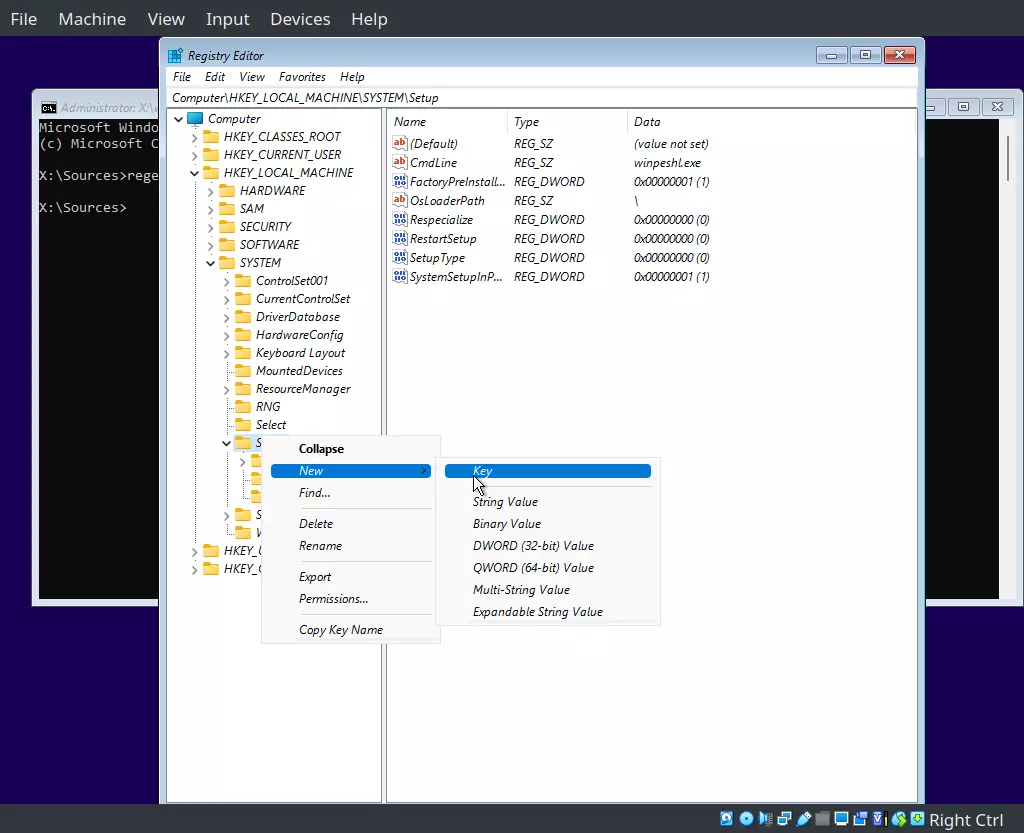
Step 3: Right-click the 'Setup' key and click New > Key, then name the new key 'LabConfig'.
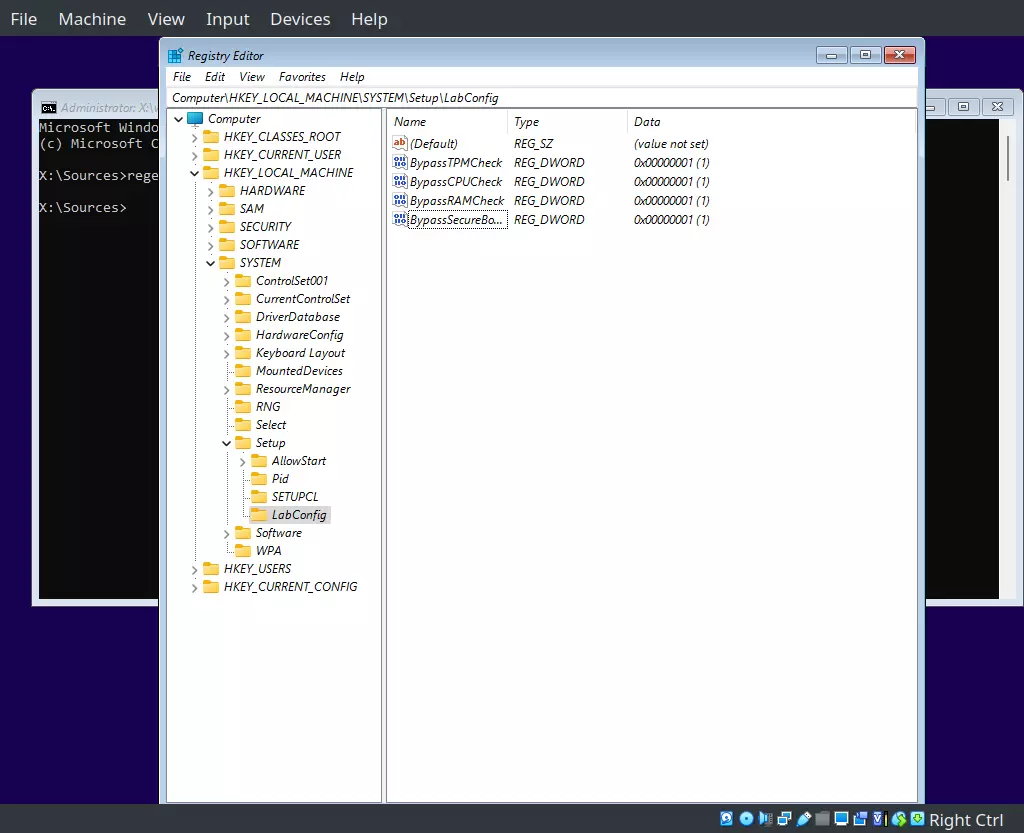
Step 4: Right-click the 'LabConfig' key you just made, then click New > DWORD (32-bit) Value. Name the new value 'BypassTPMCheck' and set its value to '1'.
Step 5: Create three more DWORD values, named 'BypassCPUCheck', 'BypassRAMCheck', and 'BypassSecureBootCheck'. Set each of these values to '1'.
Step 6: Close Registry Editor, then resume the Install W11 procedure starting from step 4. You should now be able to proceed with the installation.
⚠ IMPORTANT! If you are using the Windows 11 install ISO, version 25H2, the video below shows a procedure that may be required to set a local account. Otherwise, proceed to Step 1.
ISO version 25H2 guidance (Credit: Chris Titus).
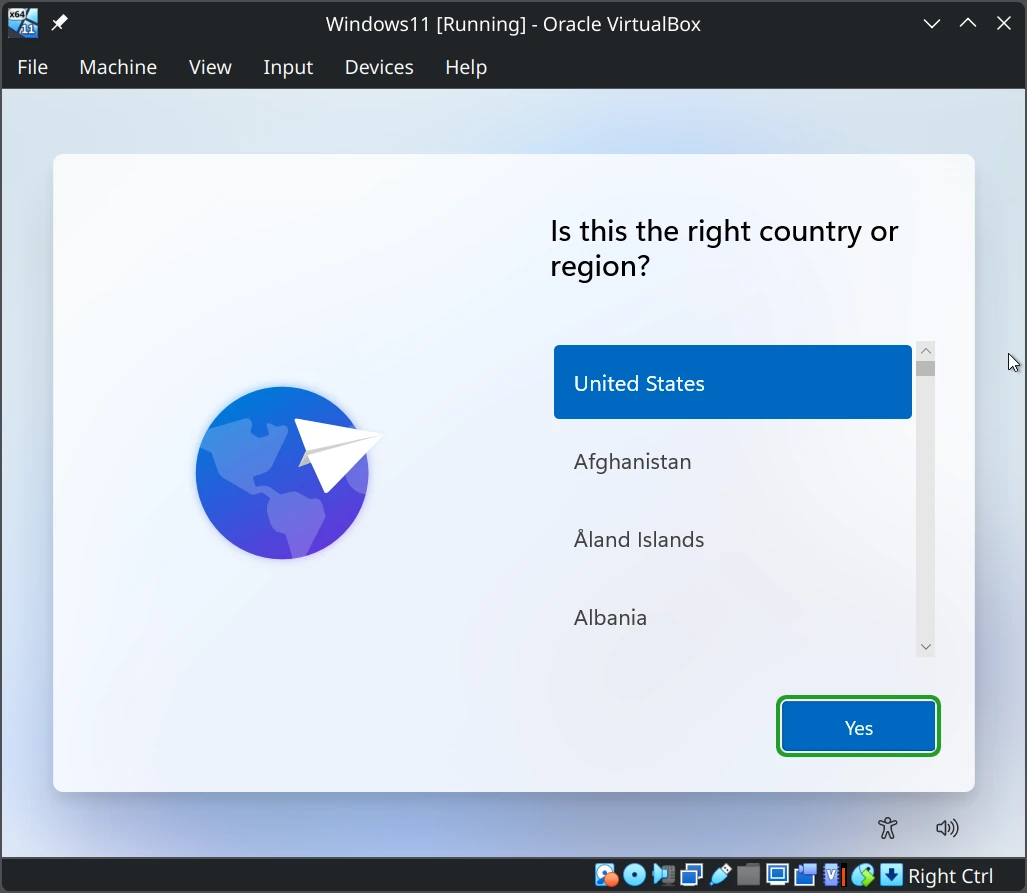
Step 1: Once the installation finishes and the VM reboots, select your country and click 'Yes'.
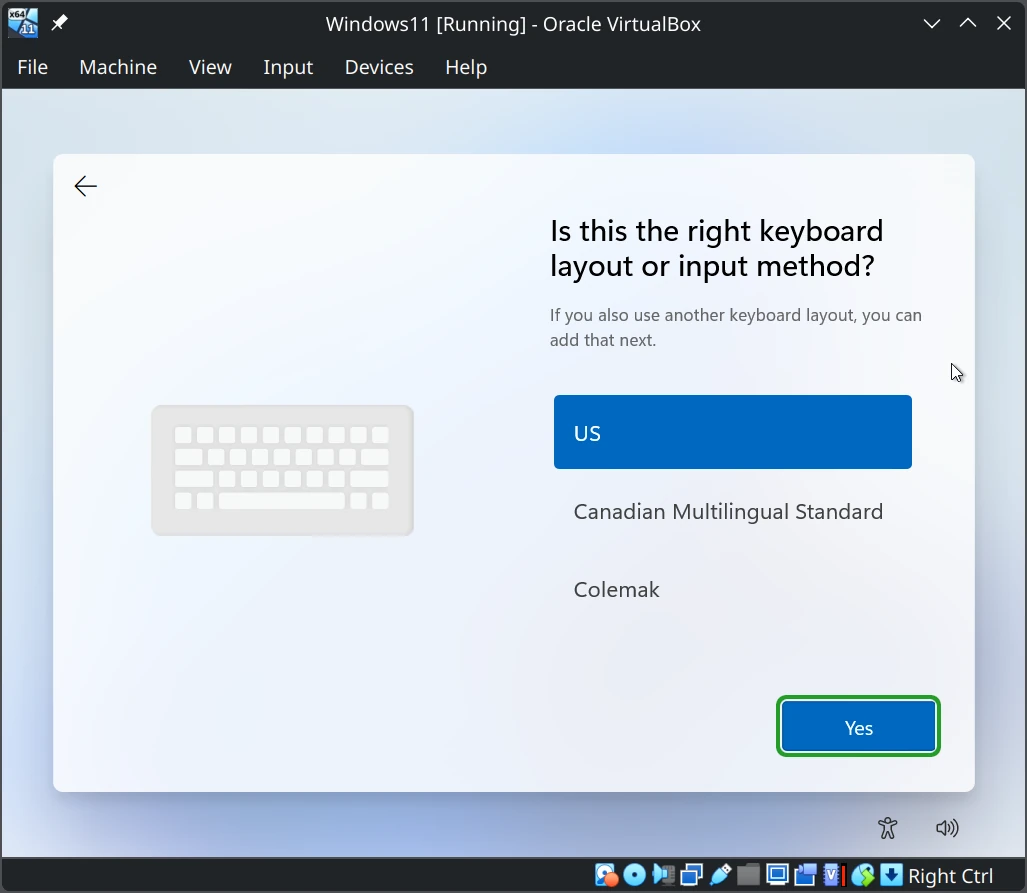
Step 2: Select your keyboard layout and click 'Yes'.
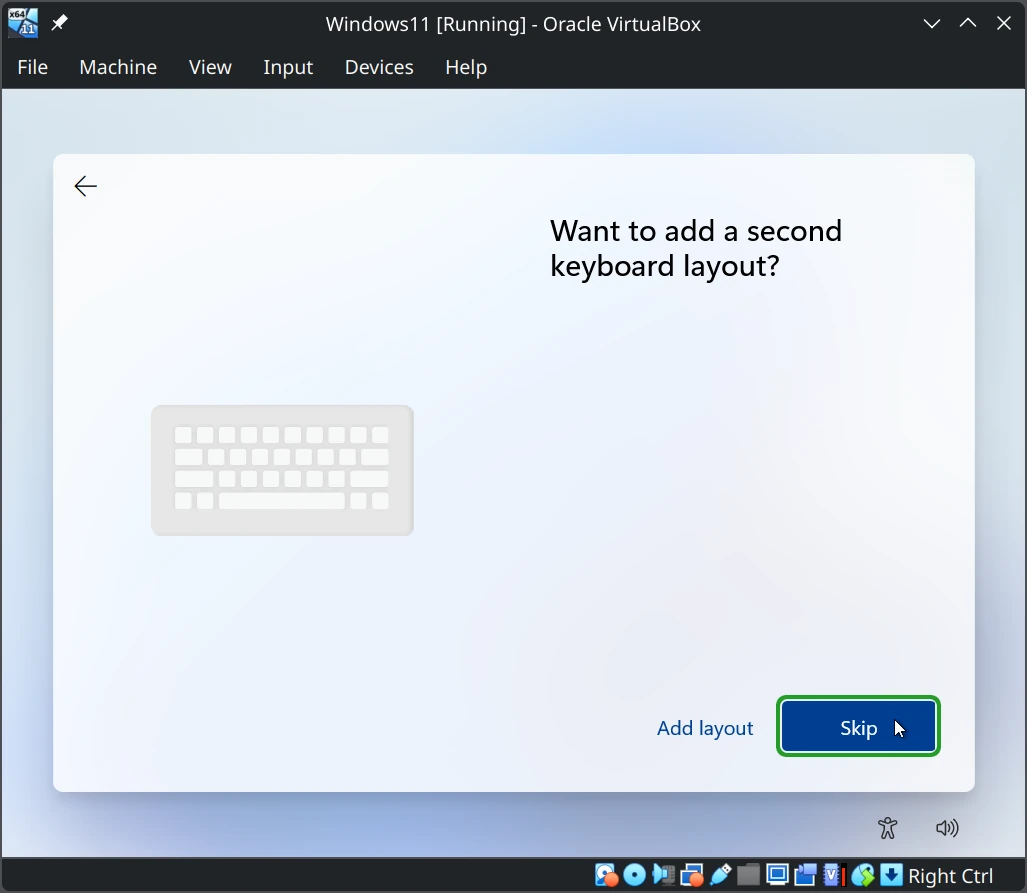
Step 3: Skip adding a second keyboard layout. You can enable additional layouts if needed.
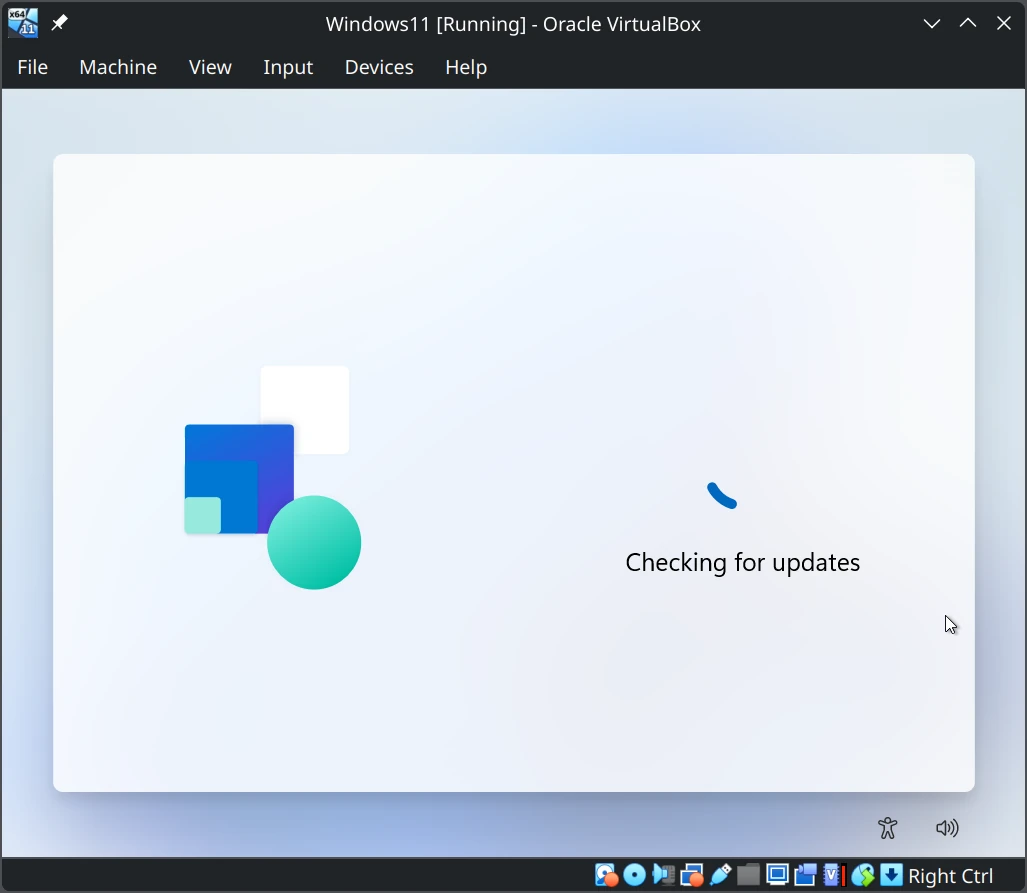
Step 4: Wait for updates to be installed. The VM will automatically reboot.
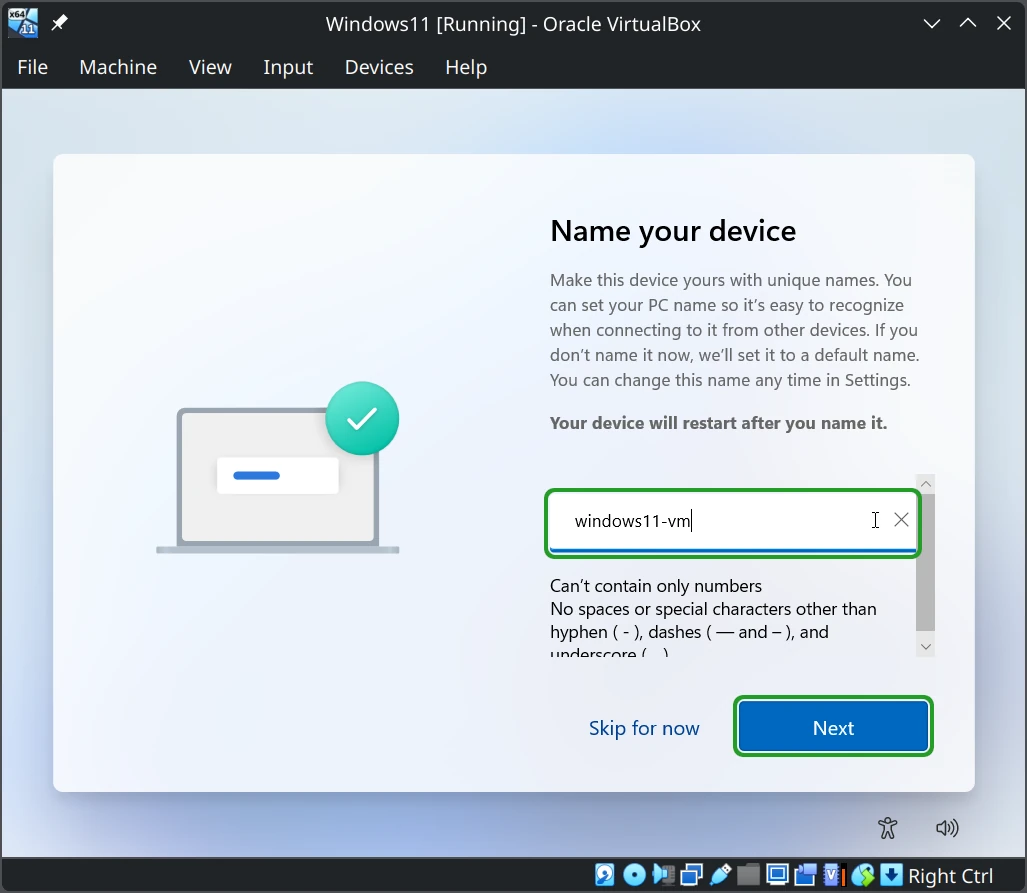
Step 5: Choose a name for the VM and click 'Next'.
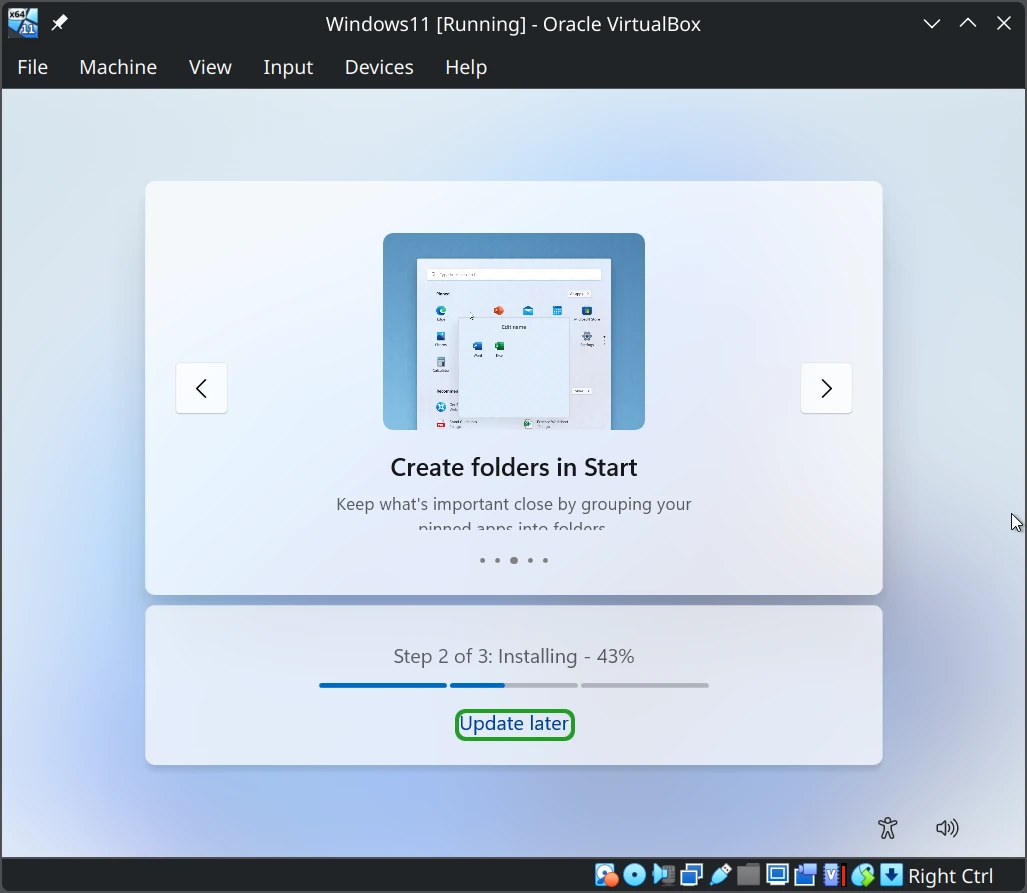
Step 6: The system will install more updates. Clicking ‘update later’ allows you to skip these for now.
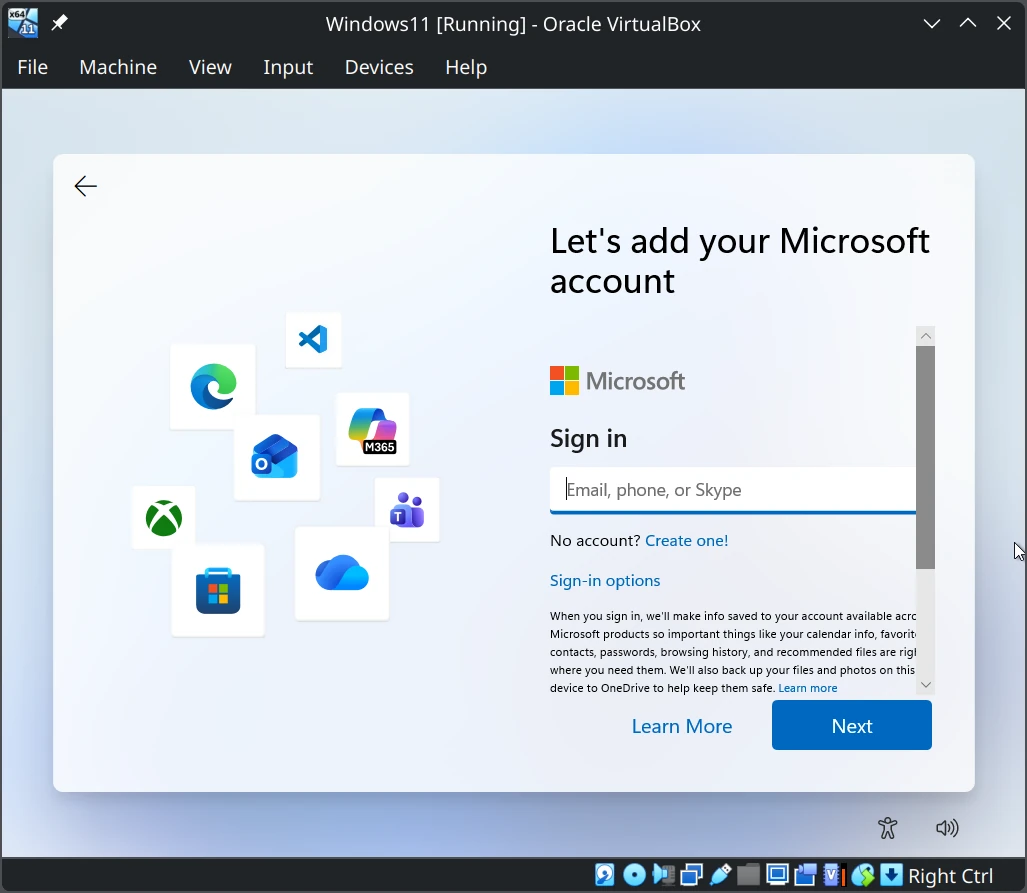
Step 7: You will receive a prompt to sign in using a Microsoft account. You can do this, but there are ways around it to use Windows 11.
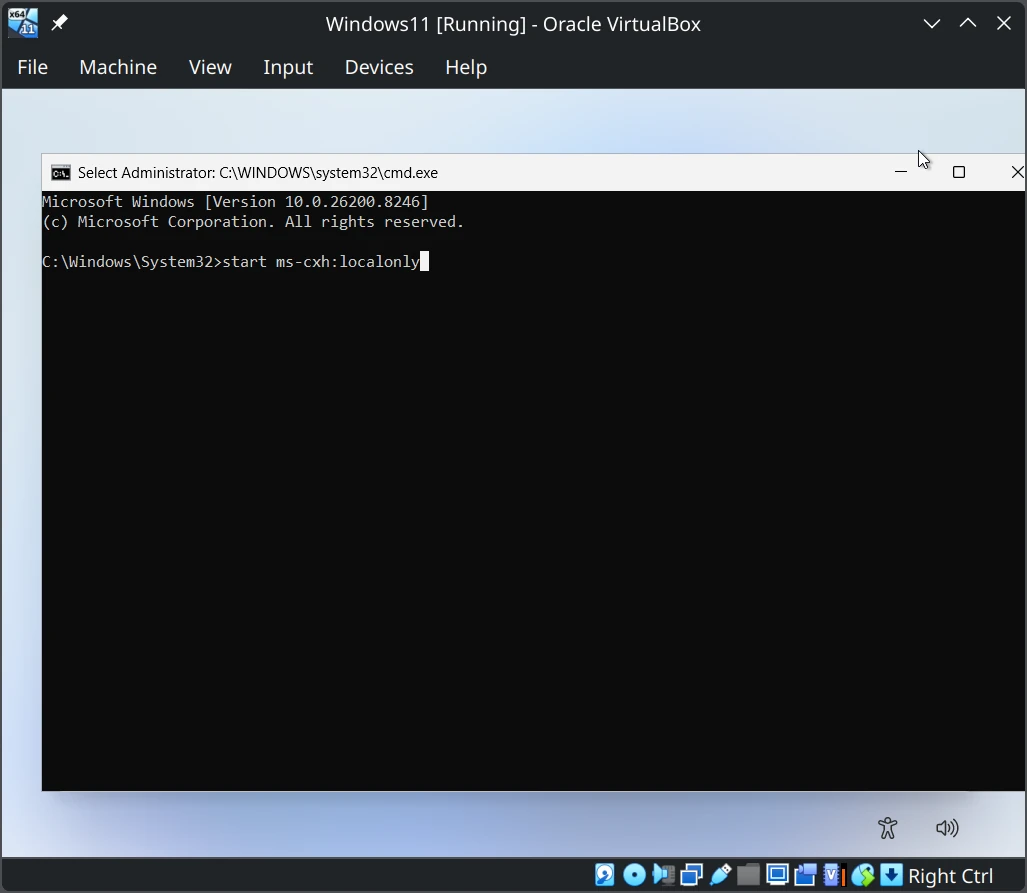
Step 8: Press SHIFT+F10 to open the command line. Then type start ms-cxh:localonly and press ENTER.
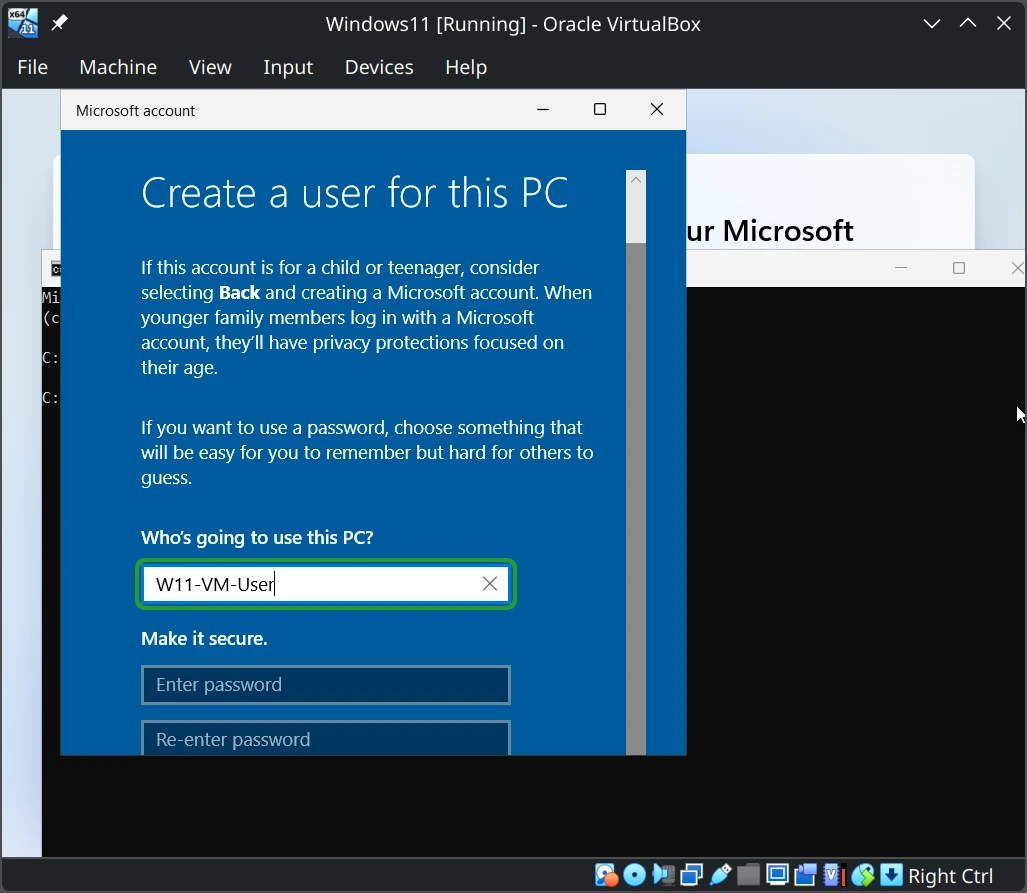
Step 9: A user creation window will show up. Choose a username for the VM. A password is optional.
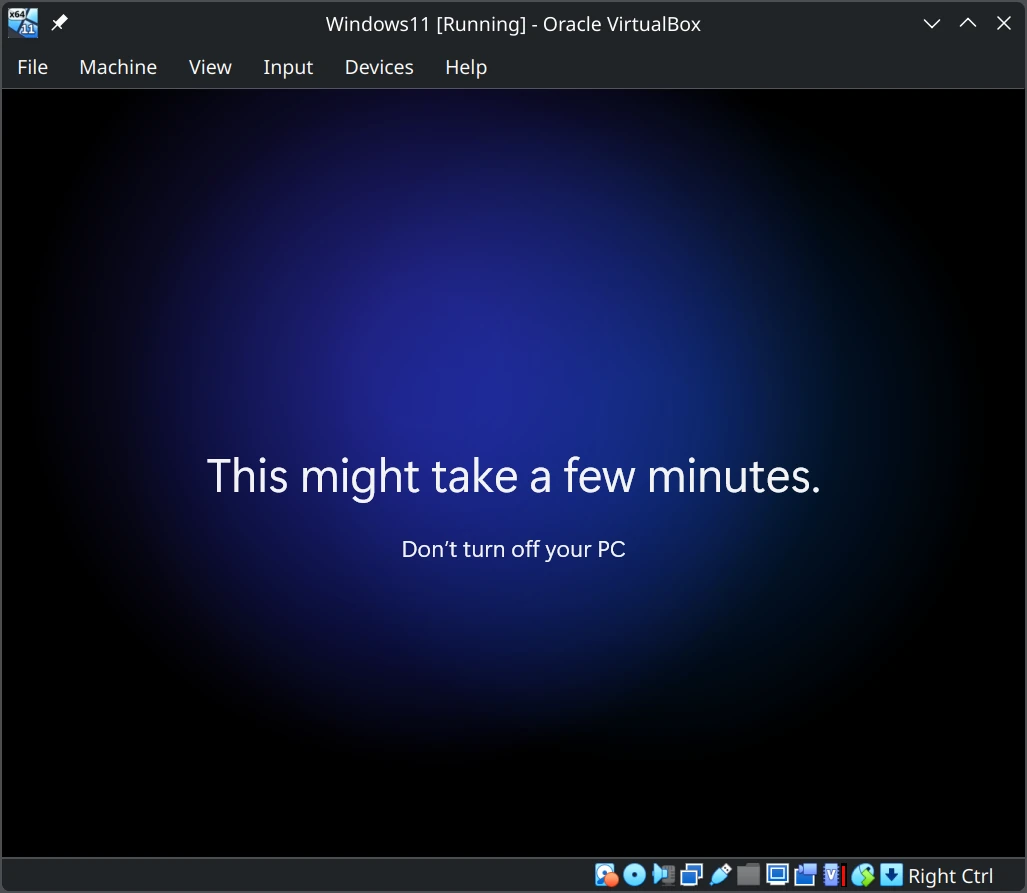
Step 10: Wait for Windows to finish setup.
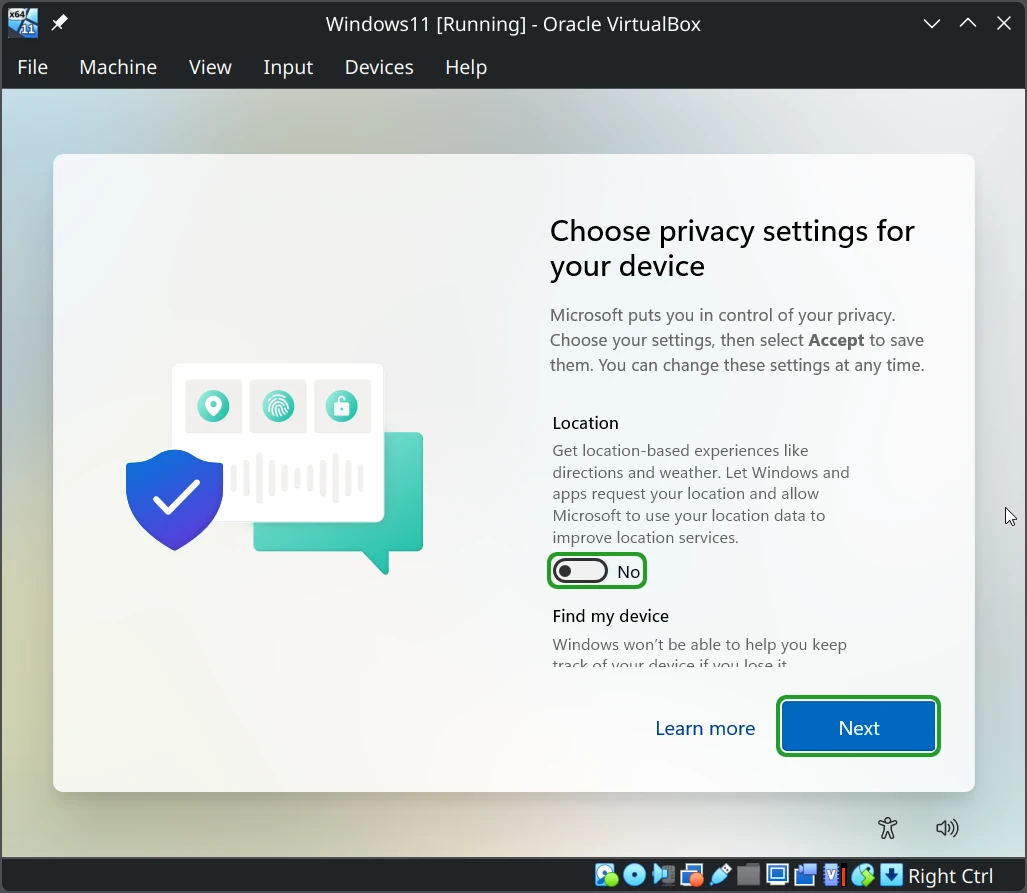
Step 11: Turn off all privacy-invasive features and click 'Accept'.
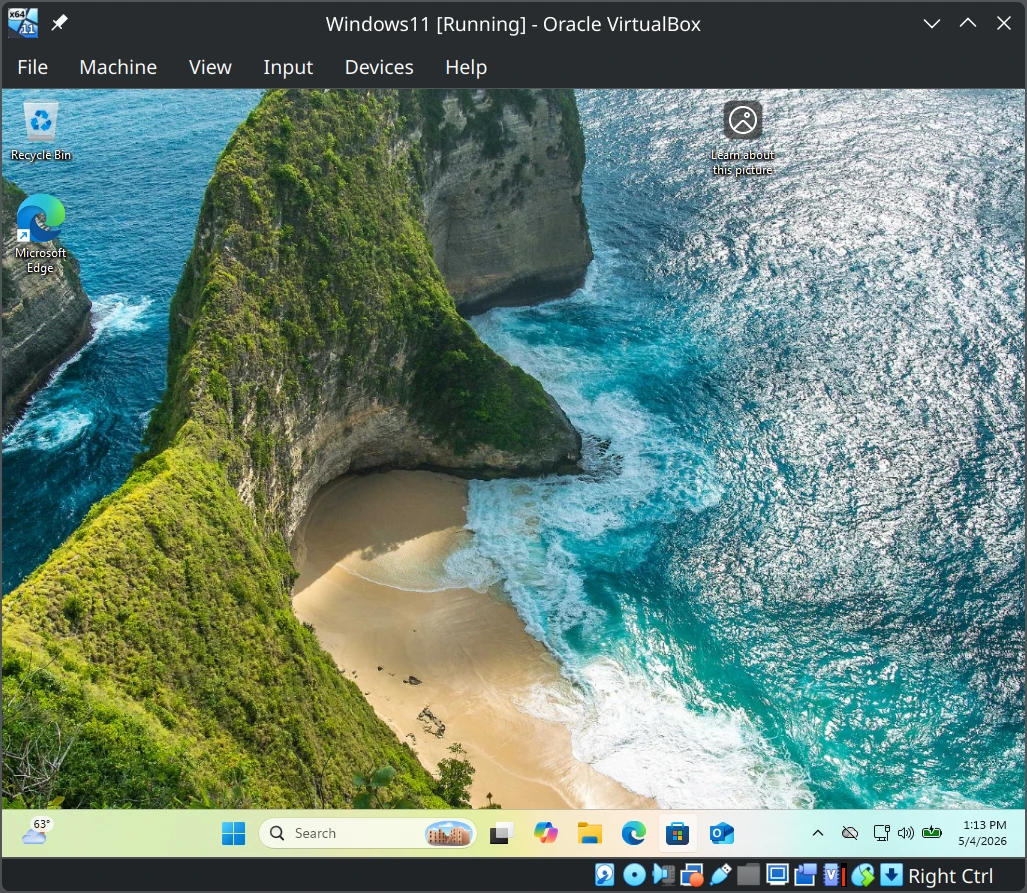
Step 12: Verify that the Windows desktop appears as shown.
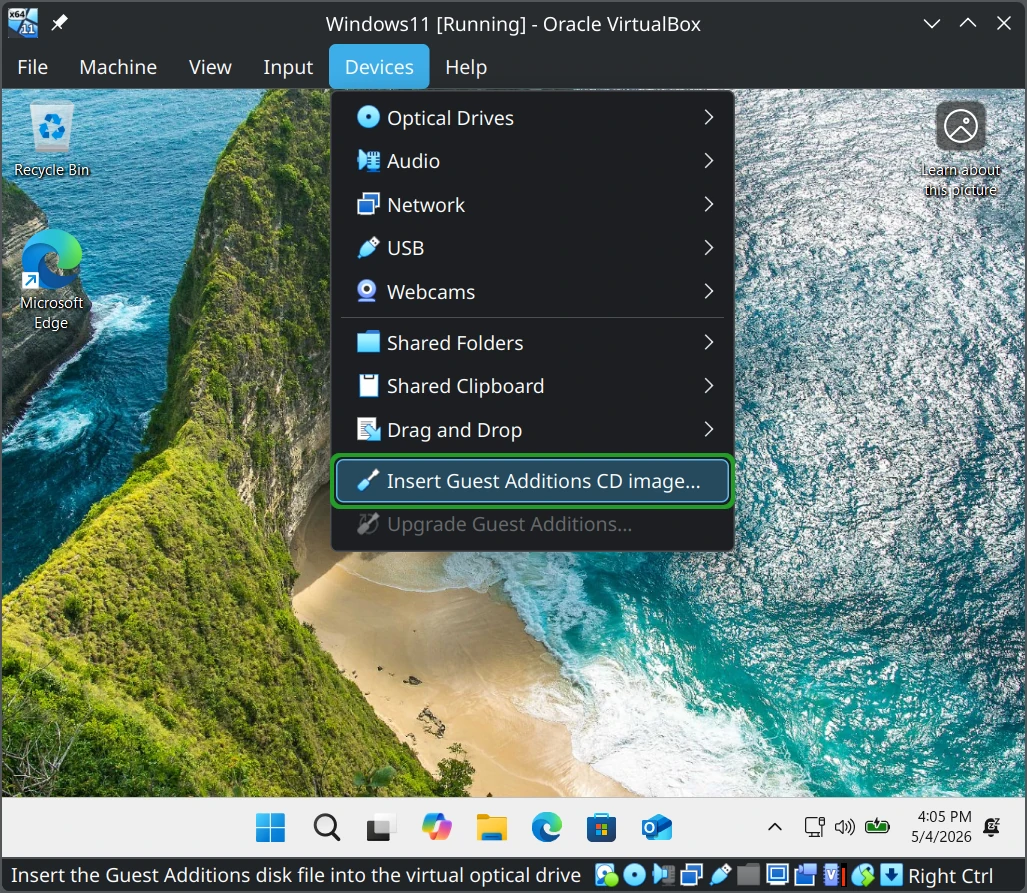
Step 13: Click 'Devices > Insert Guest Additions CD image...'.
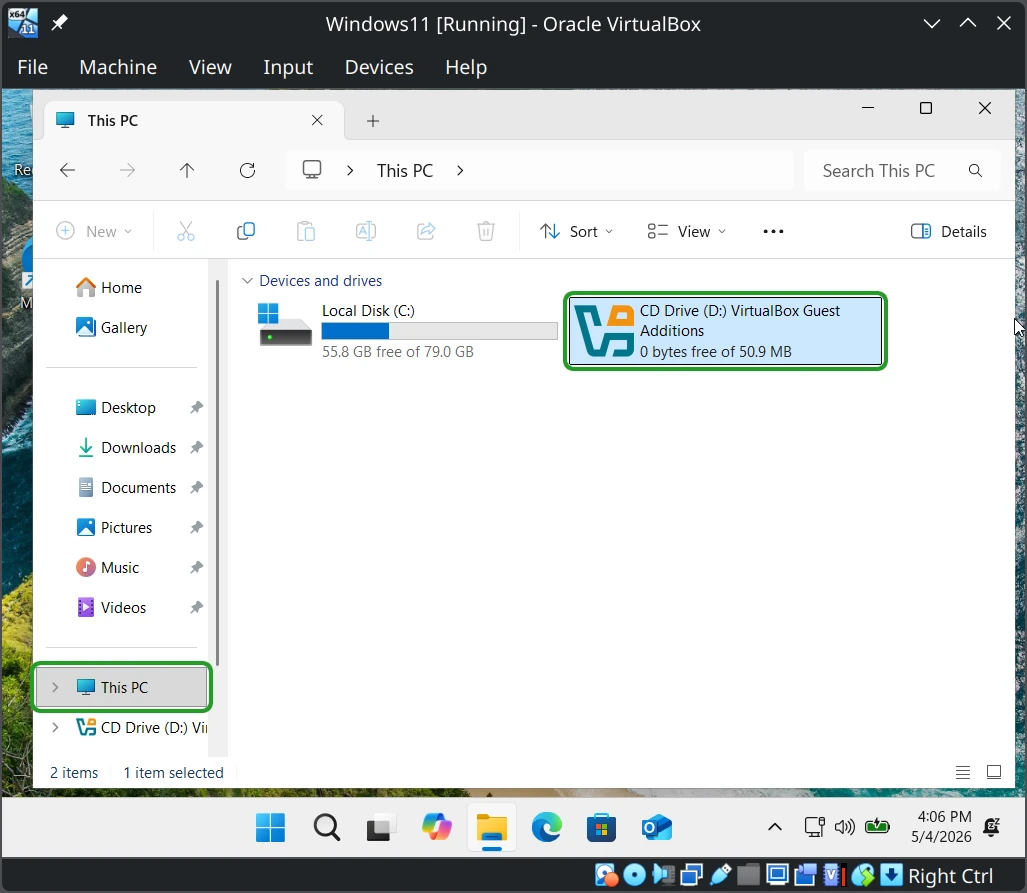
Step 14: Click 'File Manager > This PC', and double-click 'VirtualBox Guest Additions'.
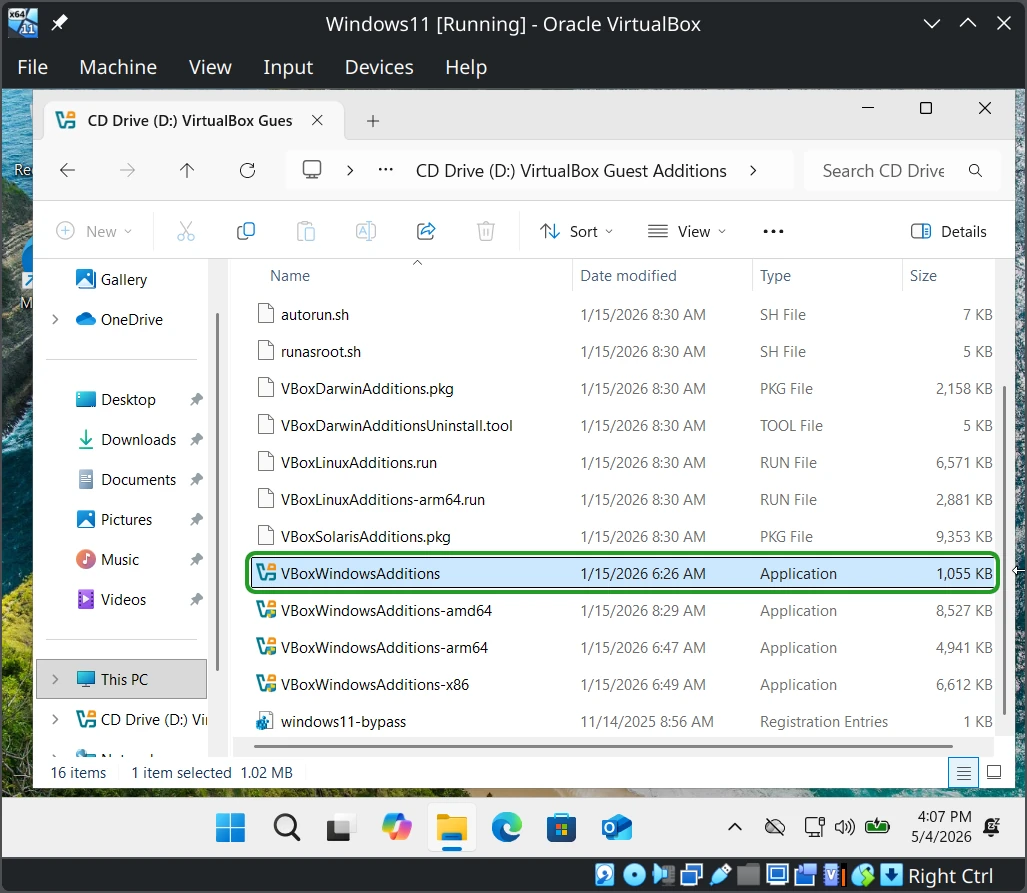
Step 15: Double-click 'VBoxWindowsAdditions'.
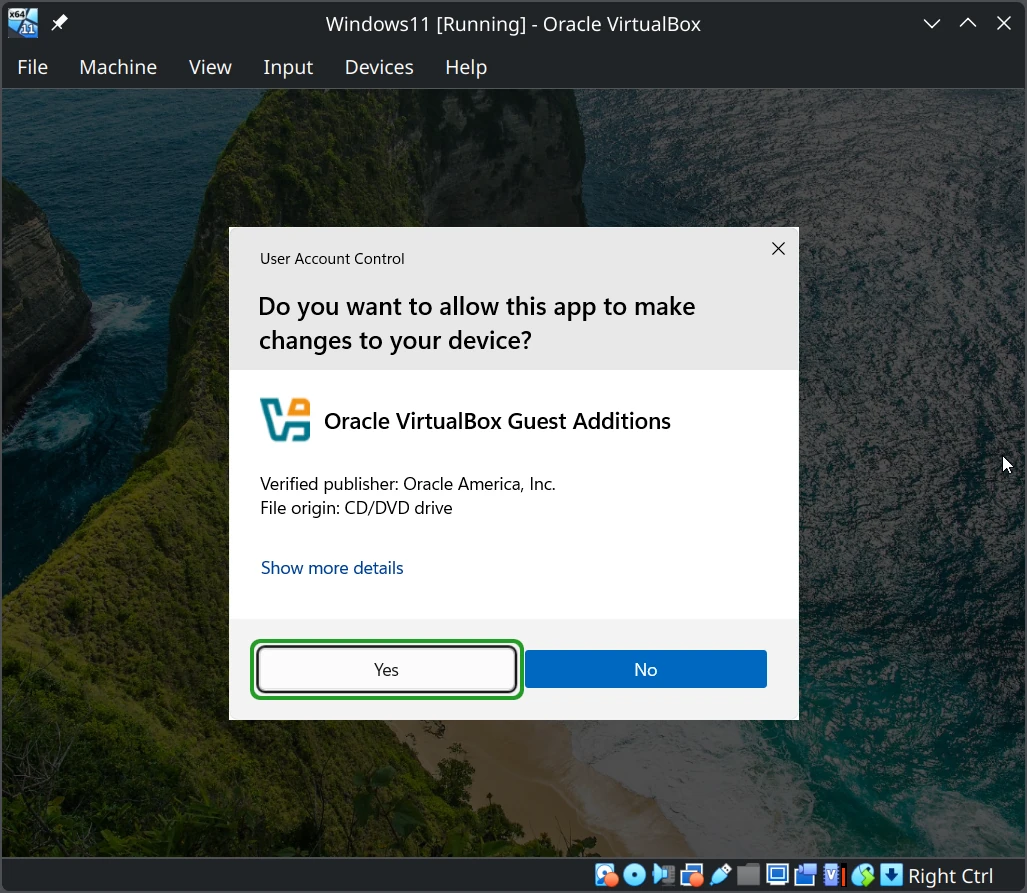
Step 16: At the User Account Control prompt, click 'Yes'.
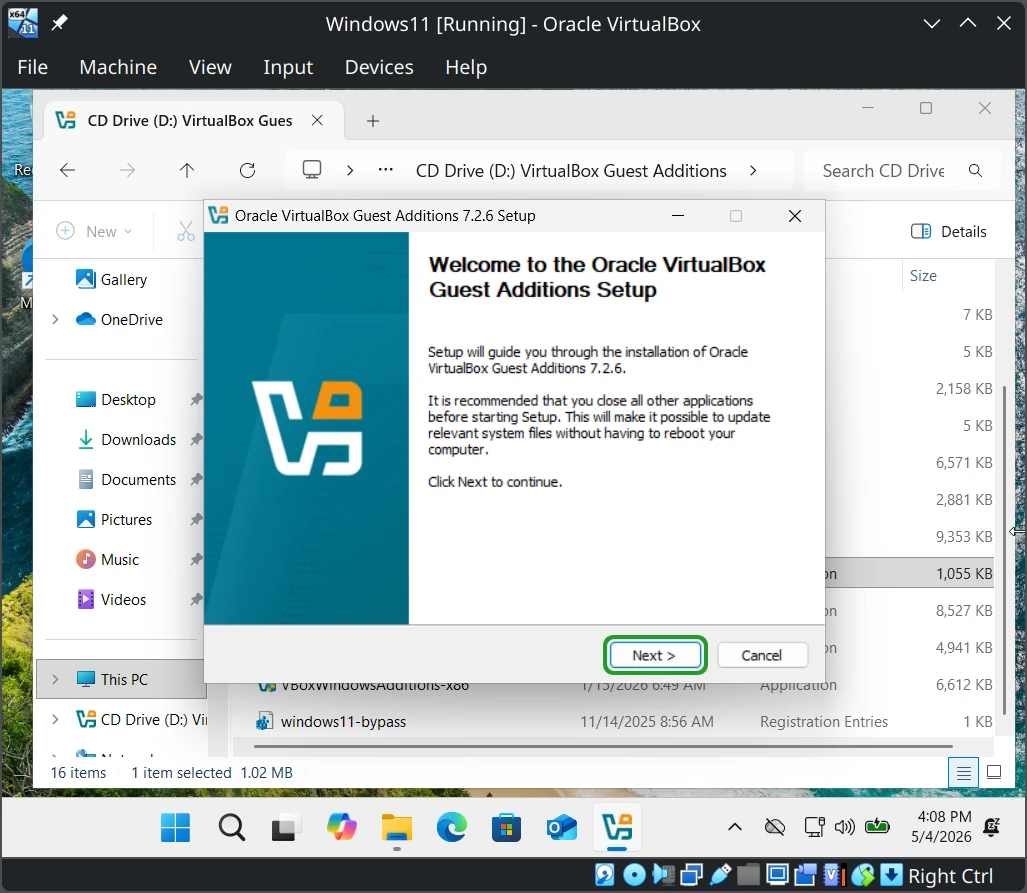
Step 17: In the installation wizard, click 'Next'.
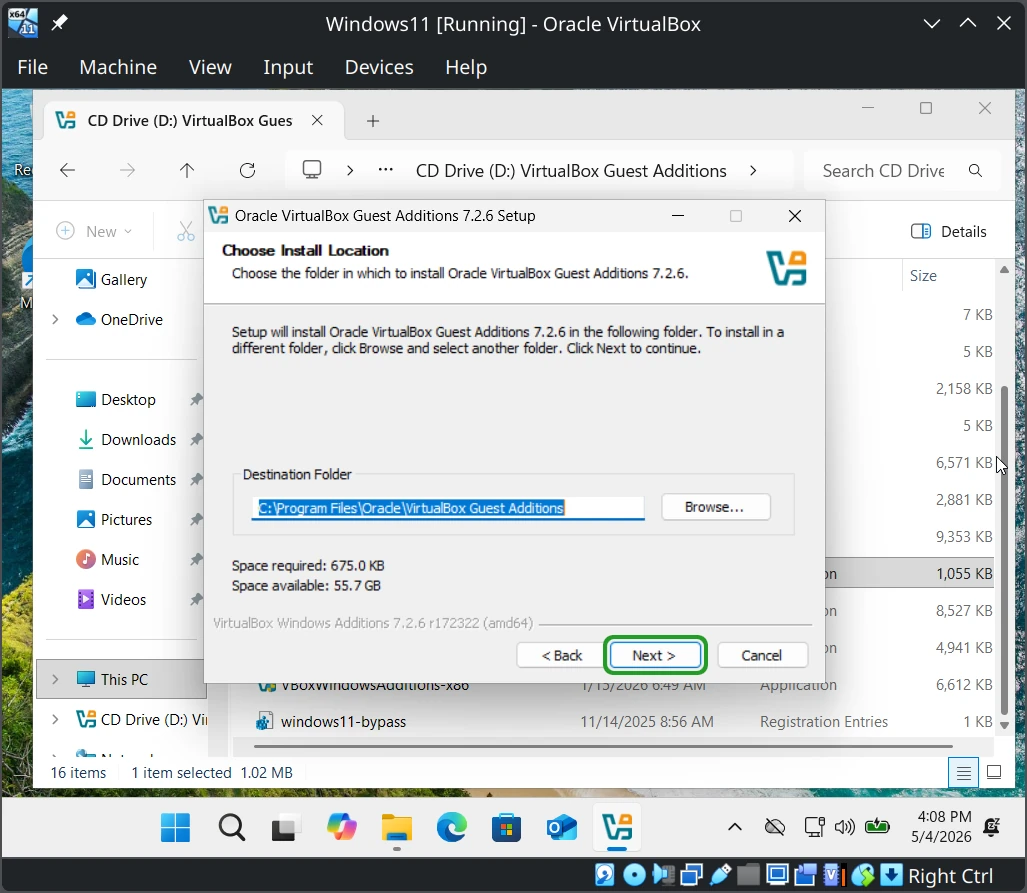
Step 18: Click 'Next' on the install screen to accept the default installation location.
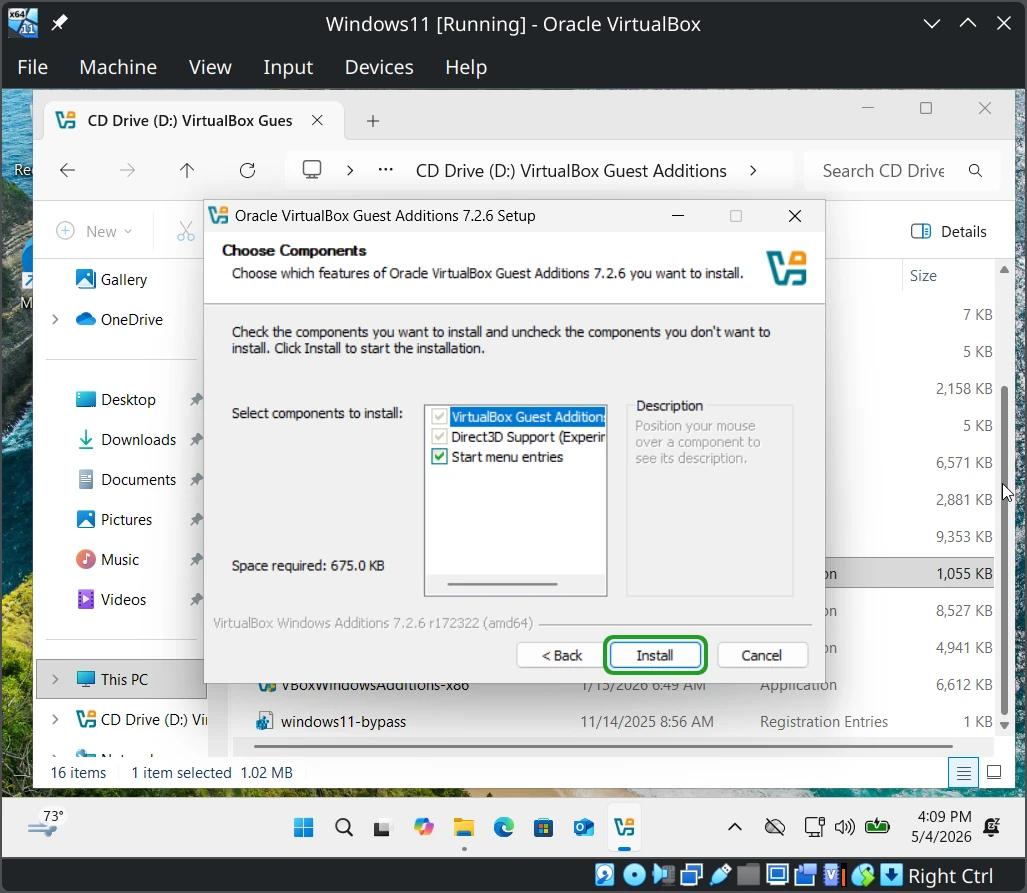
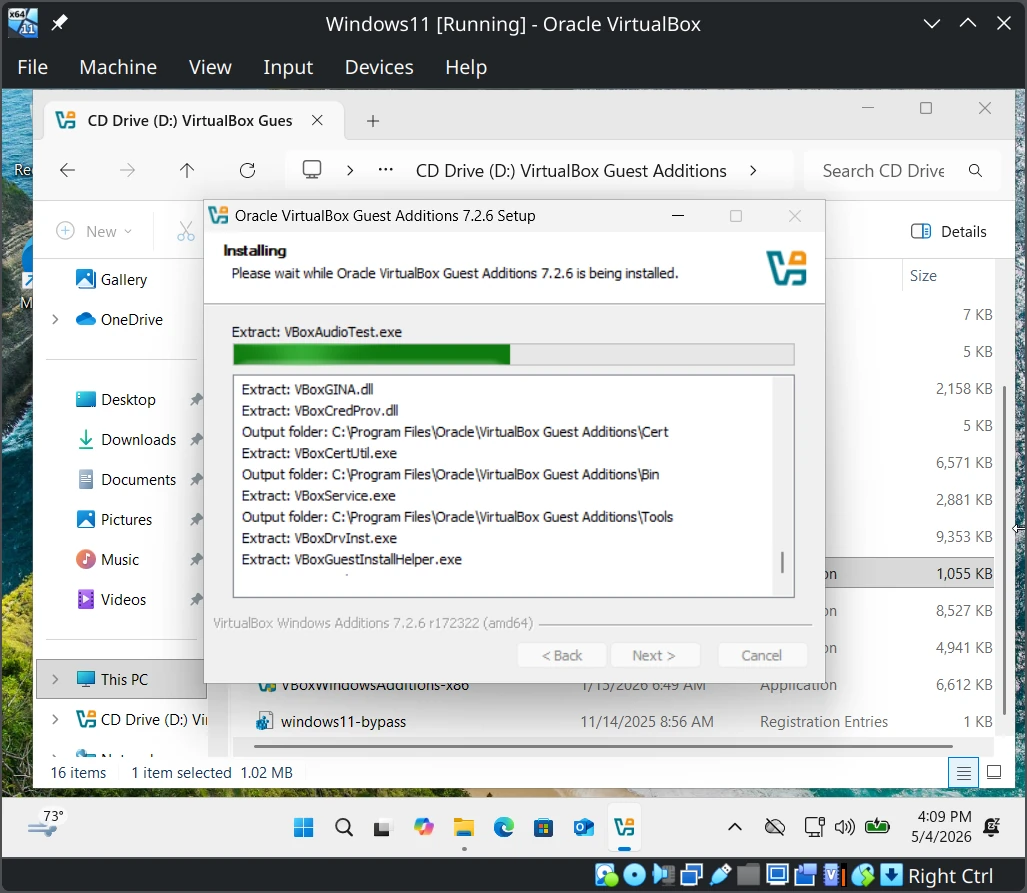
Step 19: On the 'Choose Components' screen, click 'Install'.
Step 20: Wait for the installation to finish. This usually takes less than a minute.
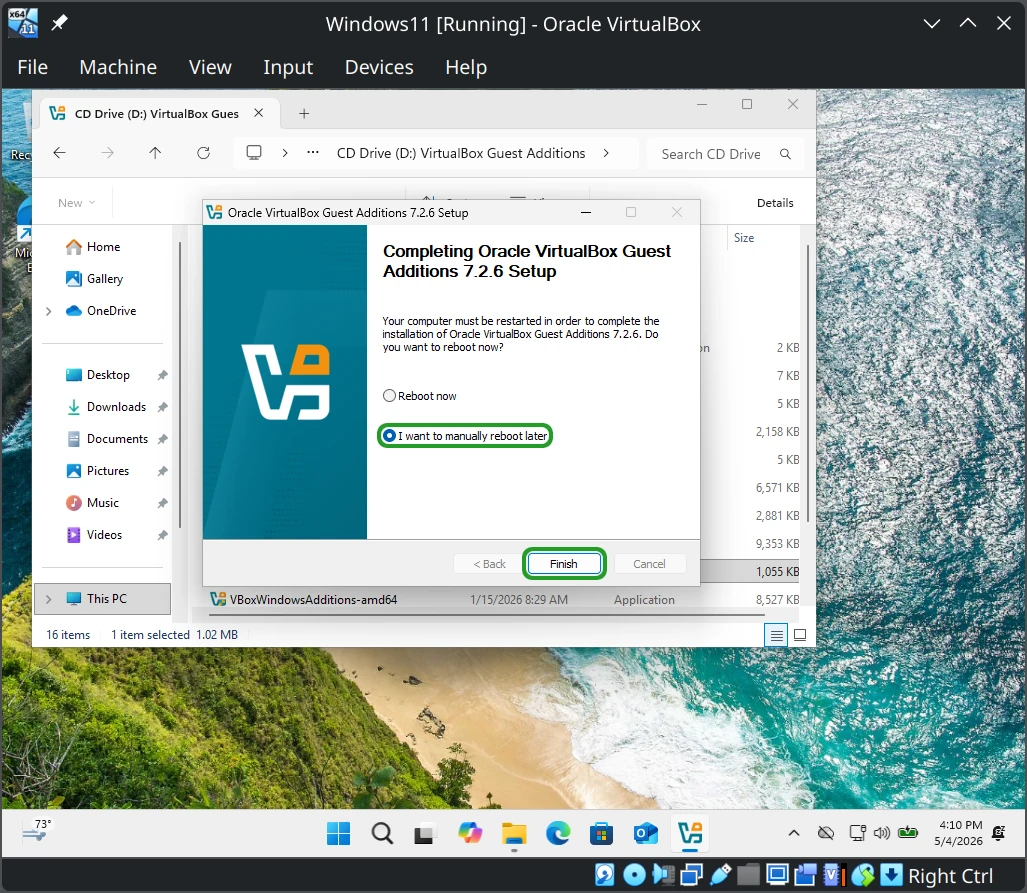
Step 21: After finishing the installation, click 'I want to manually reboot later', then click 'Finish'.
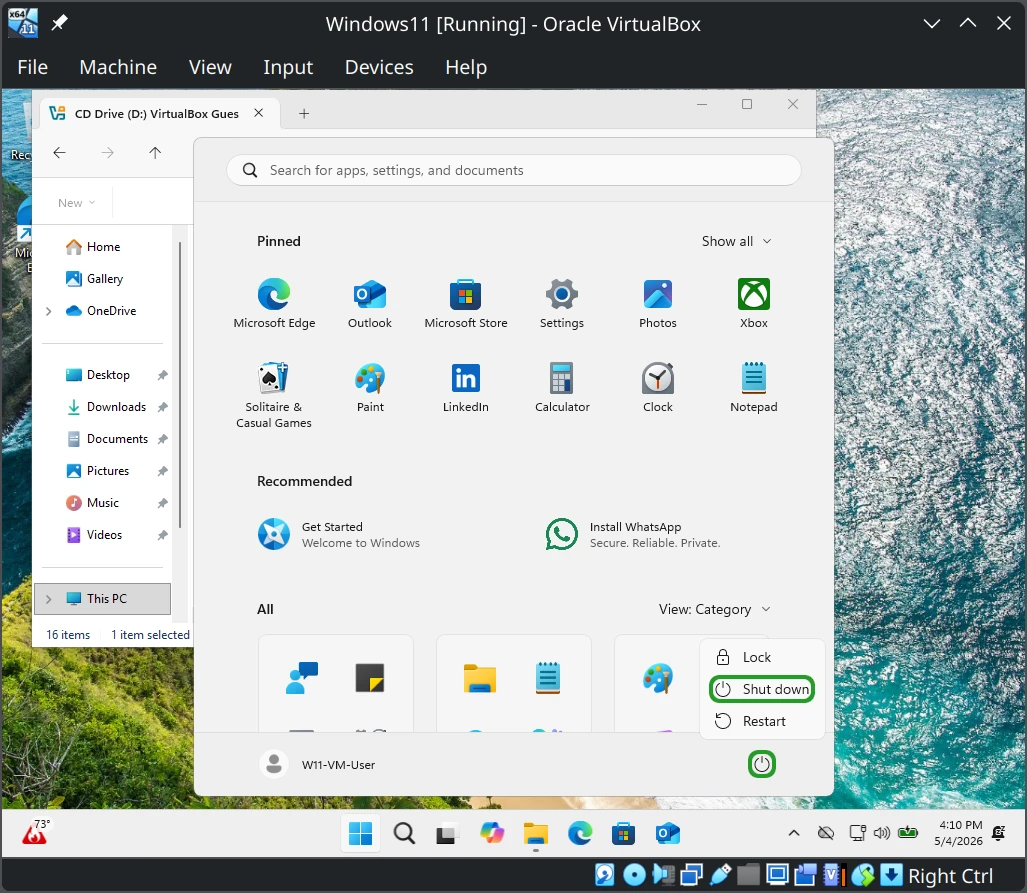
Step 22: Click 'Start Menu > Power > Shut Down'.
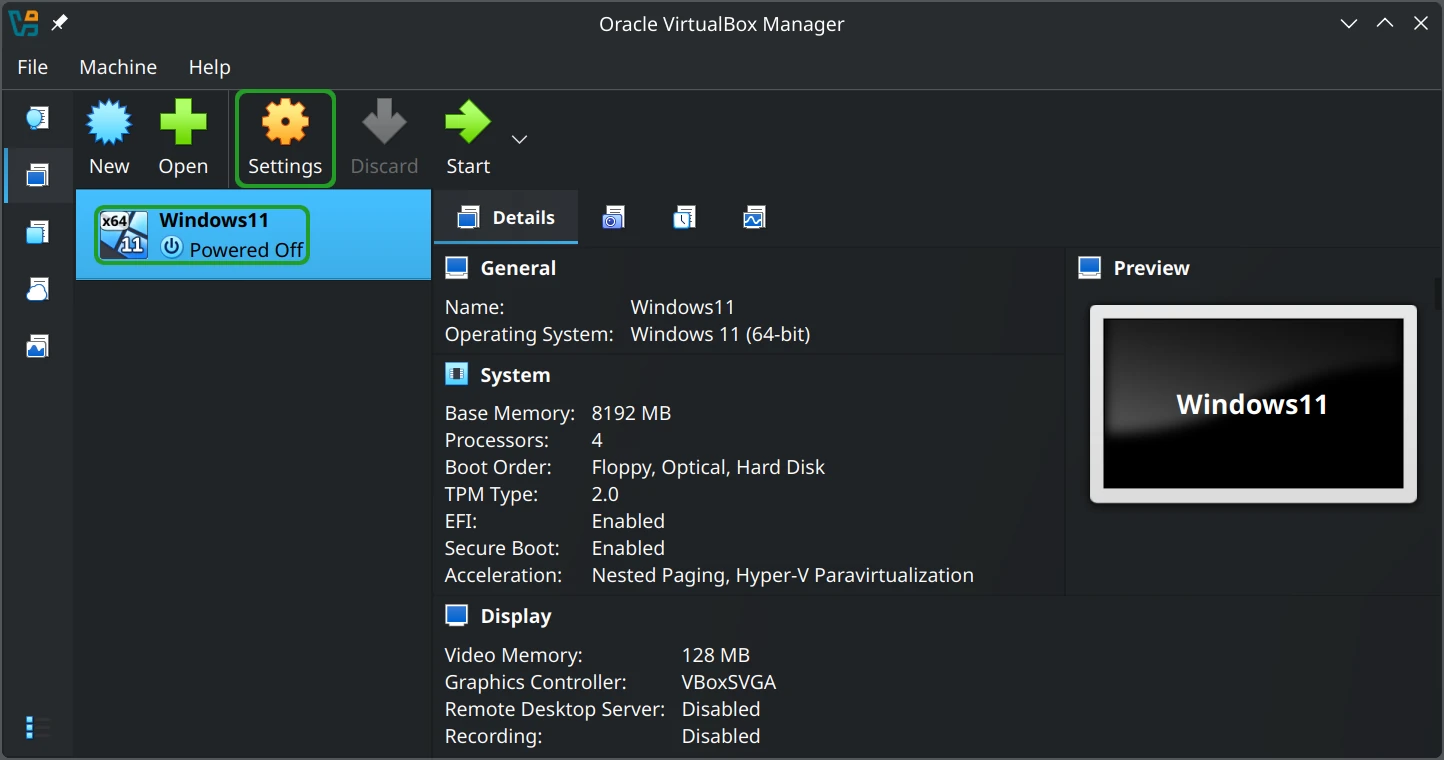
Step 23: In the VirtualBox manager window, ensure the Windows 11 VM is selected, and click 'Settings'.
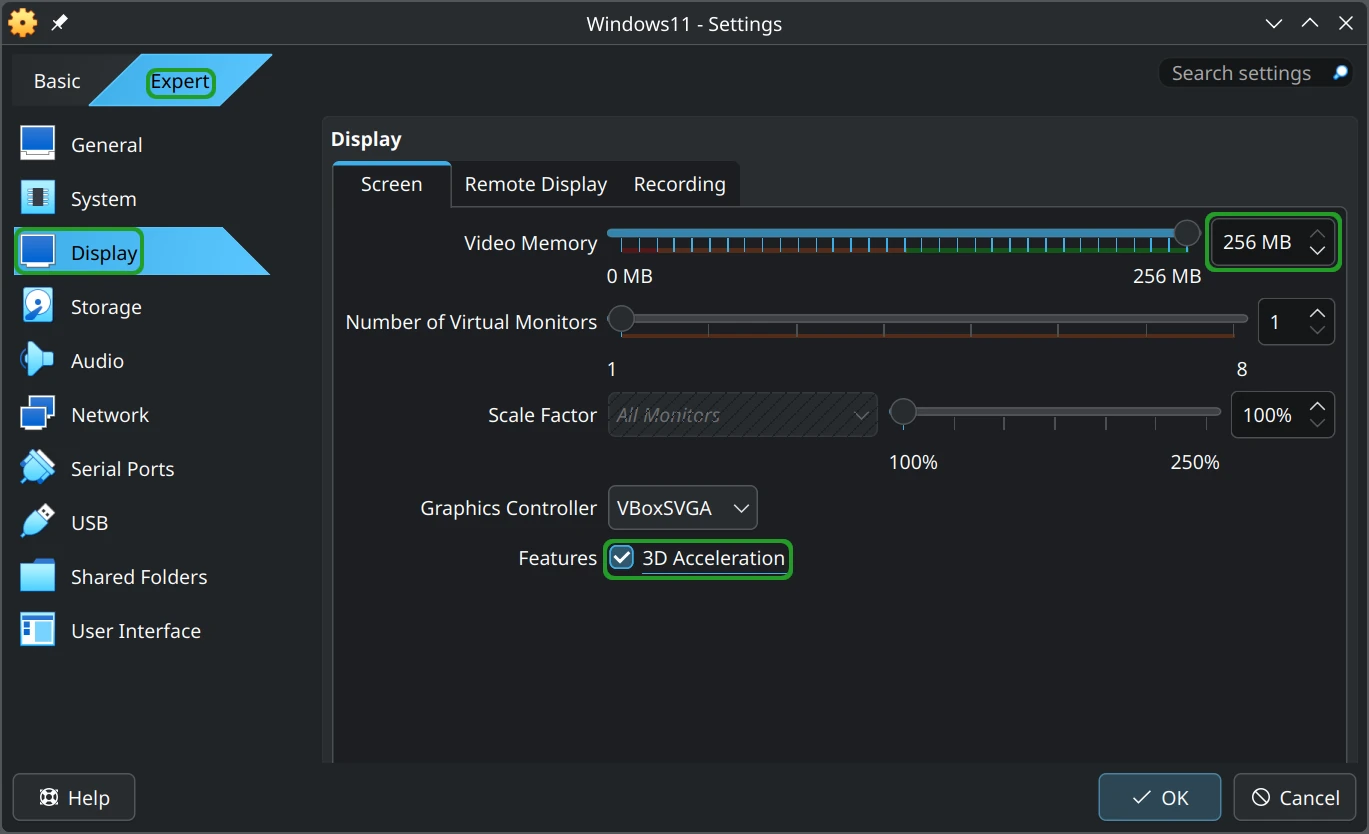
Step 24: Under 'Expert' settings, click 'Display', then check the 'Enable 3D Acceleration' box. Increase video memory to 256 MB, then click 'OK'.
Step 25: Click 'Start' to launch the VM again.
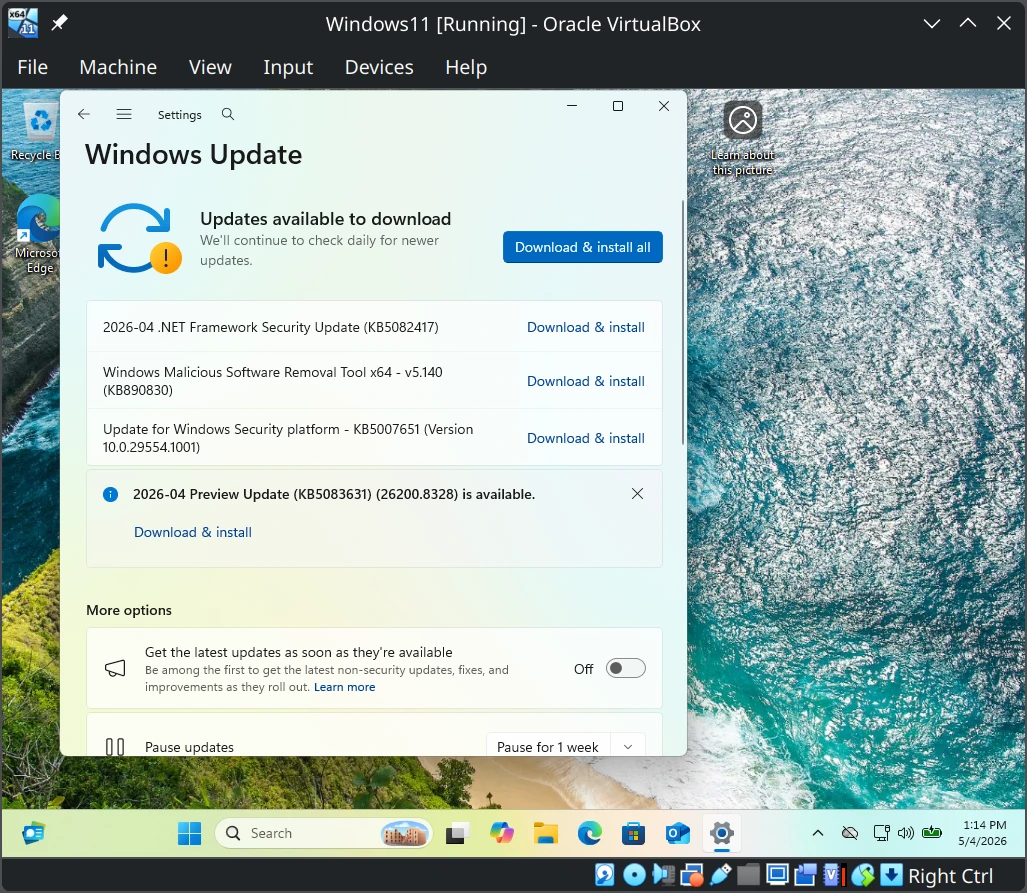
Step 26: Open Settings to install OS updates and reboot.
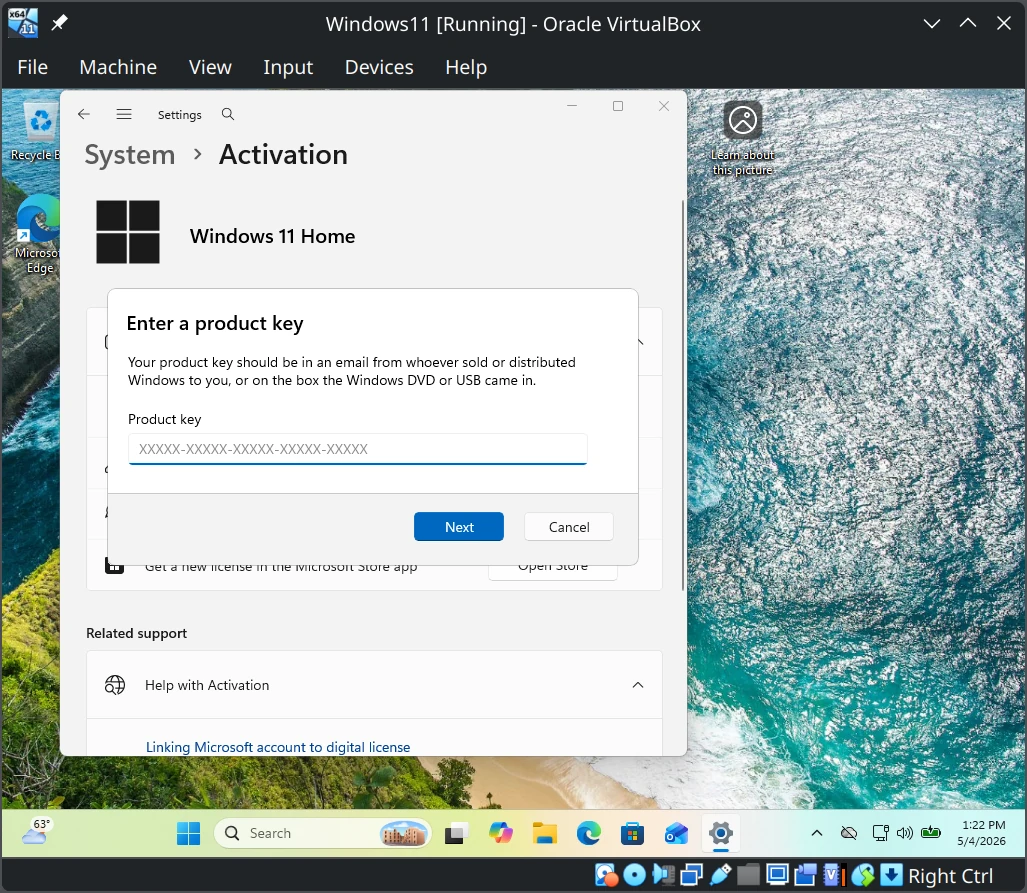
Step 27: In Settings, find the 'Activation' screen under the 'Systems' section. Click 'Change product key' and enter your product key to activate Windows.
A: One may use virtual machines to run applications that are not available on other Operating Systems, as illustrated here. However, one can also use them to test system and package development.
Q: I'm having trouble getting Windows 11 (my guest OS) to show at the resolution I prefer. What can I do?
A: Make sure you have installed the Guest Additions, as discussed above. You should then be able to set the resolution for your VM either by resizing the VM window or setting the resolution in the guest OS. Another suggestion we received is that you may provide a hint to the guest OS: after starting a VM and when its window first appears, select [ File ] > [ Preferences ] > [ Display ], and change [ Set Maximum Guest Screen Size ] to [ Hint ].
Q: I'm using a VirtualBox Virtual Machine (VM), but don't see my network printers. What can I do?
A: In VirtualBox, select your VM, then adjust [ Settings ] > [ Network ] tab and change the [ Attached To ] selector to [ Bridged Adaptor ] and click [ OK ]. The VM OS should now be able to discover the network printers.
We try hard to provide a useful solution validated by professionals. However, we cannot anticipate every situation, and therefore cannot guarantee this procedure will work for your needs. Always backup your data and test the solution to determine the correct procedure for you.
THIS SOLUTION IS PROVIDED BY THE COPYRIGHT HOLDERS AND CONTRIBUTORS “AS IS” AND ANY EXPRESS OR IMPLIED WARRANTIES, INCLUDING, BUT NOT LIMITED TO, THE IMPLIED WARRANTIES OF MERCHANTABILITY AND FITNESS FOR A PARTICULAR PURPOSE ARE DISCLAIMED. IN NO EVENT SHALL THE COPYRIGHT OWNER OR CONTRIBUTORS BE LIABLE FOR ANY DIRECT, INDIRECT, INCIDENTAL, SPECIAL EXEMPLARY, OR CONSEQUENTIAL DAMAGES (INCLUDING, BUT NOT LIMITED TO, PROCUREMENT OF SUBSTITUTE GOODS OR SERVICES; LOSS OF USE, DATA, OR PROFITS; OR BUSINESS INTERRUPTION) HOWEVER CAUSED AND ON ANY THEORY OF LIABILITY, WHETHER IN CONTRACT, STRICT LIABILITY, OR TORT (INCLUDING NEGLIGENCE OR OTHERWISE) ARISING IN ANY WAY OUT OF THE USE OF THIS SOLUTION, EVEN IF ADVISED OF THE POSSIBILITY OF SUCH DAMAGE.
 VirtualBox Installation
 Download Windows 11 ISO